When to use
- You need to send a proactive message to a single contact (not in bulk)
- You want to open a ticket on the agent's initiative, outside the usual channel
- You want to send a WhatsApp template or a proactive email starting from the contact
Prerequisites
- Be an administrator (no need to be assigned to an inbox) or a supervisor / agent / assistant assigned to the corresponding inbox
- For WhatsApp: have a template approved by Meta — see How to create, edit and delete WhatsApp templates in Cloud Chat
- For email: have an email inbox configured
Compatible channels
Allow individual sending
-
Email
-
WhatsApp
-
SMS
-
Twilio
-
API
About API: the behavior depends on the customer's implementation. Technically, individual sending should work, but validate it directly in the product.
Do not allow individual sending
-
Web Widget (website)
-
Messenger / Instagram
-
Telegram
-
LINE
Sending permission
-
Administrator — can send without being assigned to an inbox
-
Supervisor, Agent, Assistant — must be assigned to the inbox for it to show up as an option
If the user is not assigned, the inbox does not appear as an option and the message cannot be sent.
Ticket creation behavior
-
The message is already assigned to an agent when created, and so is the ticket
-
It always creates a new ticket with open status
If the customer has two open tickets, new messages sent by the customer will be routed to the most recent ticket.
Individual proactive sending via WhatsApp
Always follow the Meta / WhatsApp guidelines to avoid penalties and bans. Details at: How to avoid blocks and bans on WhatsApp.
Instructional video:
Step 1 — Start from the conversation or from the contact
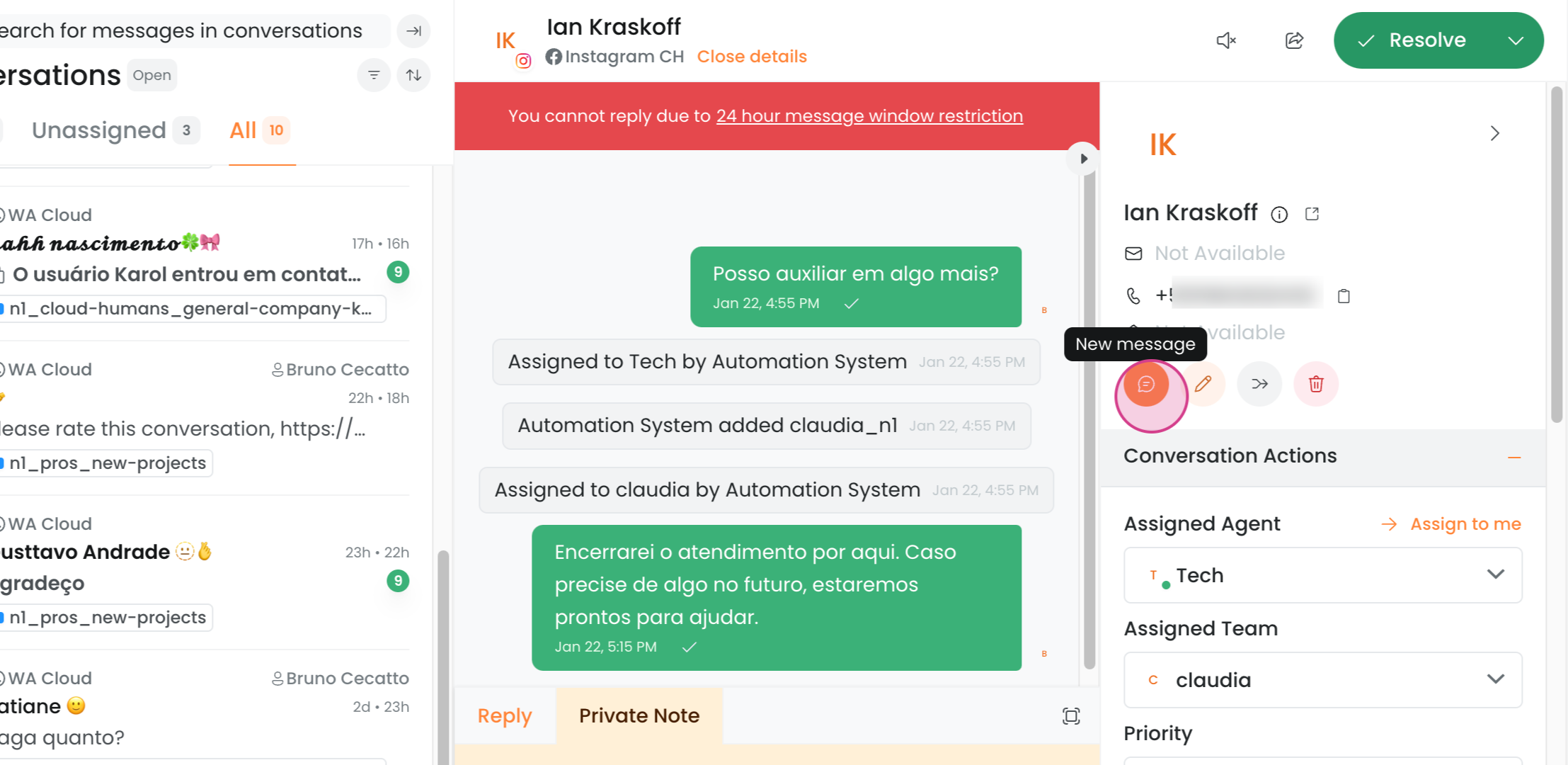
From the conversation
While in any conversation, go to the right-hand panel and click "Nova mensagem" (New message).
The open ticket does not need to be in the WhatsApp inbox — it just needs to be the contact you want to send the message to.
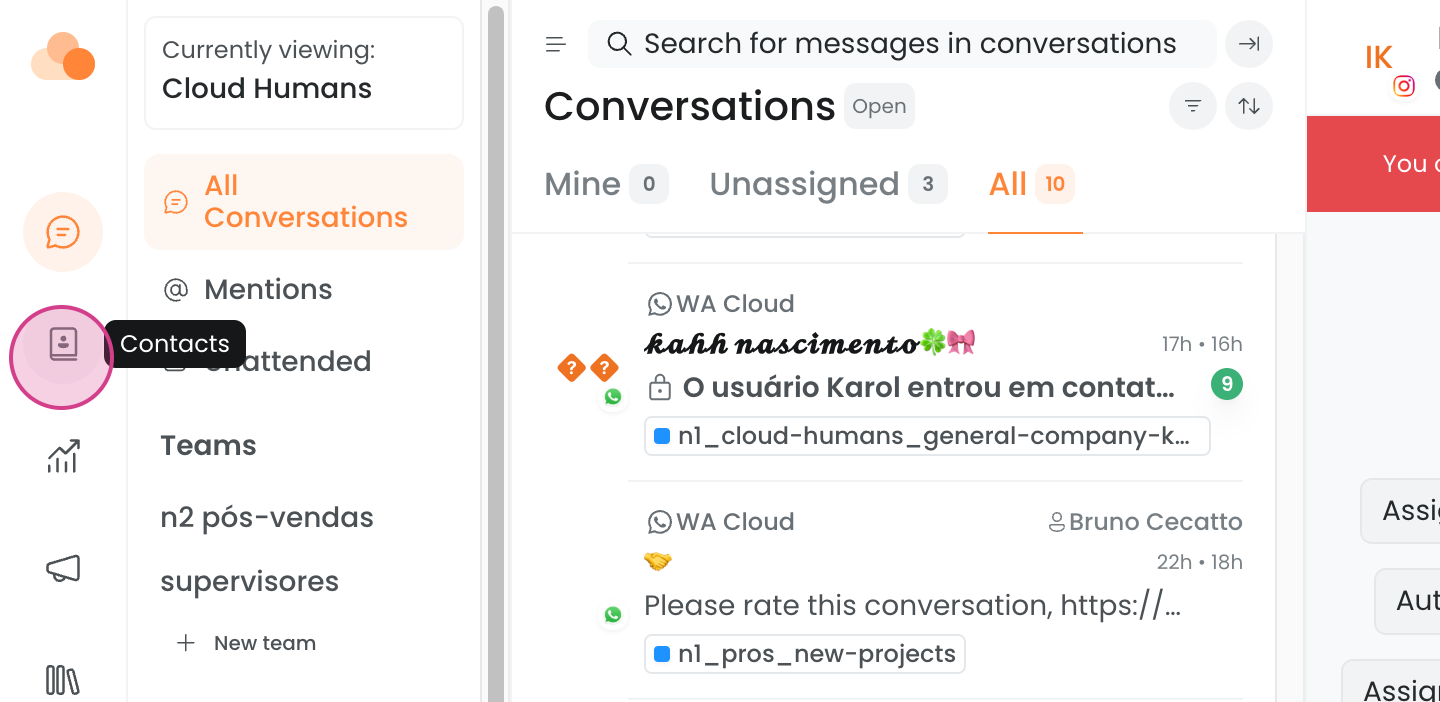
From Contacts
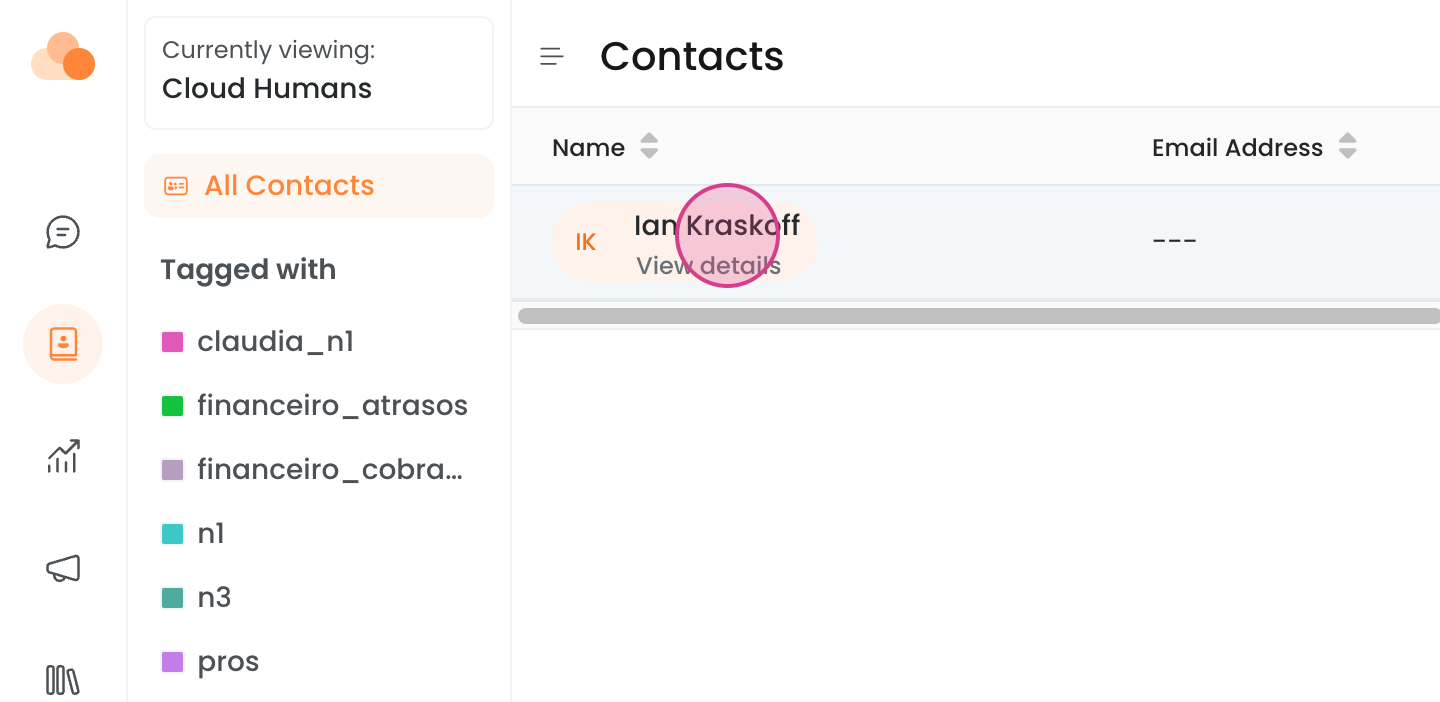
Go to "Contatos" (Contacts) and select the contact:
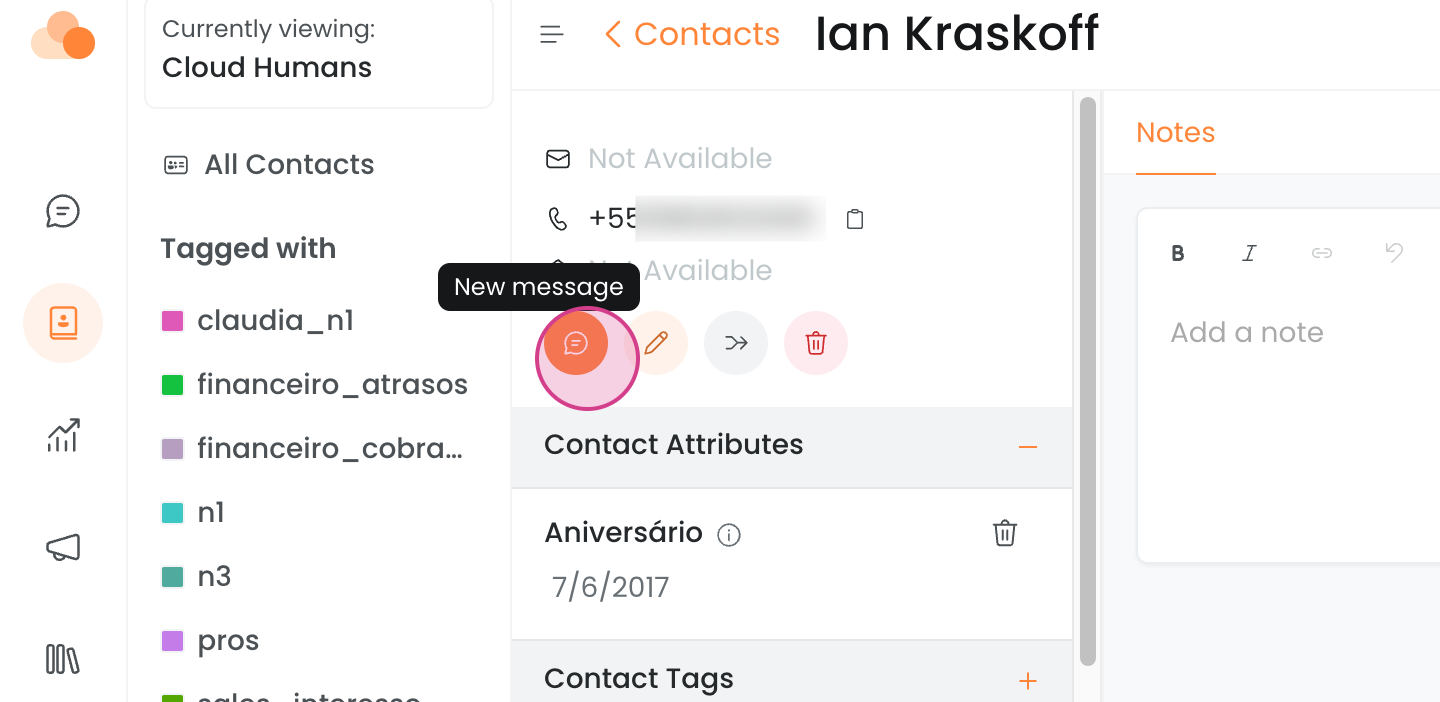
And click "Nova mensagem" (New message):
Step 2 — Select the inbox and the template
Select the sending inbox and the desired template.
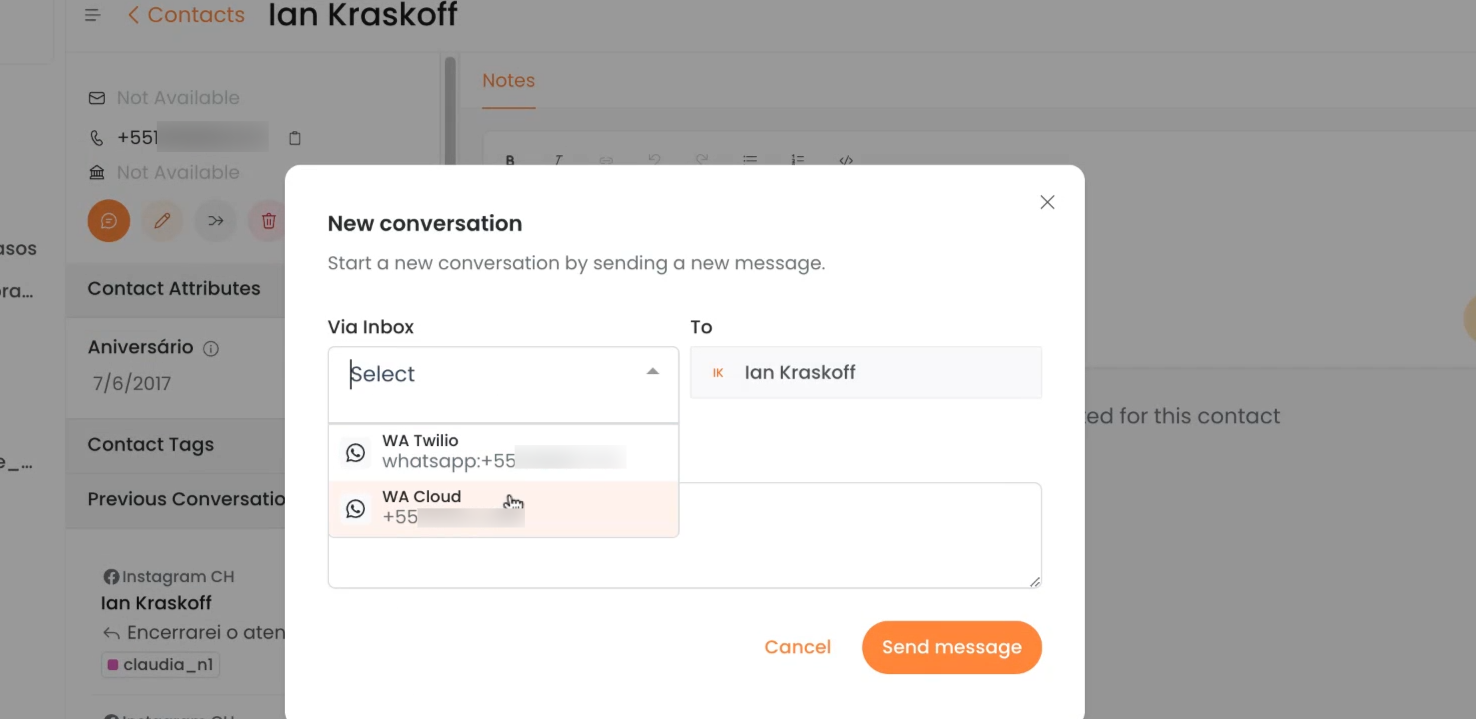
You can search by title or scroll the screen to select it:

Step 3 — Header attachments (if applicable)
If the template has attachments in the header, fill them in.
Attachments must follow the formats and sizes supported by Meta.
Step 4 — Template variables
Dynamic variables
For a dynamic variable, type {{ and choose the system variable. Make sure to close it with }}.


Variables with a fixed value
To use a fixed value (without {{ }}), type it directly. In the example, the template button was fixed to https://cloudchat.cloudhumans.com.
Static elements of the template (such as pre-filled quick action buttons) cannot be edited.
Step 5 — Send
When you are ready, click "Enviar mensagens" (Send messages).

In proactive sends, only templates can be sent — do not send free text outside the 24-hour window.
Individual proactive sending via Email
Useful for opening an internal ticket on the agent's initiative or sending a proactive communication.
Instructional video:
We recommend sending the email from an inbox that is separate from the ones you use on other channels — this makes it easier to keep track.
Step 1 — Select the contact
Go to "Contatos" (Contacts):
Click the contact and then "Nova Mensagem" (New Message):
Step 2 — Set up the inbox, subject and recipients
Choose the email inbox and define the subject:
Add people in copy or blind copy if needed:
Step 3 — Write the message
Write the message. Use shortcuts by typing / if you want. You can attach files.
Click "Enviar Mensagem" (Send Message).
Step 4 — View the open ticket
Go to "Conversas" (Conversations) and click the inbox to see the tickets that were created:
Each proactive send generates a new ticket with a new number.
If you want the ticket not to be answered automatically by ClaudIA, contact the support team.
Notes
-
For bulk sending (contact list): How to send messages via campaign in Cloud Chat
-
For sending directly via API (without the UI): How to send a proactive WhatsApp message via API
-
For Meta template rules: WhatsApp template rules (Meta)
-
To create templates inside Cloud Chat: How to create, edit and delete WhatsApp templates in Cloud Chat