If you want to watch the tutorial via video, go here:
In this article, you'll understand the basic features of the contacts tab.
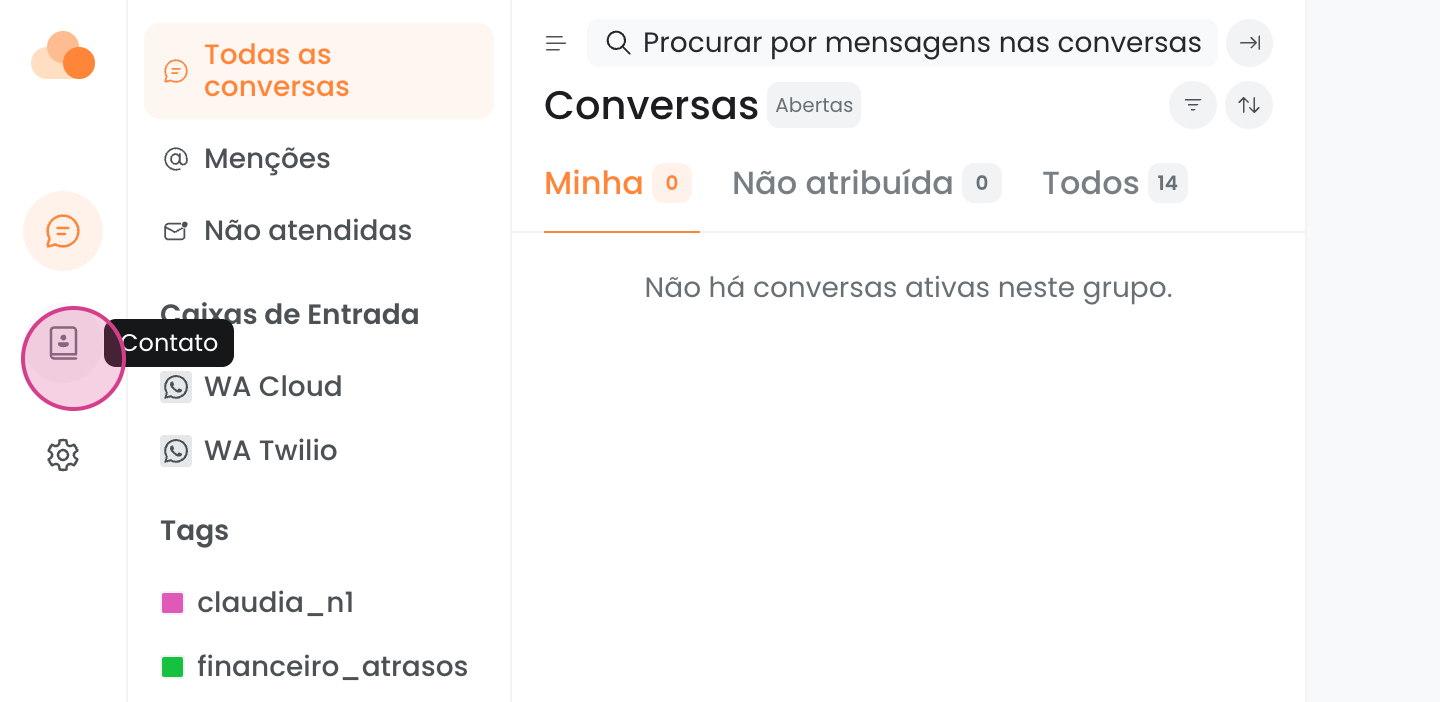
The contacts tab is located on the left. Clicking on it displays a complete list of all your contacts.
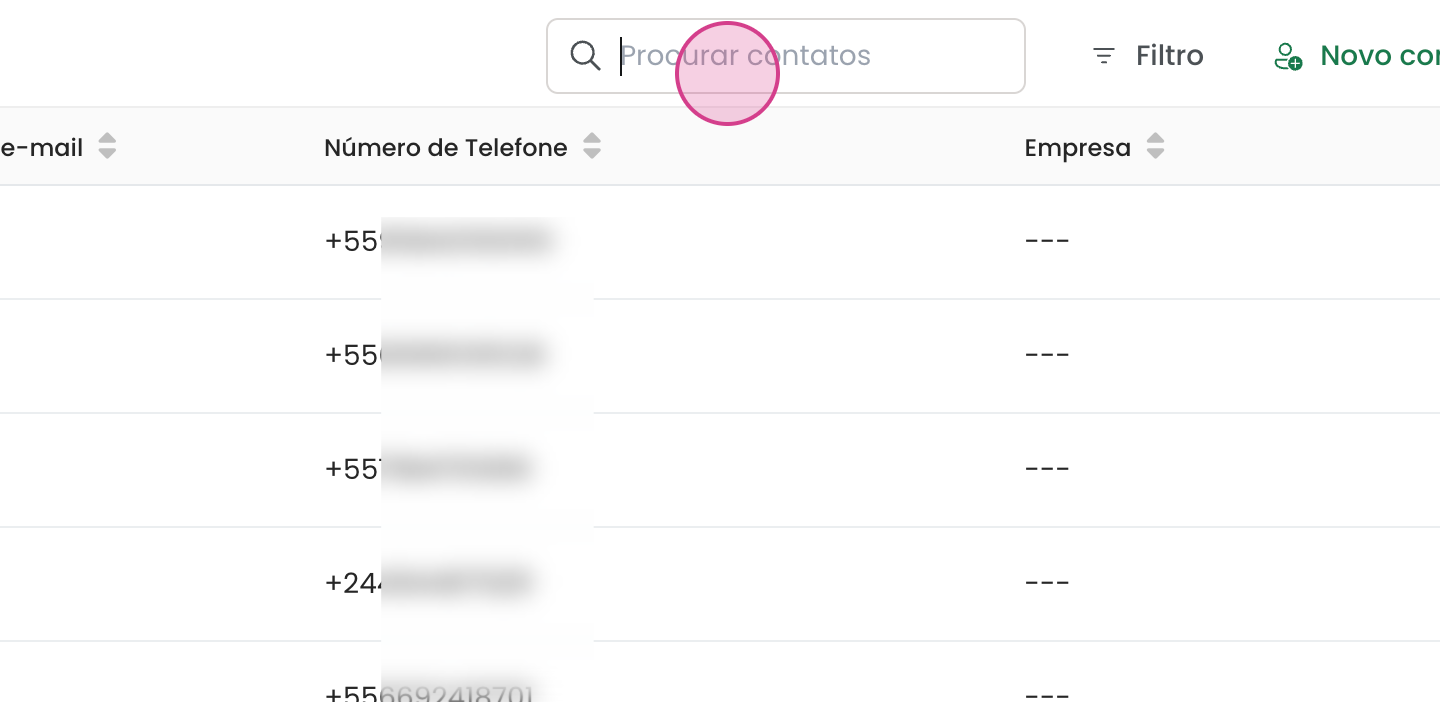
To find a specific contact, use the search function.
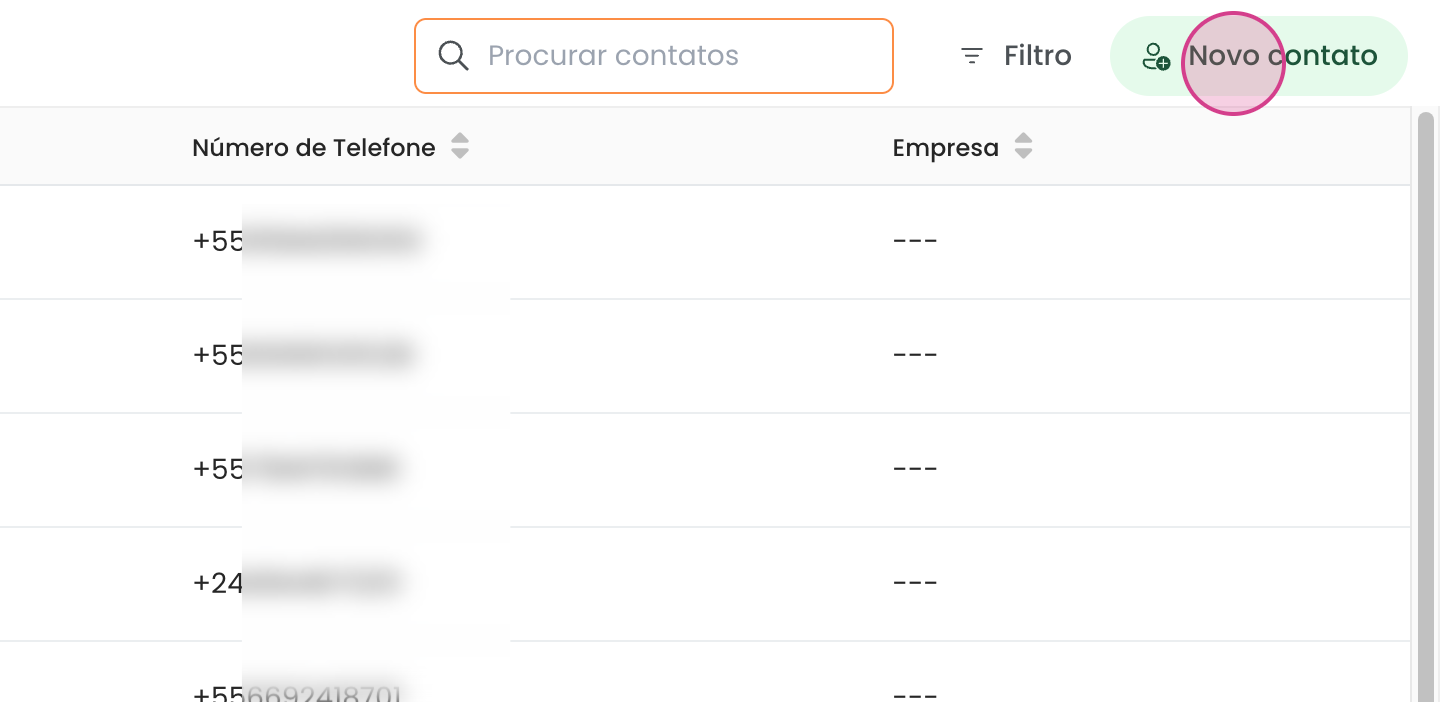
If you want to add a new contact manually, just click on new contact.
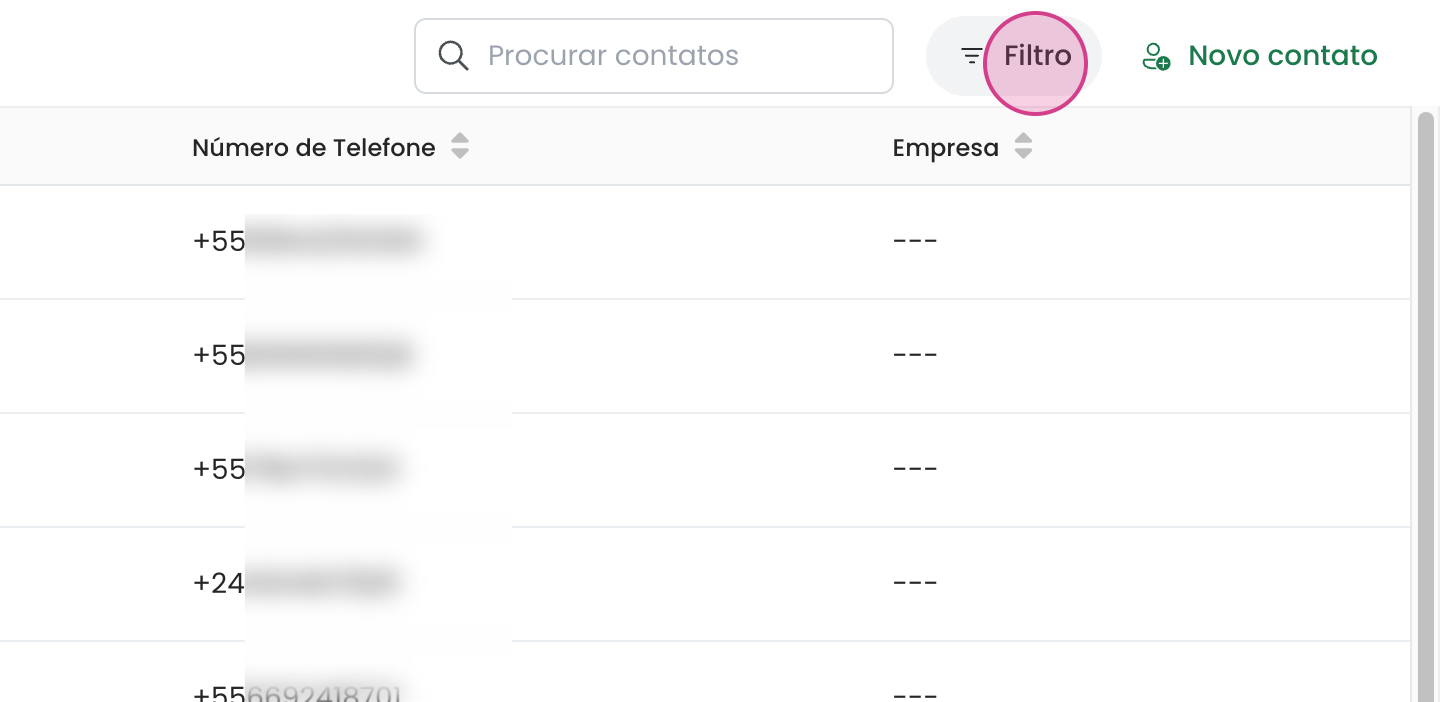
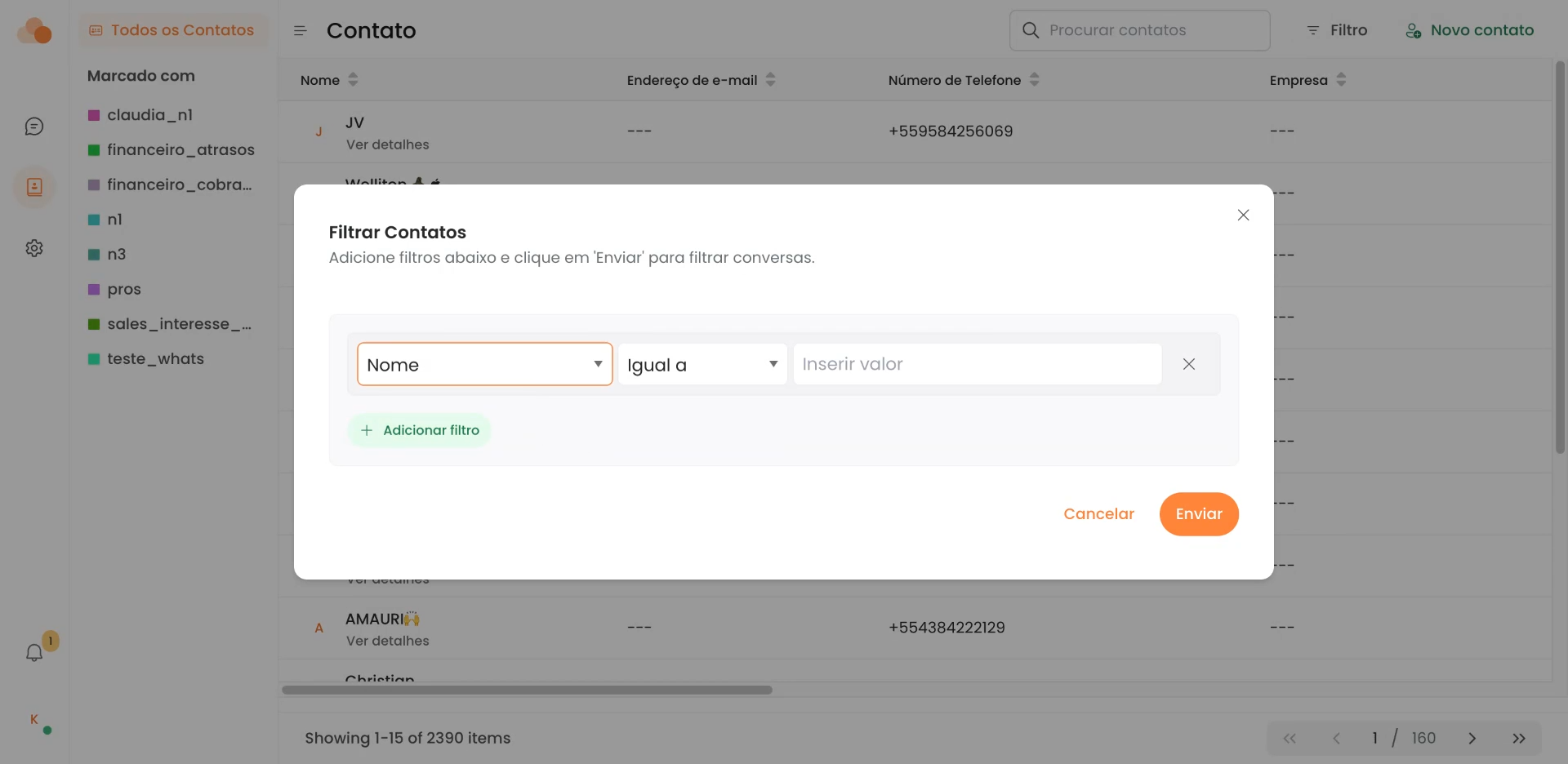
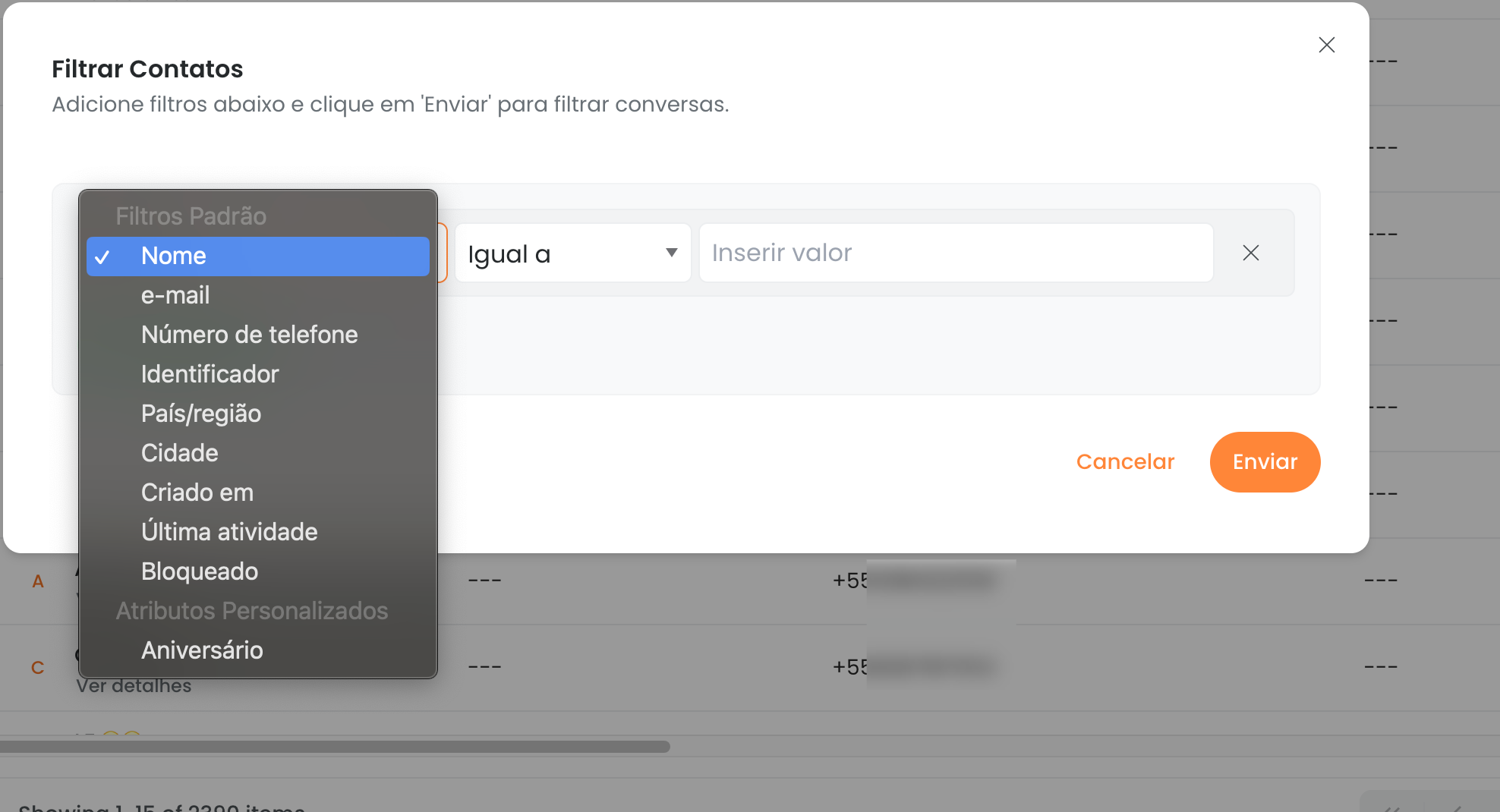
To filter existing contacts, click on the filter option. Here, you have the ability to filter by any attribute, including custom ones created by your administrator.
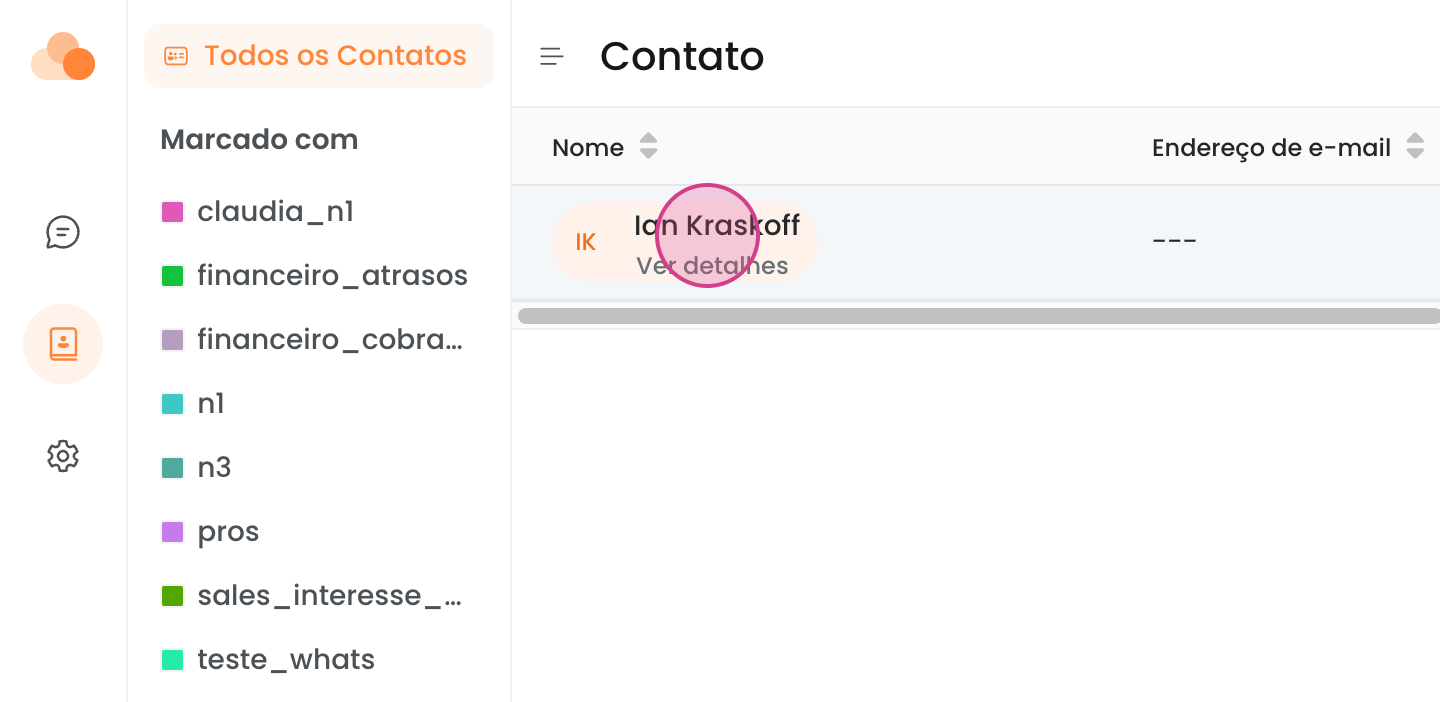
To open a contact, just click on it.
You have the option to make specific notes about a contact
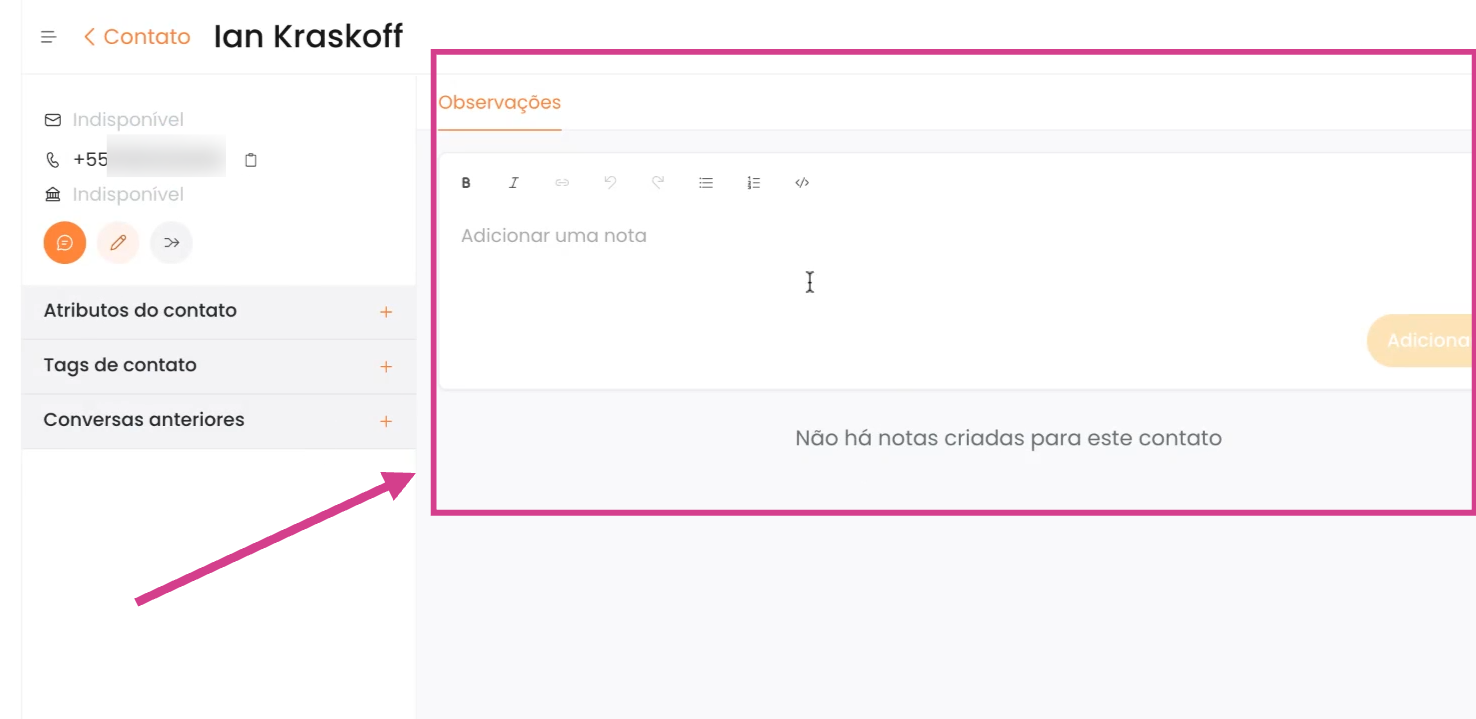
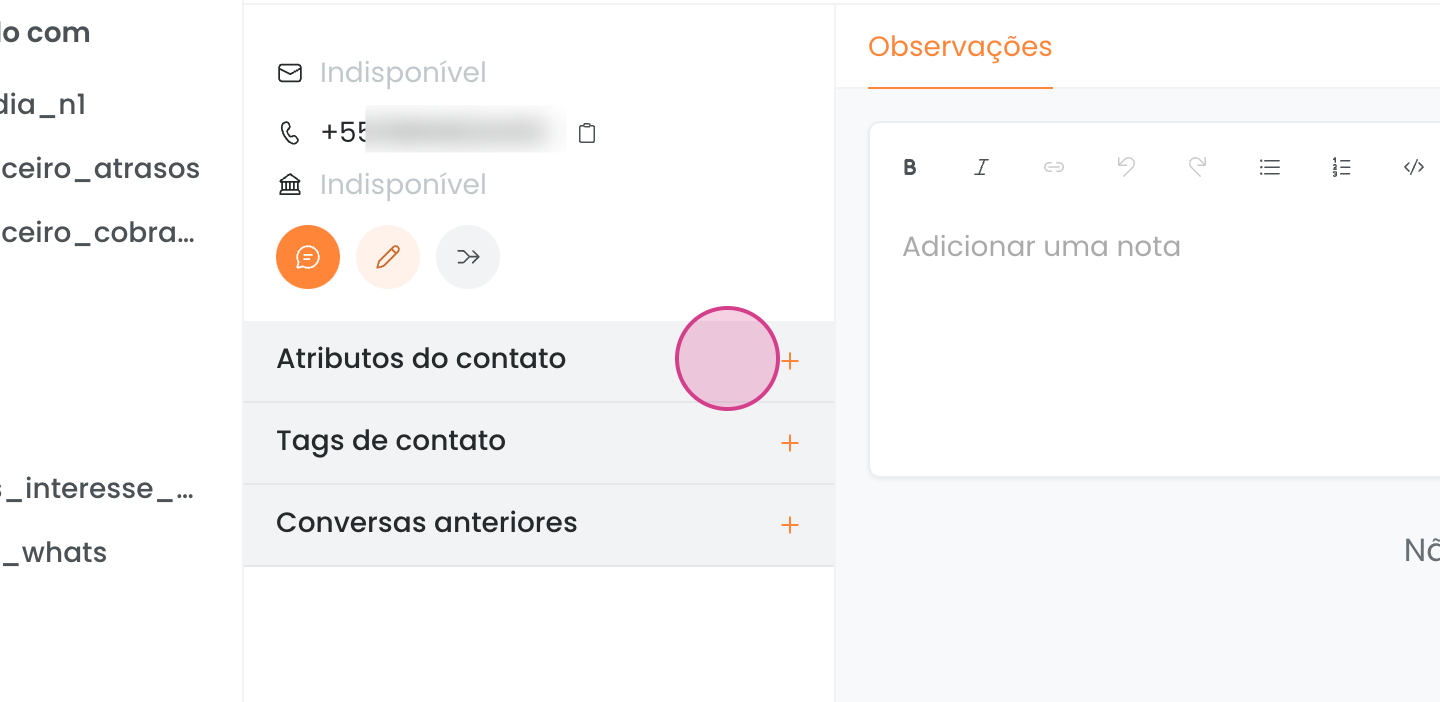
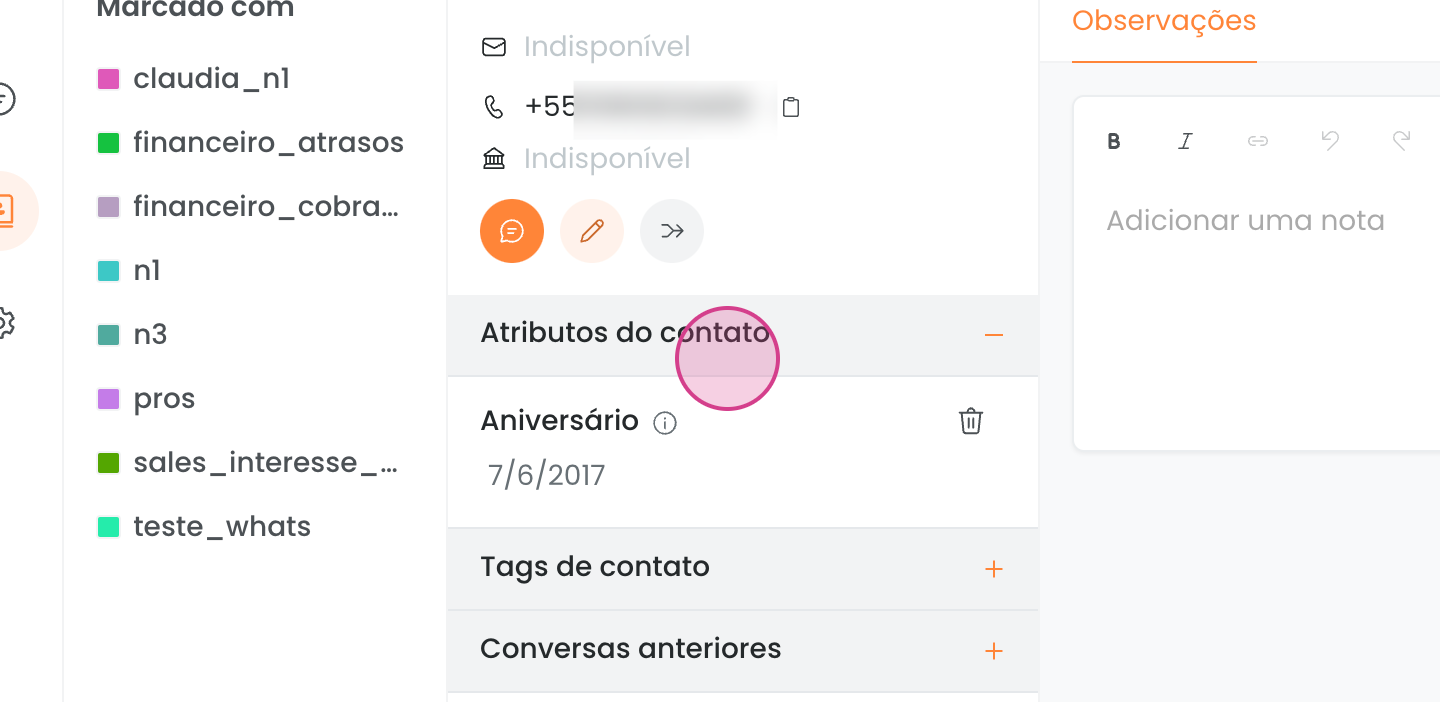
and view all custom attributes of the contact.
Remember that custom attributes are created by your administrator.
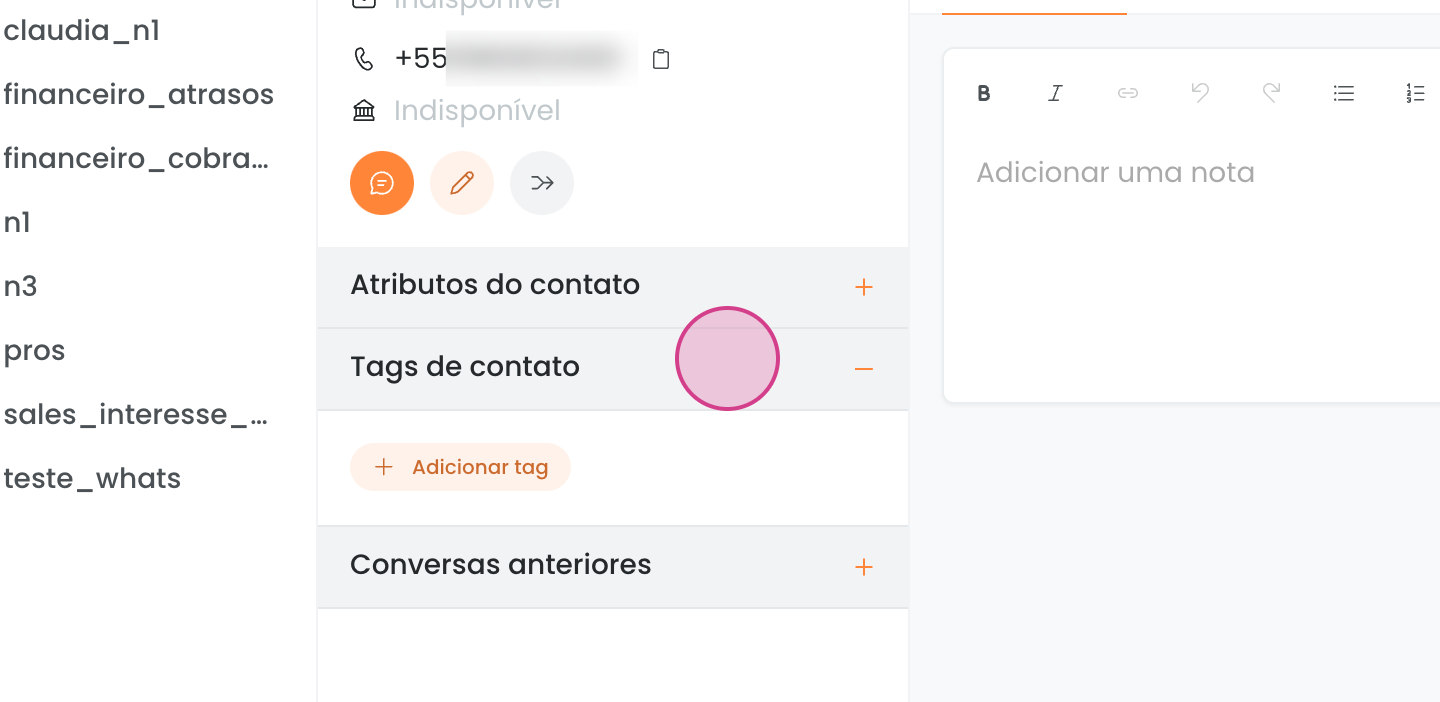
Additionally, you can add tags to contacts, not just to conversations.
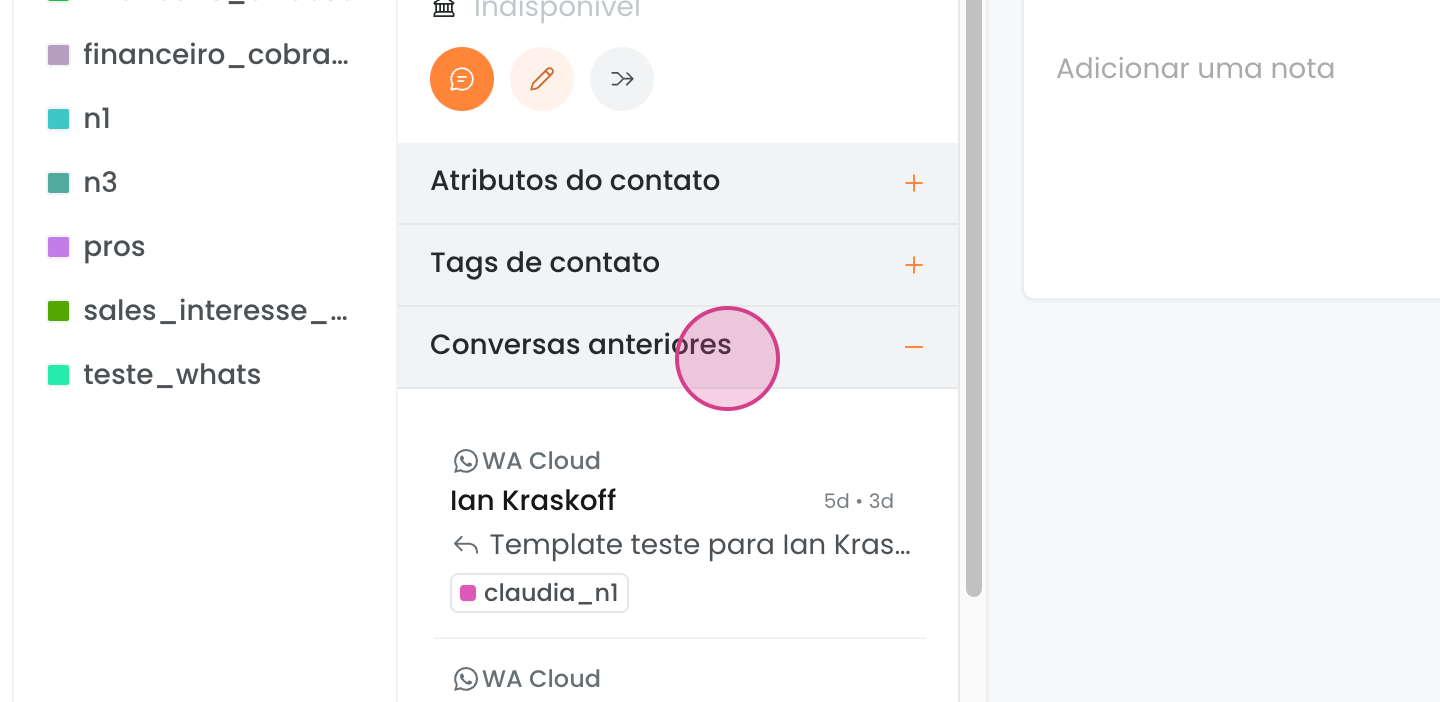
You can also view a contact's conversation history.
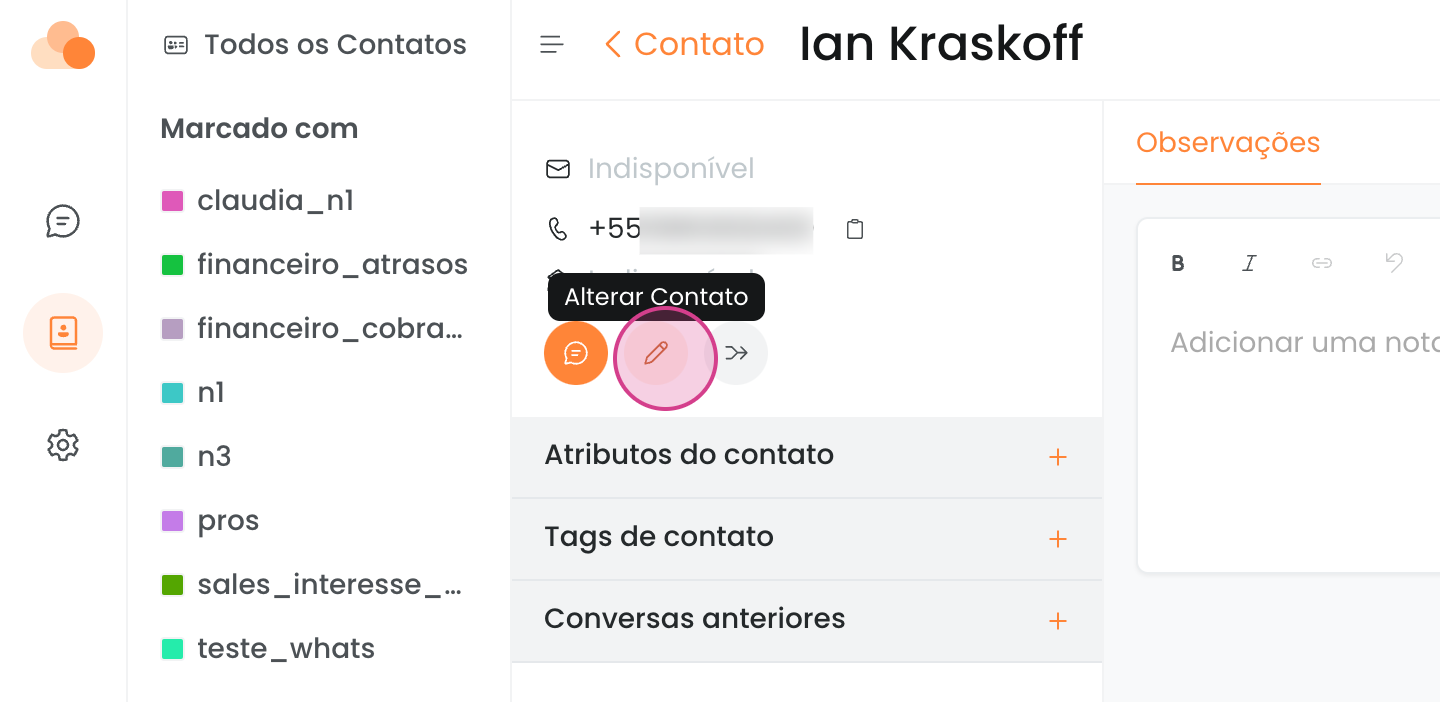
To edit a contact, click on edit contact. Here, you can add and edit all information, standard and custom.
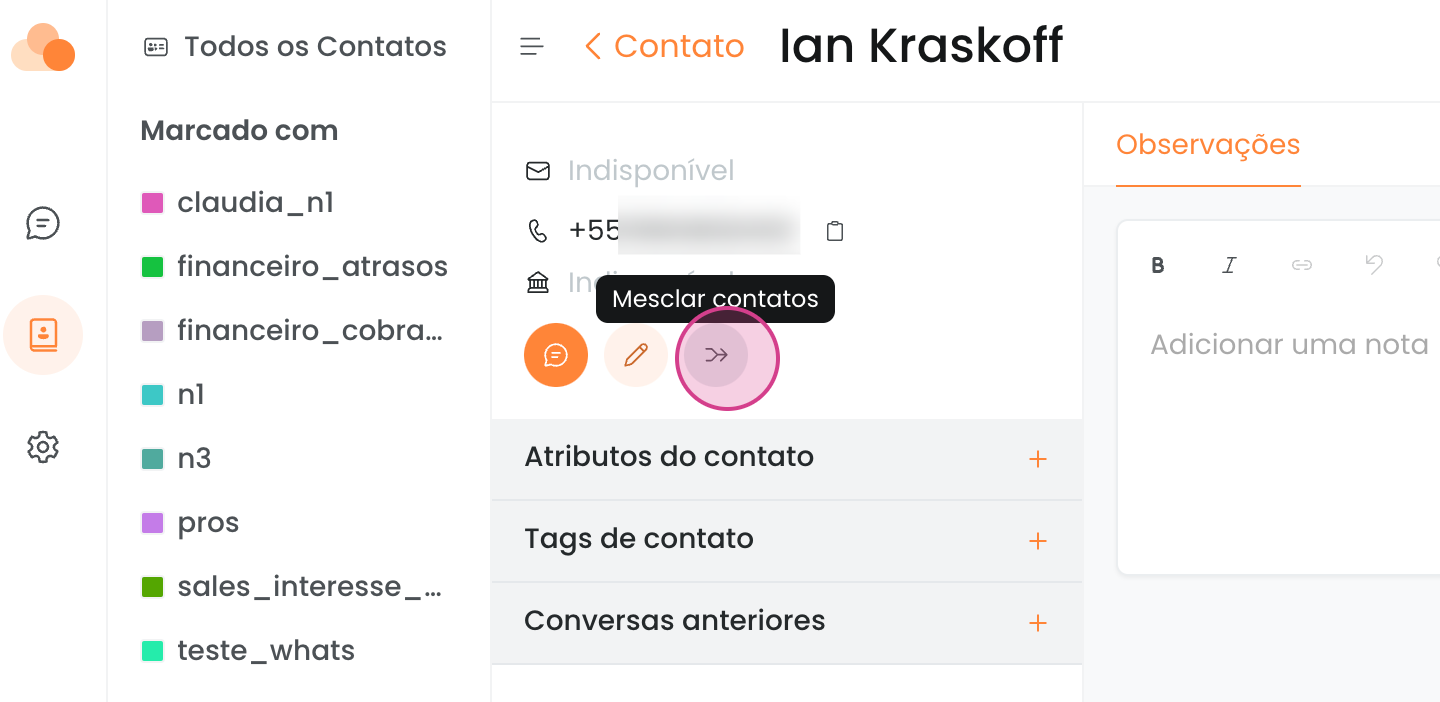
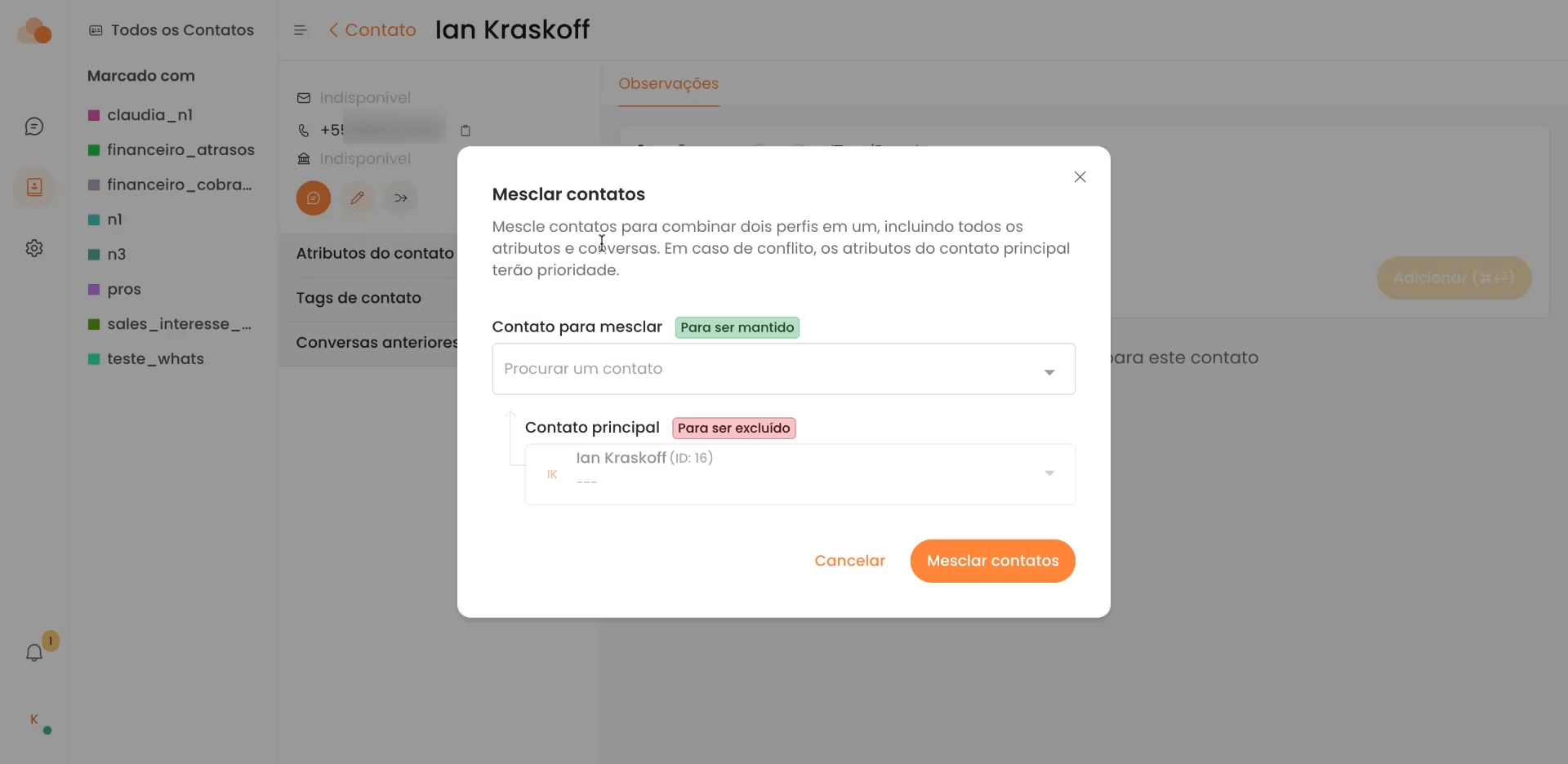
If there are duplicate contacts, you have the option to merge them to keep your contact list organized.
Additionally, you can send a proactive WhatsApp message.
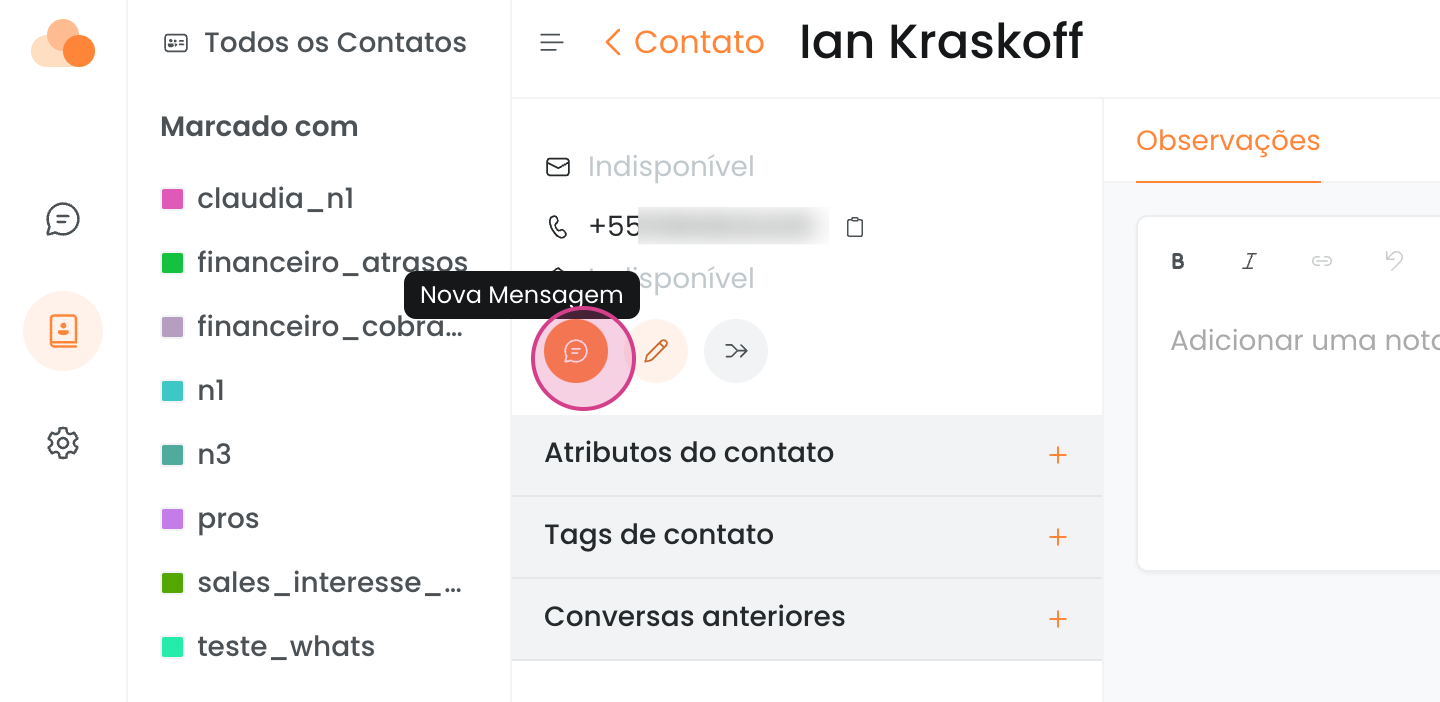
To do this, select the desired outbound box, choose the template, and send the message.
Important: to avoid losing your number, it is important to follow Meta's guidelines regarding blasts and only send templates.
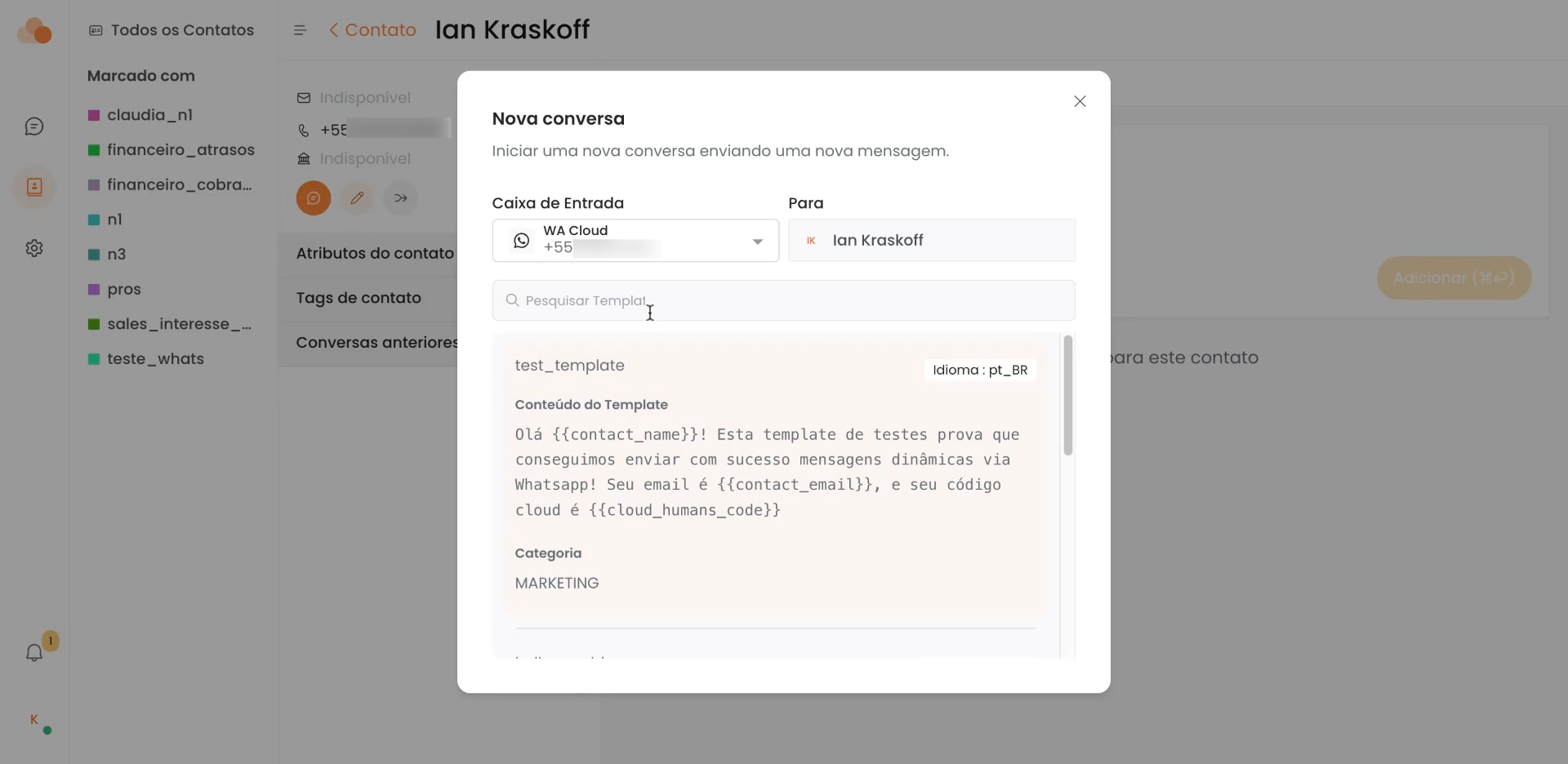
If the message contains variables, you can add them by clicking on the field and adding double braces ({{) ), which will display a list of possible variables. Remember to close the braces at the end (}}).
If you want to replace the variable with a fixed message, just type the text without using braces.
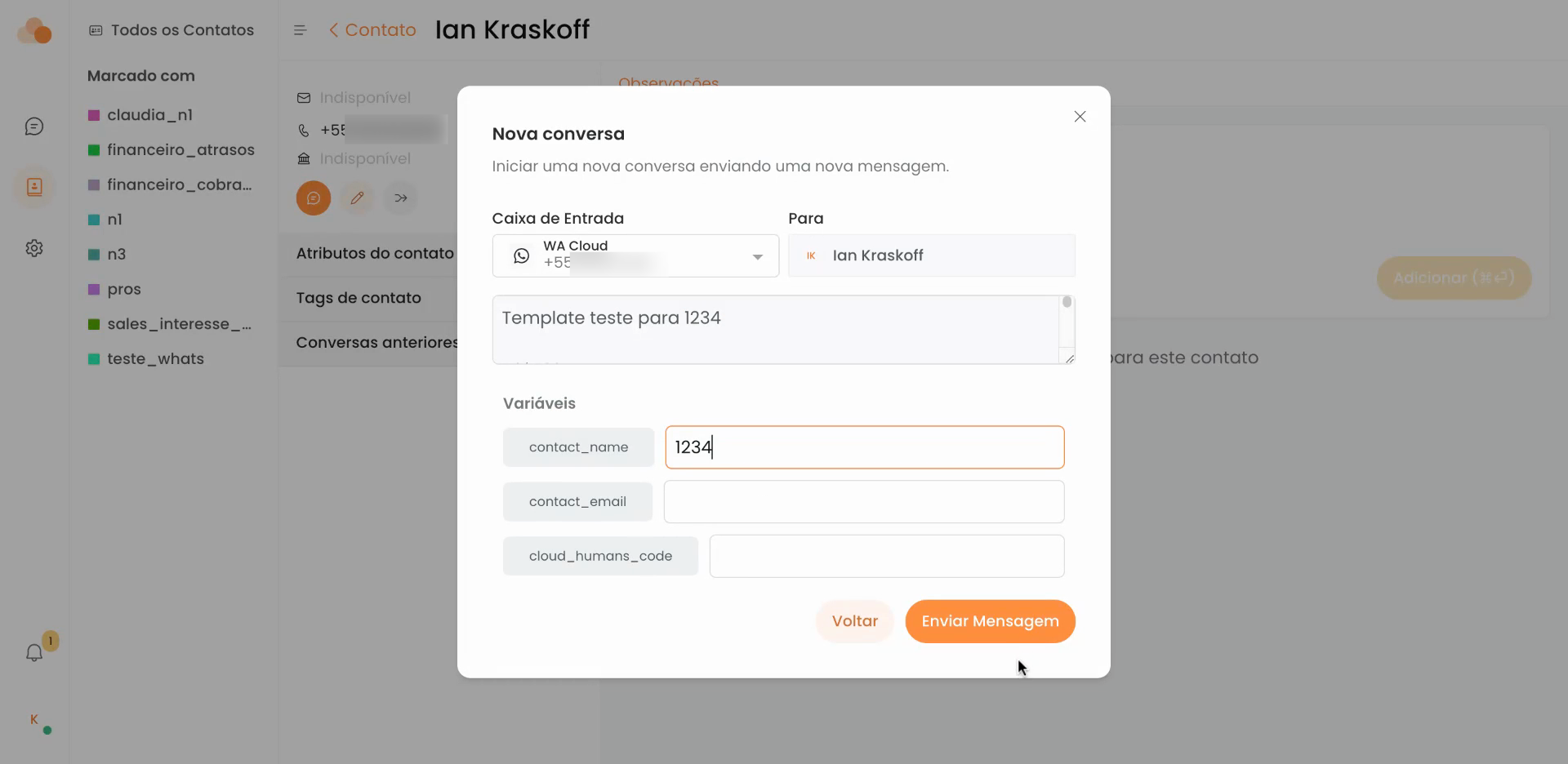
When clicking send message, the message will be sent.
Now, you are familiar with the basic functionalities of the contacts tab.