Part 1: Audio Notifications and Alerts
Part 2: Email Notifications
In this article, you will better understand the notification features in Cloud Chat, where to find them, and how to activate them.
Notifications are an essential part of CloudChat. They inform you about tasks you need to complete and messages you are receiving.
Here, you can view the notifications you've received.
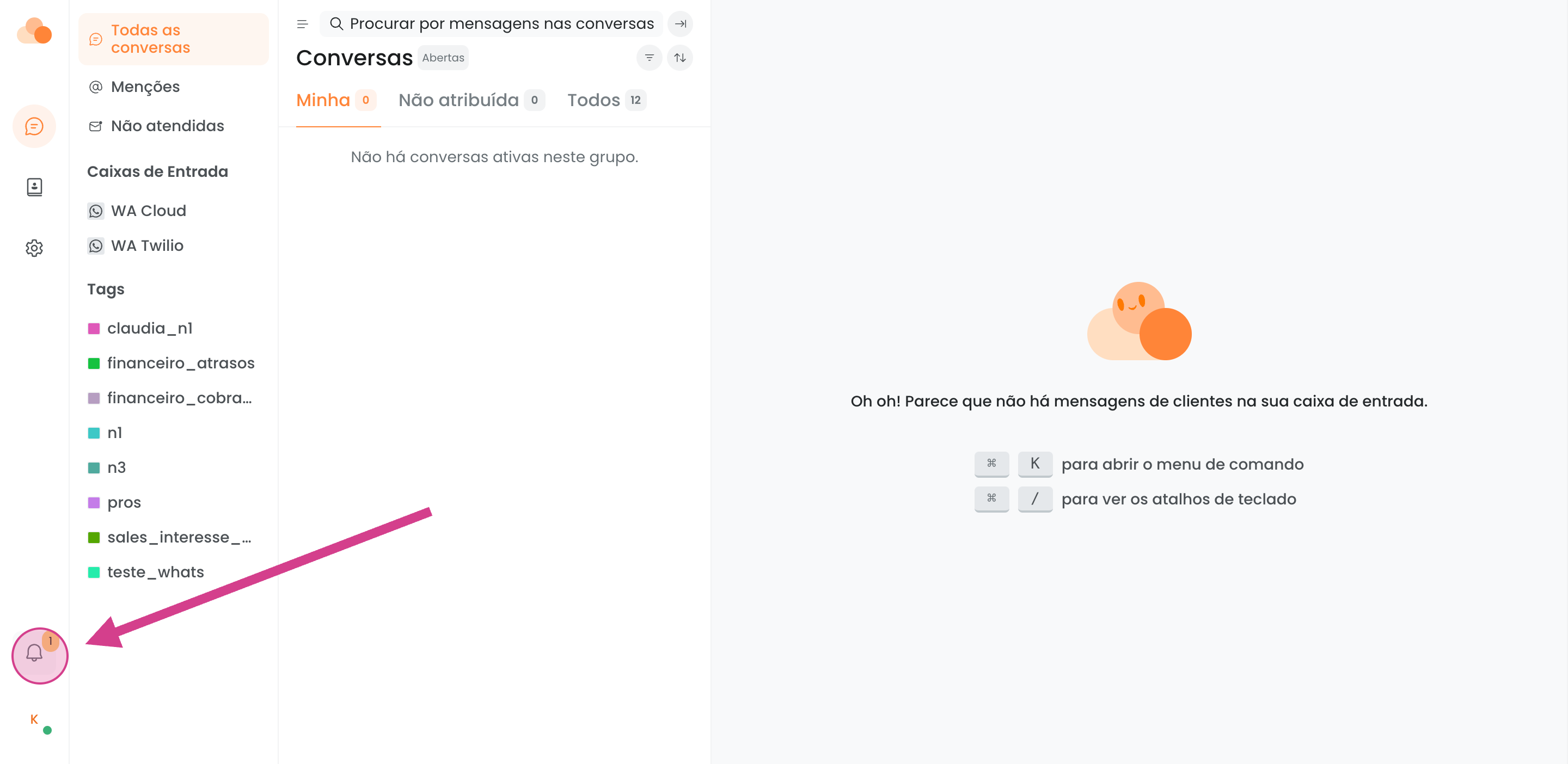
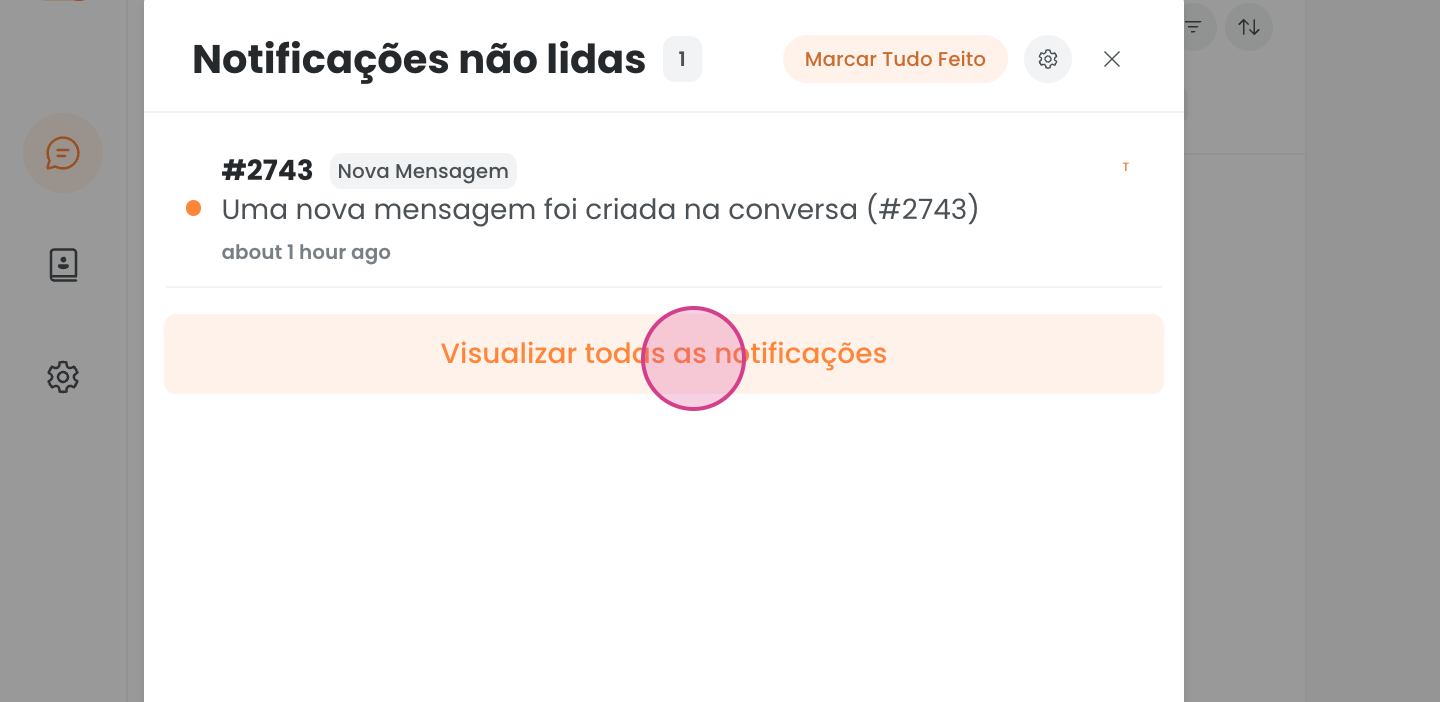
Sound and Pop-up Notifications
To manage your notifications, simply click on the profile settings and then on the other button that will also be called profile settings.
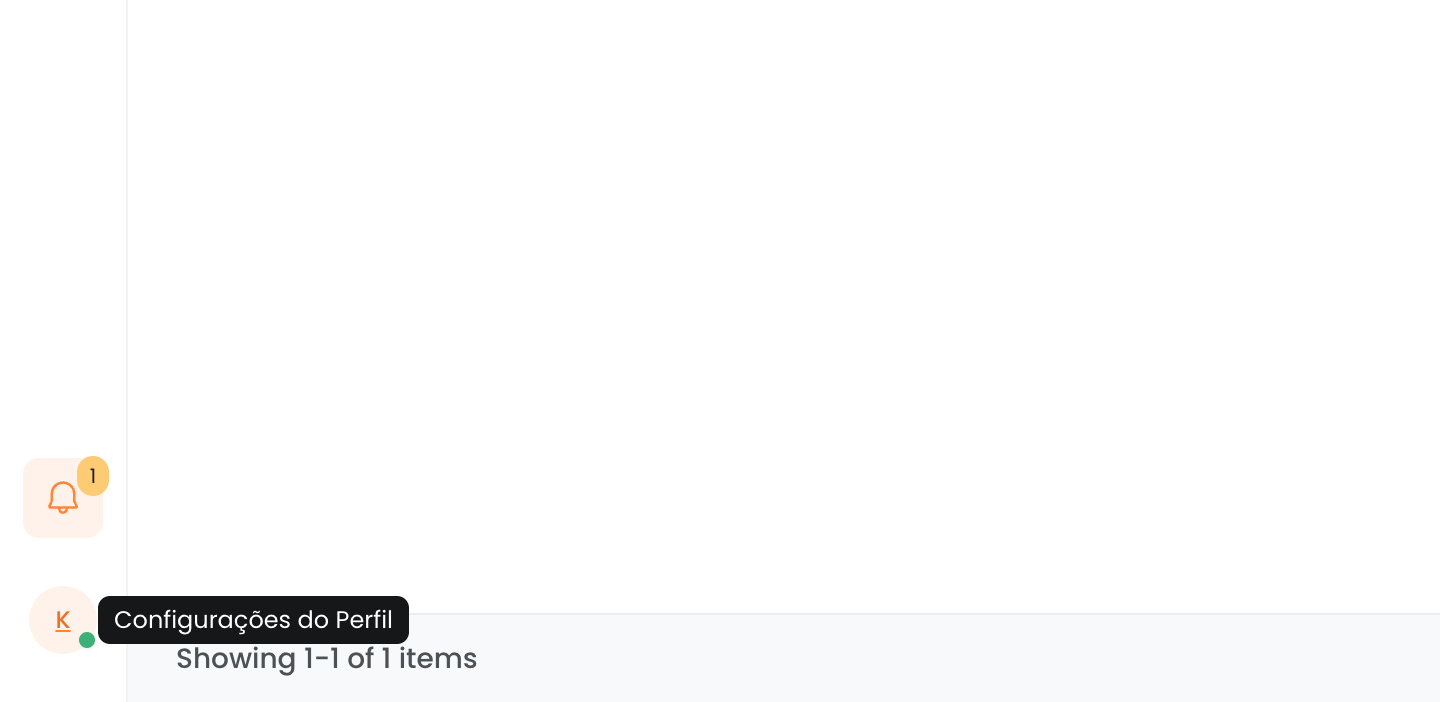
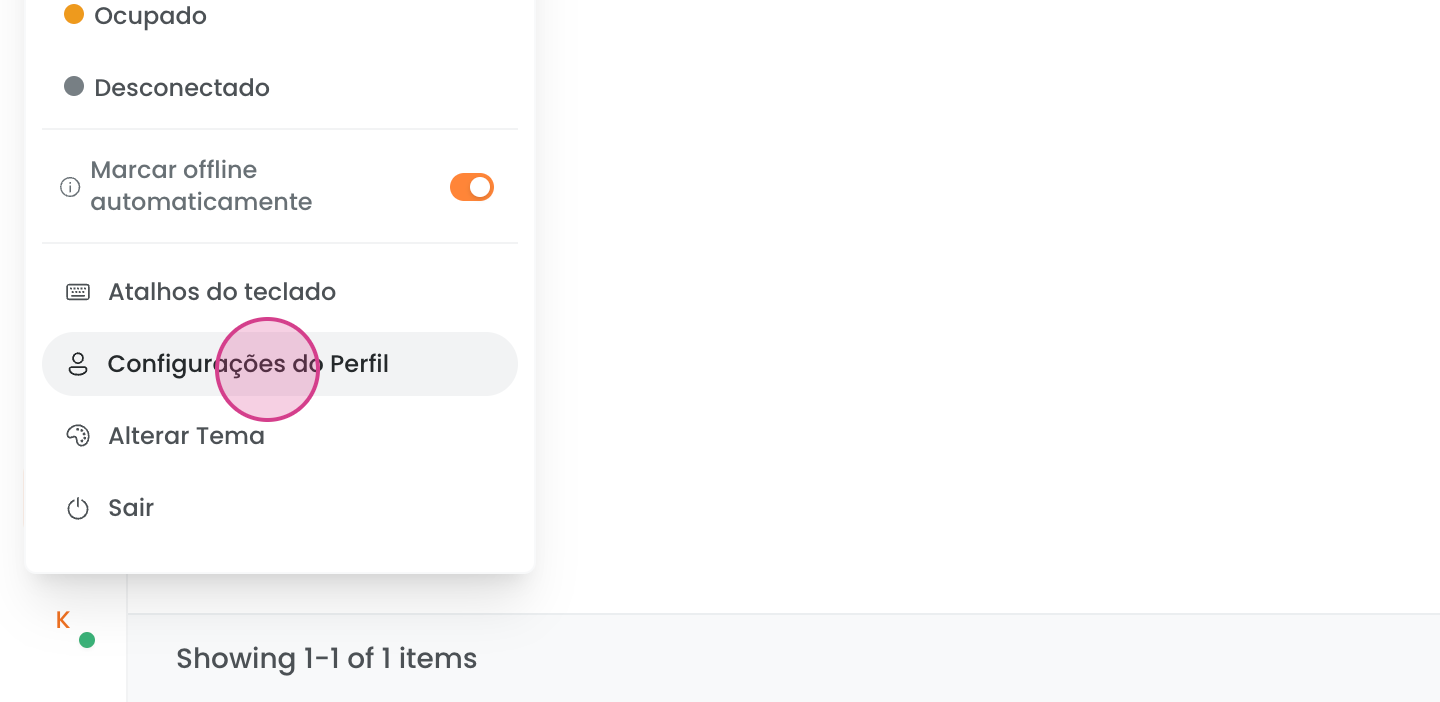
Sound and Notification Alerts
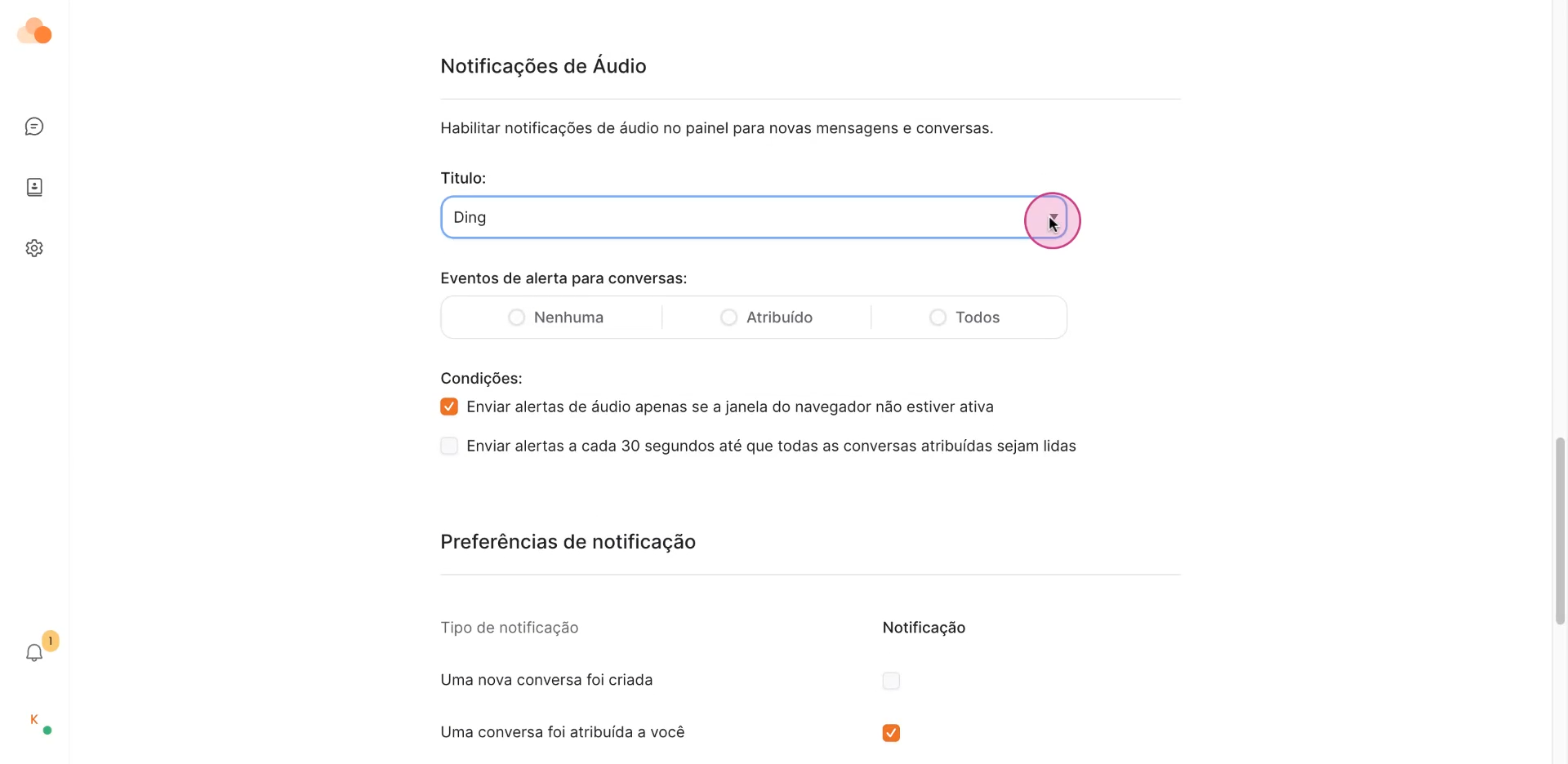
In profile settings, scroll down until you find audio notifications.
Here, you can choose the type of notification sound you prefer, either a ding (chime) or bell.
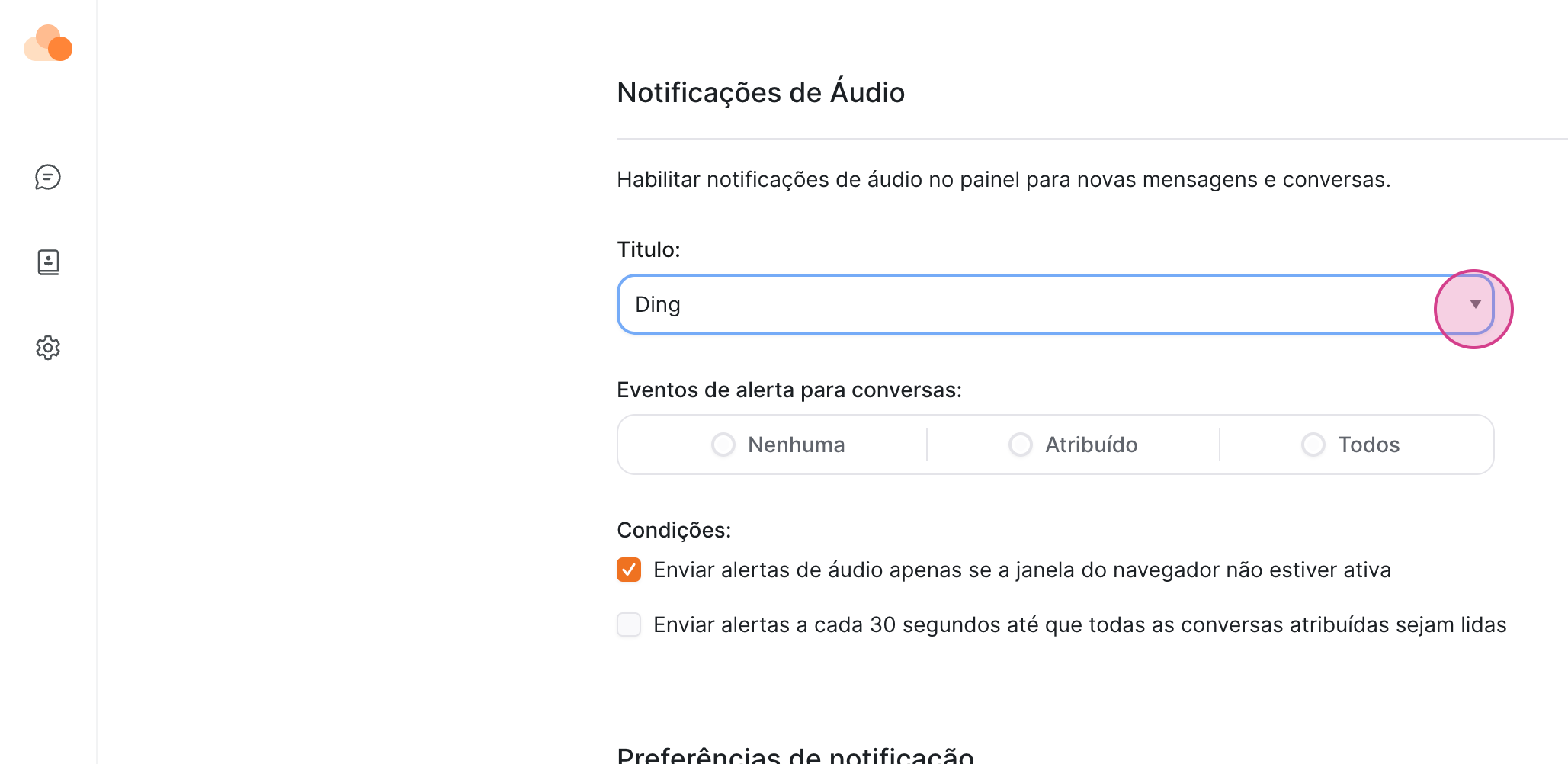
You can also select the event types that will trigger sound alerts, such as none, when a message is assigned to you, or all events.
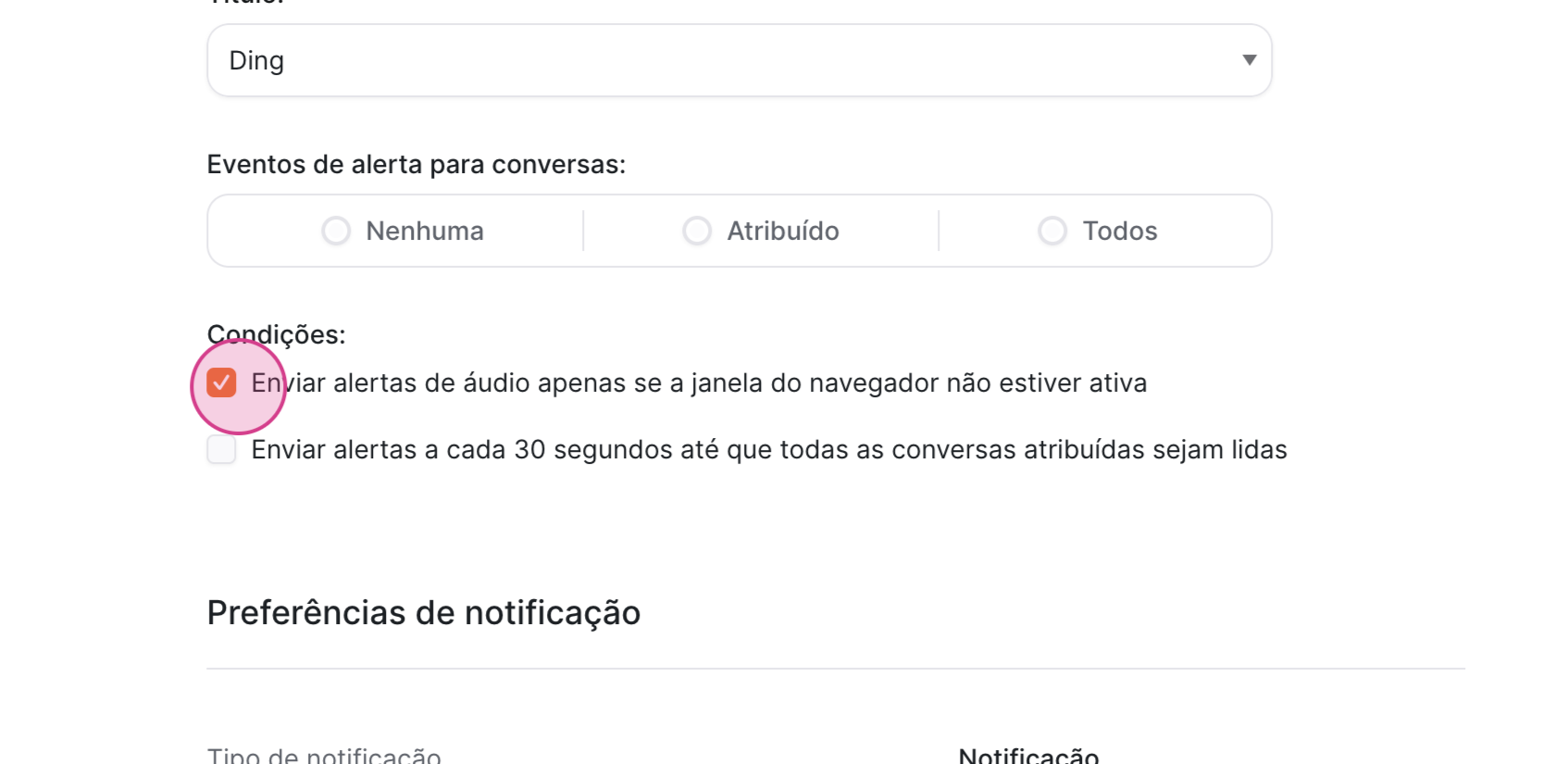
Conditions for audio alerts include alerts only when you're outside the Cloud Chat window or tab (checkbox enabled) or even when you're in the Cloud Chat window (checkbox disabled).
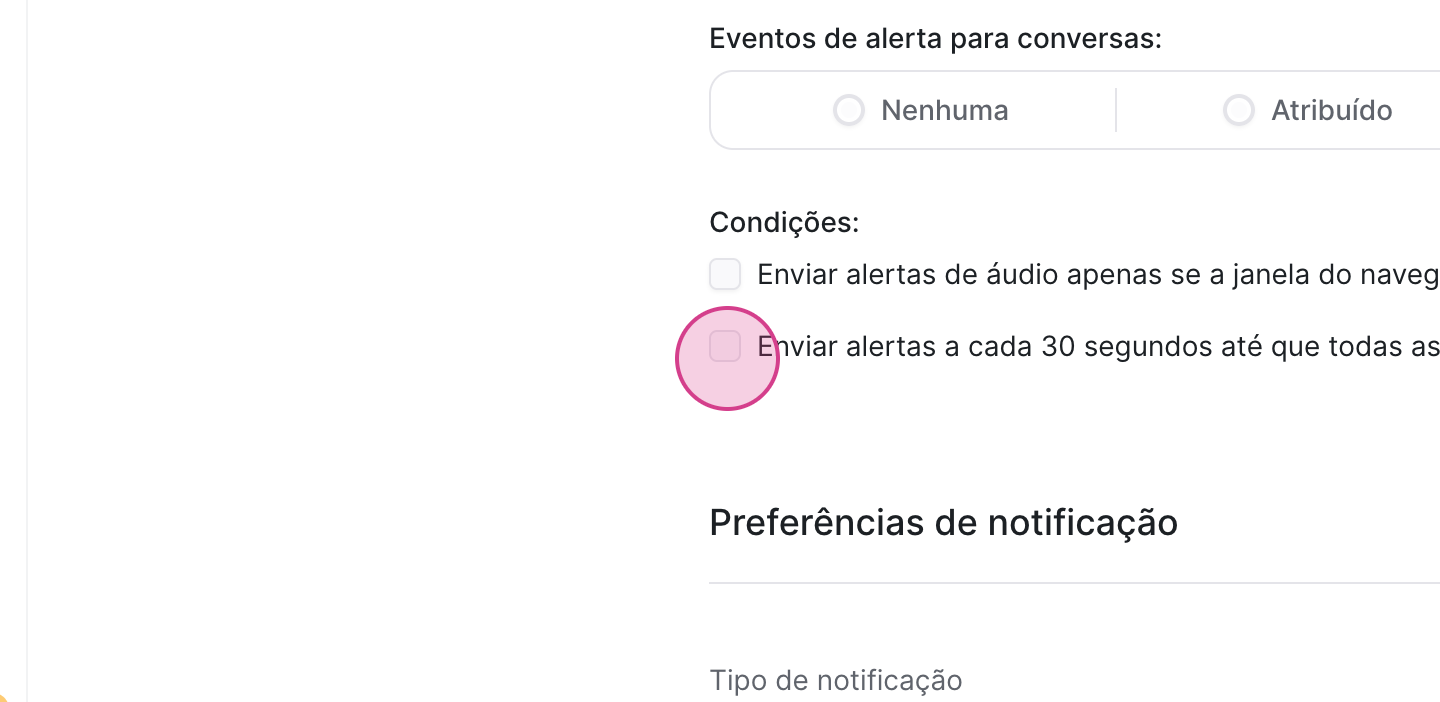
Another option is to enable a repetitive alert (checkbox enabled), which will ring every 30 seconds until you mark messages assigned to you as read.
A message is considered read when you click on it.
If the checkbox is disabled, you will not receive these repeated alerts.
Pop-up Notifications
To enable browser notifications (the pop-up prompts), just click here.
Remember, after activating, you need to allow these notifications in your browser.
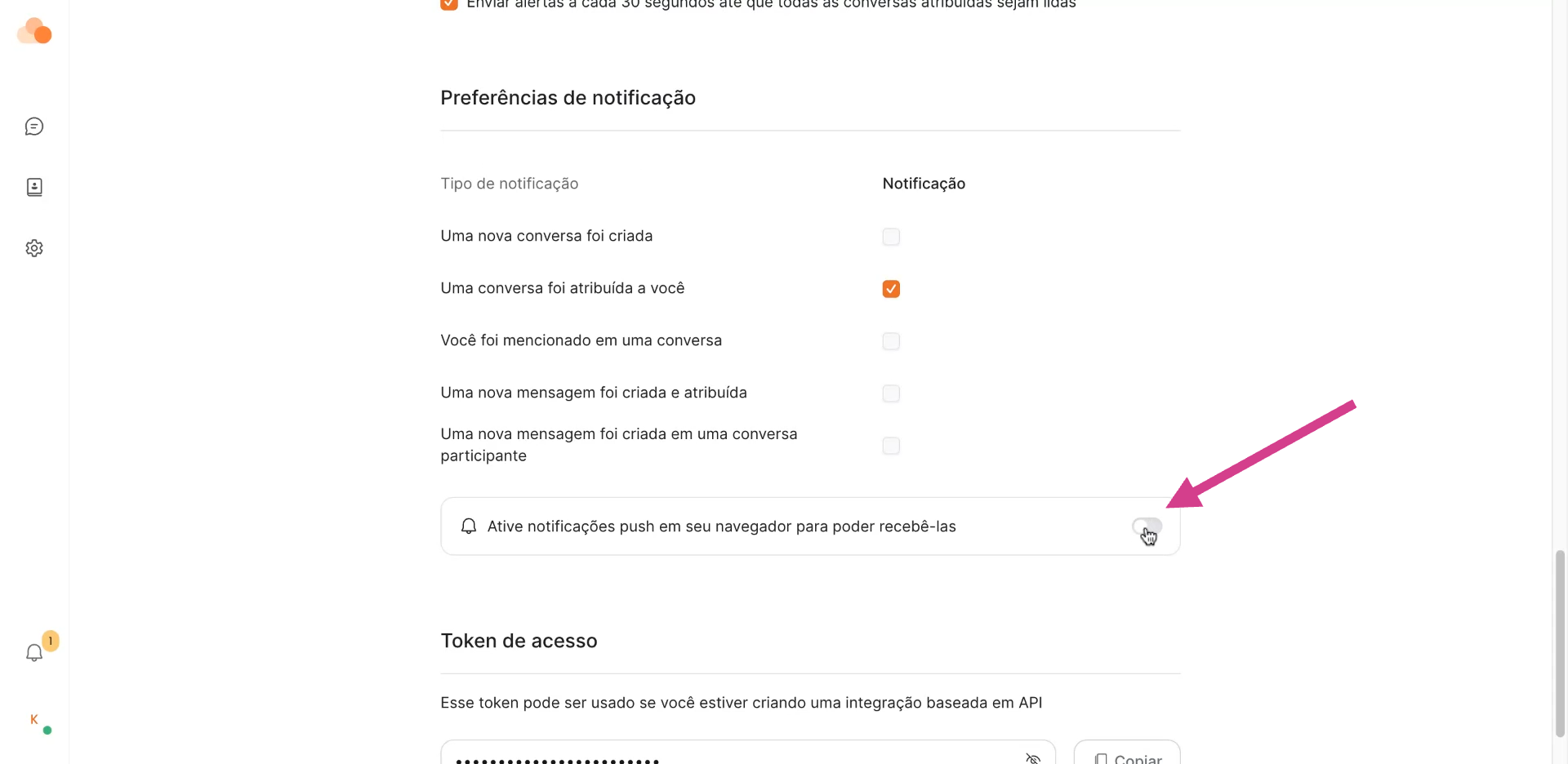
Finally, you can choose the types of notifications you want to receive — whether whenever a new chat is created,
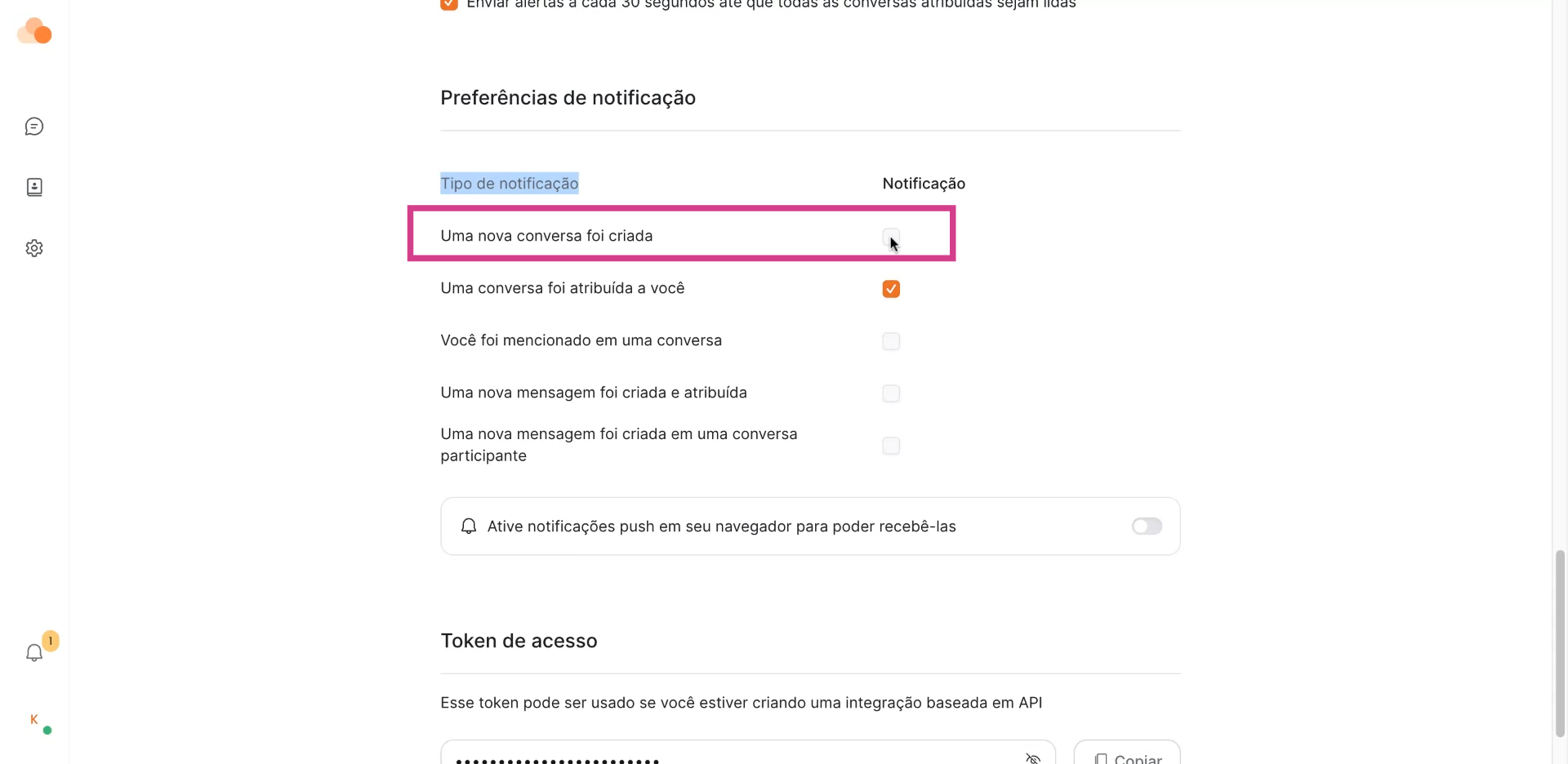
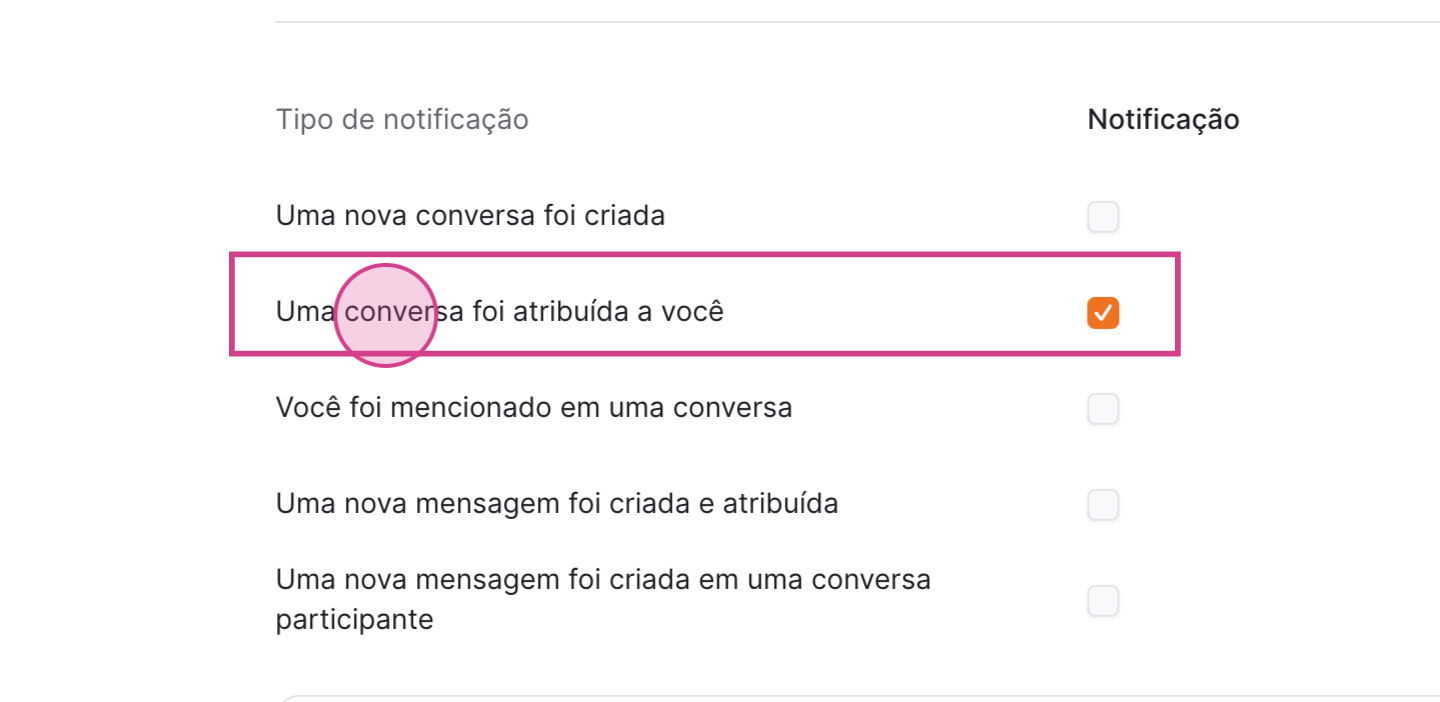
whenever a chat is assigned to you,
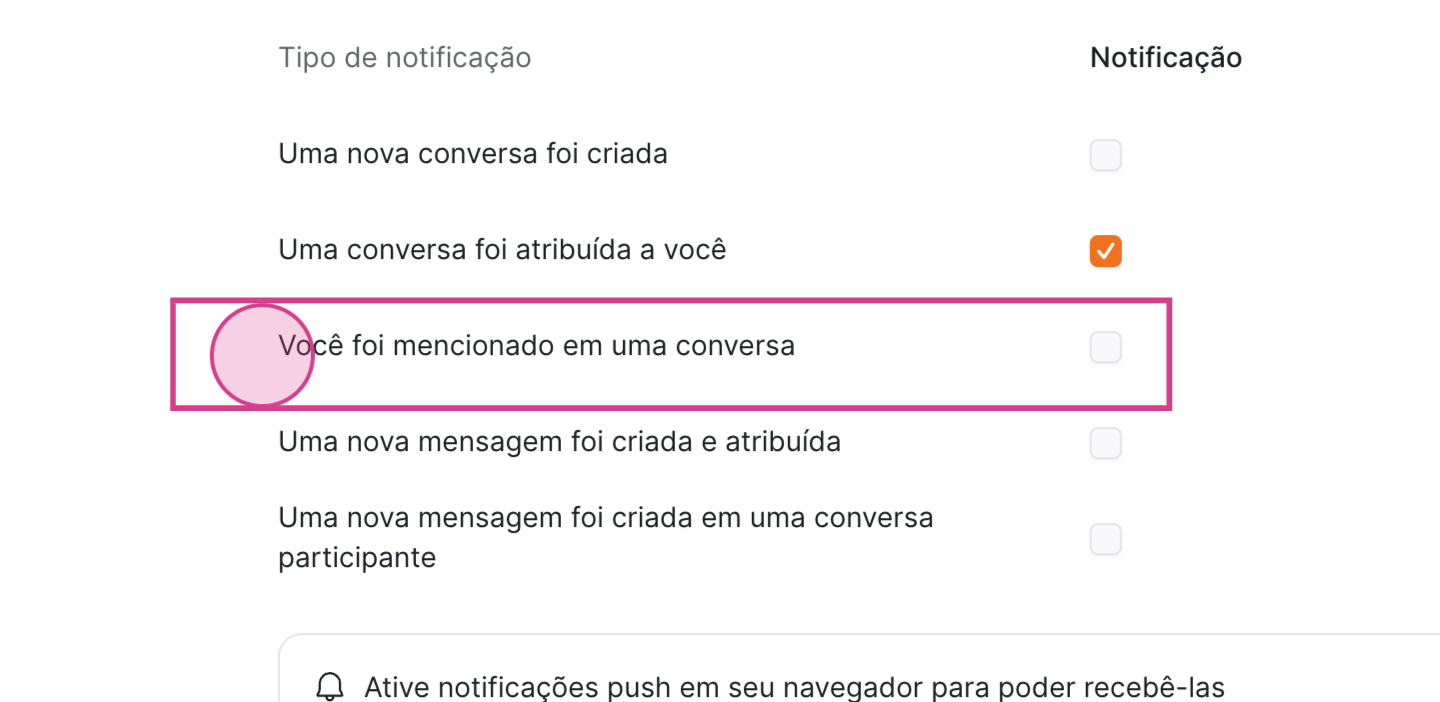
whenever you are mentioned in a conversation,
whenever a new message is created and assigned to you,
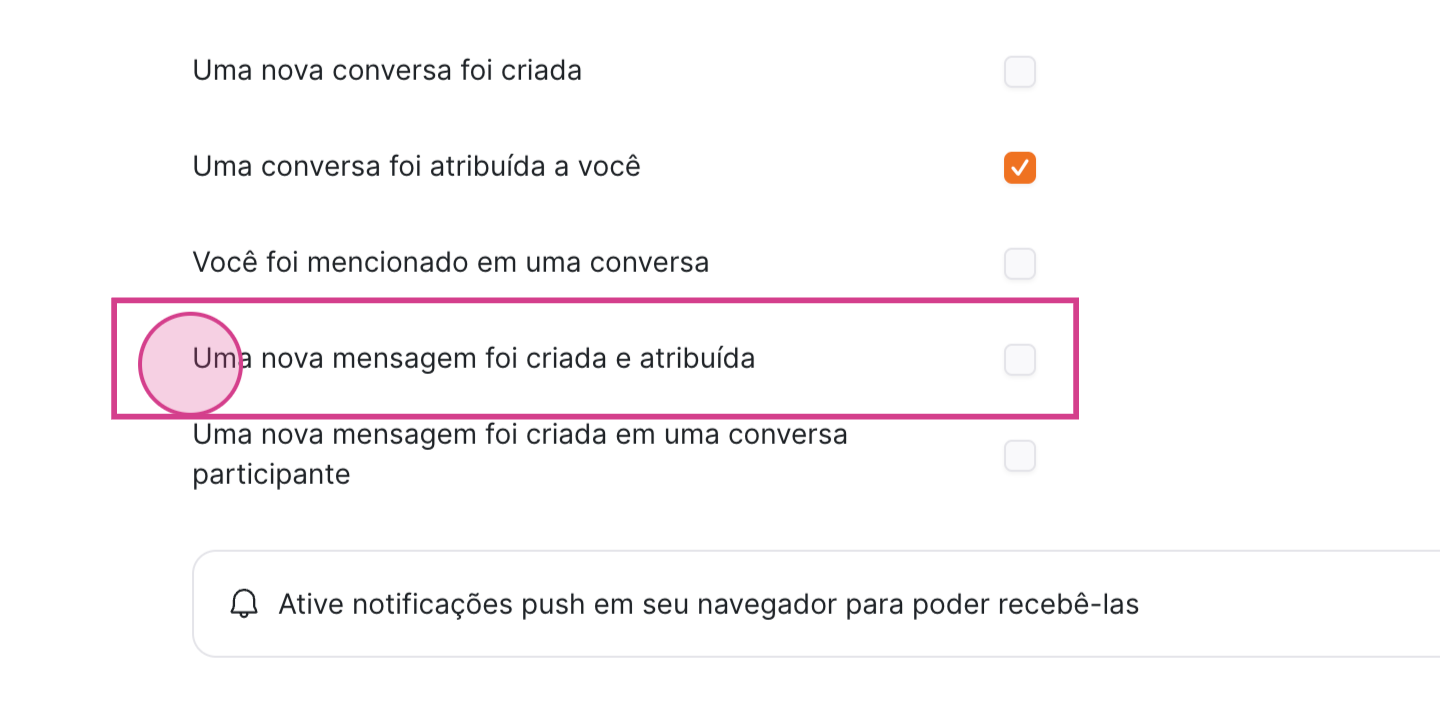
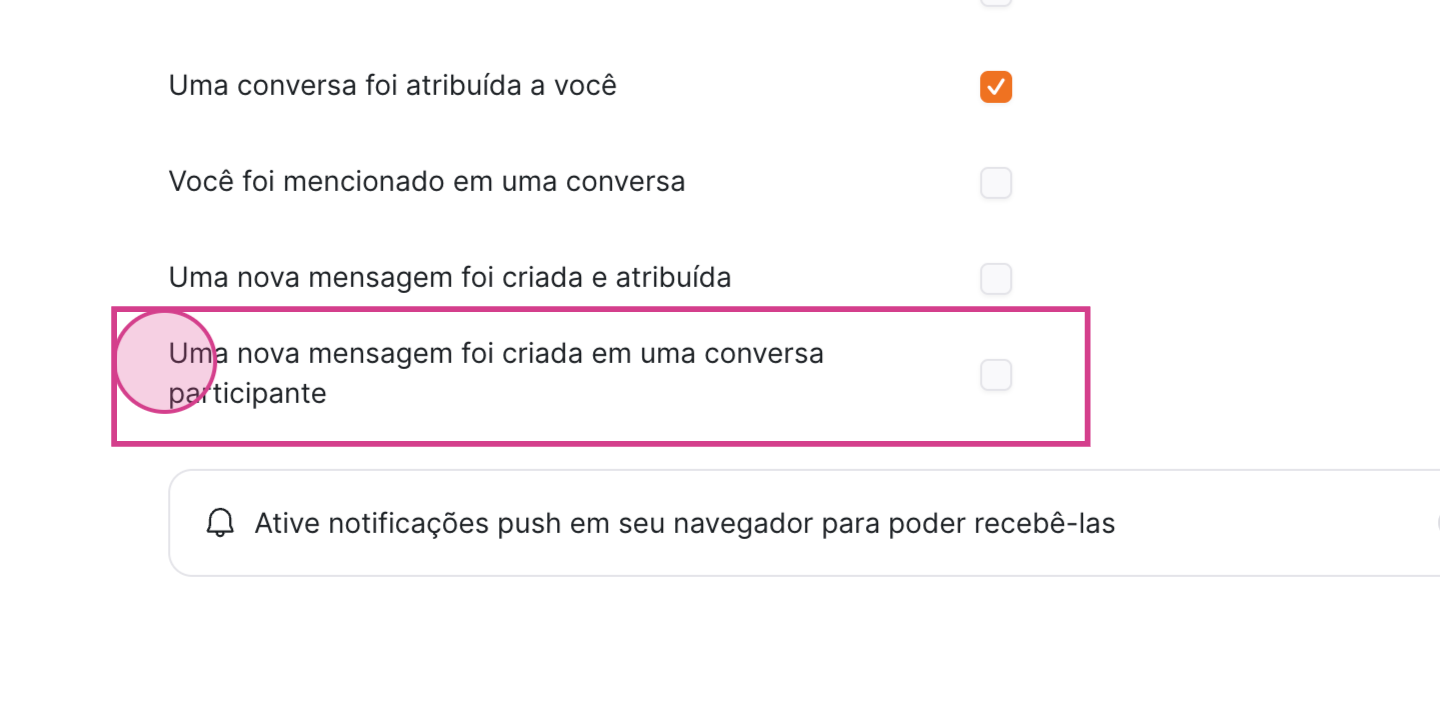
or when a new message is received in a conversation you participate in.
 Email Notification Alerts
You can receive email notifications when:
A new chat is created

A new chat is assigned to you

When you are mentioned in a conversation. This happens when someone uses the @ symbol followed by your name in an internal note.

When a new message is created and assigned to someone

When a new message is created in a conversation where you are a participant.

And that's it! Now you know everything about notifications in CloudChat.