When to use
- You want to understand when you automatically receive new tickets
- You are losing tickets without knowing why and suspect it is a status configuration issue
- You want to change the Auto offline setting, which can mark you as offline by mistake
About this article
In this article, you will understand how agent availability statuses work in Cloud Chat, how to change them, and what to do with the Auto offline setting so you don't lose tickets unintentionally.
Instruction video:
Available statuses
Available
You are online and open to receiving new tickets.
If the administrator has configured automatic ticket distribution, you only receive new conversations while this status is active.

Busy
You are online and answering tickets, but you are not available to receive new ones.
Use it when you need to focus on ongoing conversations without receiving more tickets from the queue.
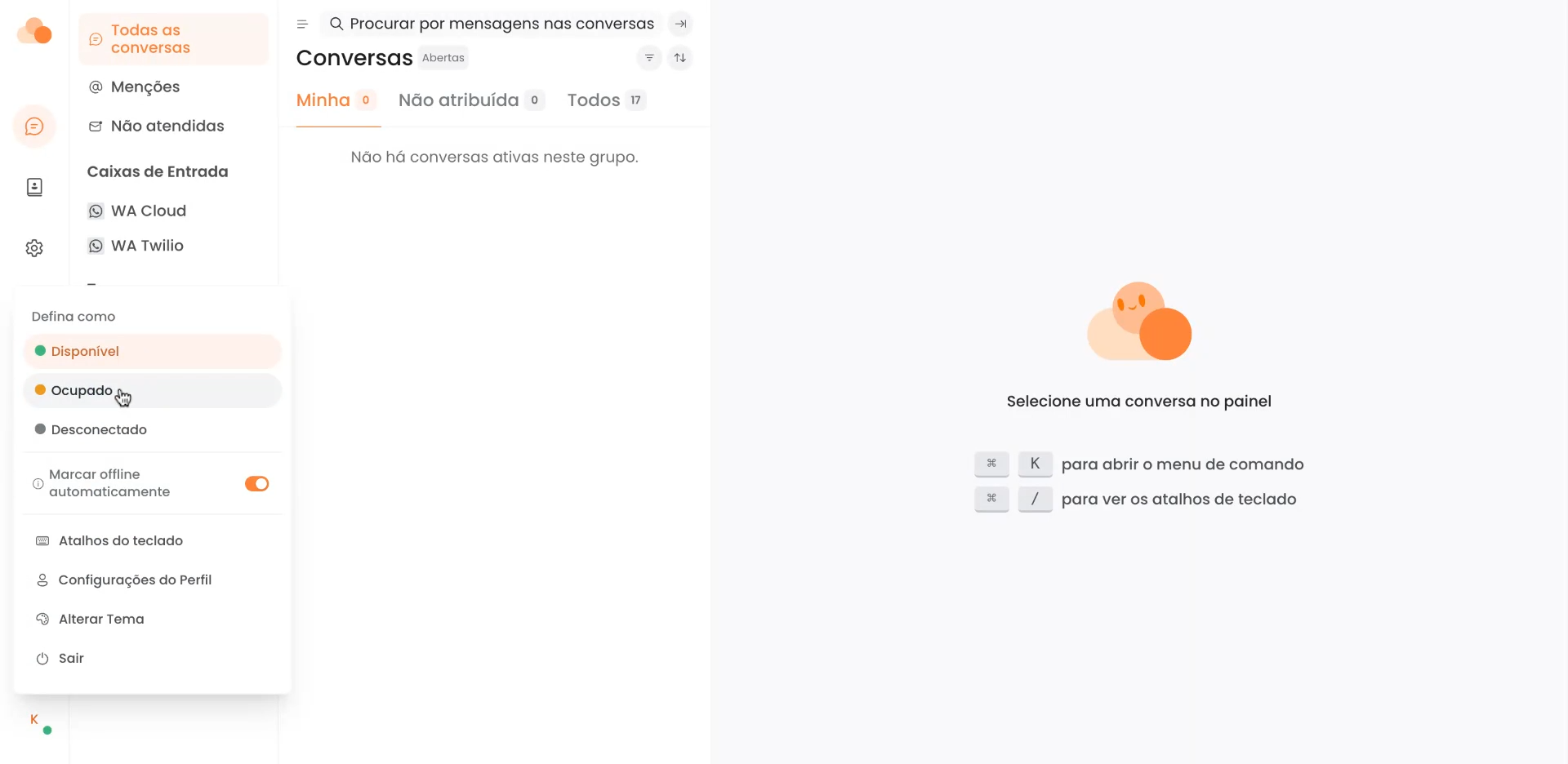
Offline
You are online, but you are not answering or receiving tickets.
When you close the Cloud Chat window or end your session, you are automatically marked as Offline.
Auto offline — per-profile setting
Auto offline is an individual setting for each agent, found in Profile settings.
When it is on (orange icon), Cloud Chat automatically marks the agent as offline after about 30 seconds without detecting your presence — for example, when you switch to another browser tab or window, lock your computer, or lose your connection. The change is not immediate when you switch tabs, but it happens shortly after if you don't come back.
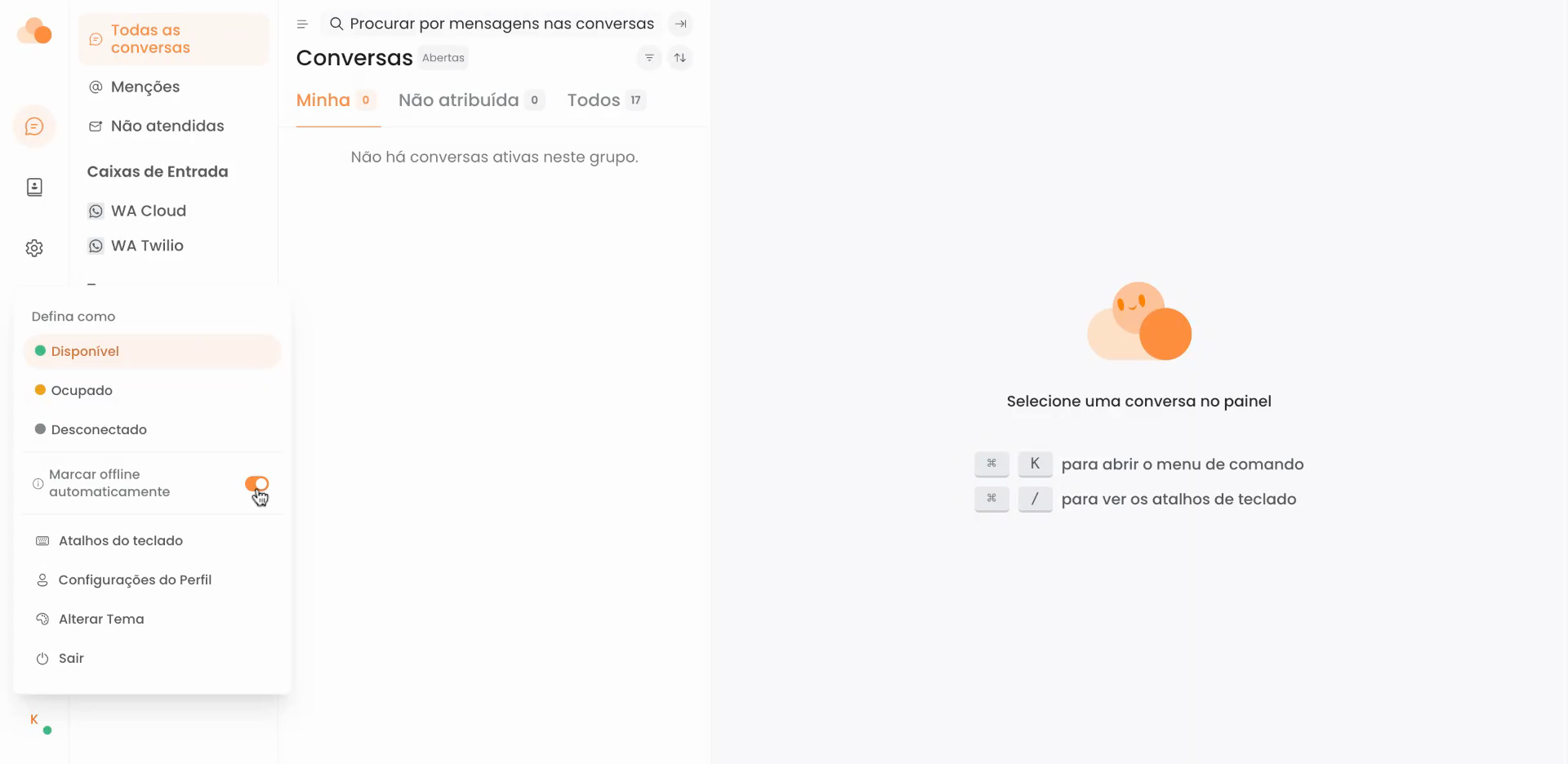
We recommend keeping Auto offline turned OFF.
With it on, spending some time away from Cloud Chat — browsing another site, checking a document, using another tool — results in you being automatically marked as offline. This can cause you to lose tickets that would have been assigned to you.
With Auto offline off, you have full control over your status: it only changes when you change it manually.
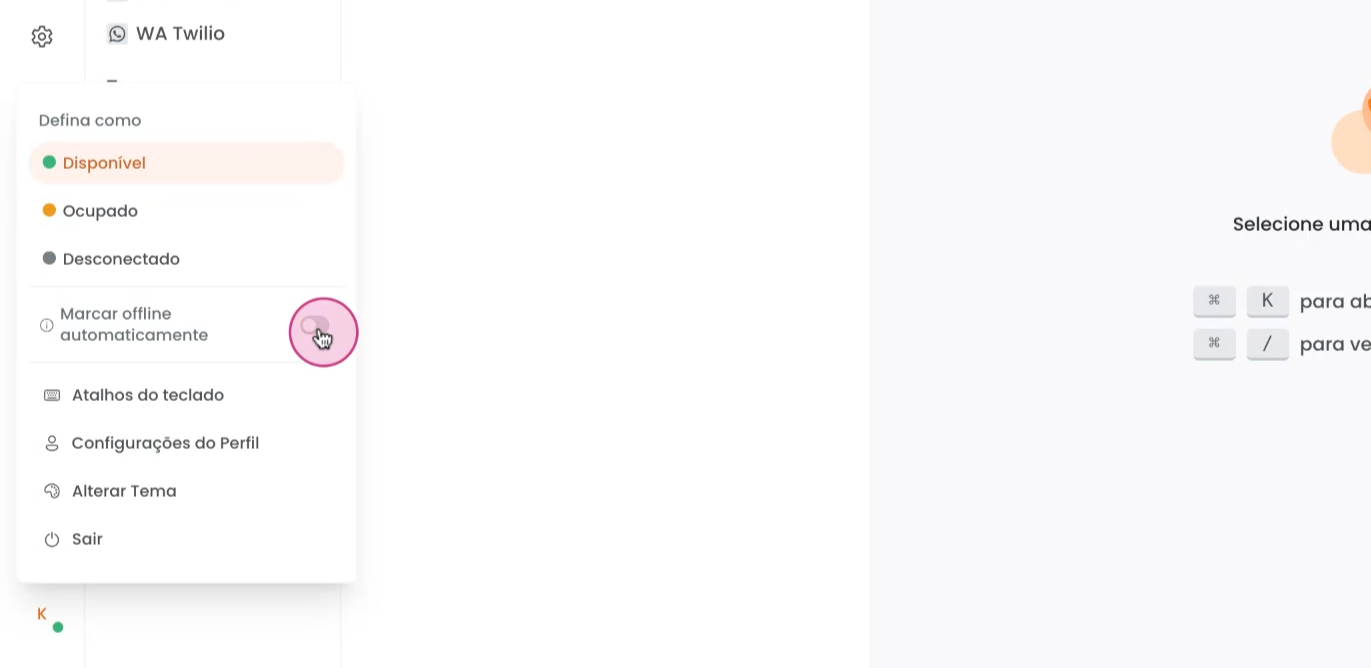
How to access
-
Click your profile picture
-
Profile settings
-
Find the "Marcar automaticamente como offline" option (Mark automatically as offline) and make sure it is turned off
Notes
-
To understand other profile settings (signature, send shortcut, etc.): How to configure your profile in Cloud Chat
-
To understand the impact of queues and auto-refresh on your conversations: How queue updates work in Cloud Chat
-
To configure audio and pop-up notifications: How to configure notifications and audio alerts in Cloud Chat