When to use
-
You want to enable automatic satisfaction surveys in Cloud Chat conversations
-
You want to send CSAT conditionally — only to certain teams, channels, priorities, or situations — using automation
-
You need to understand when and how CSAT is recorded in relation to the agent
-
You want to view and filter CSAT results on the dashboard
Prerequisites
-
Being logged in as a administrator on Cloud Chat
-
Having at least one inbox configured
About this tutorial
In this article, you will learn how the CSAT (Customer Satisfaction Score) works in Cloud Chat, how to enable it (by channel or automation), and where to view the results.
Instructional video:
How Cloud Chat's CSAT works
CSAT can be sent in two ways (choose the one that makes the most sense for your operation):
-
By inbox (default): enabling CSAT on an inbox automatically sends the survey to 100% of resolved tickets in that inbox. It’s toggle — either send to all, or to none.
-
By automation (conditional): an automation rule with the Send Satisfaction Survey (CSAT) action allows you to choose when and to whom the survey is sent — for example, only to a specific team, channel, priority, or outside business hours. See more below under Send CSAT conditionally (via automation).
The survey is a link leading to a page with a 1 to 5 question, with numbers AND emojis, and offers the customer the option to comment in more detail (not mandatory).

It is not possible to customize the appearance or questions of the survey beyond this — we are always updating. What you can control is when and to whom the survey is sent, using automation (see below).
How the agent is recorded in reports
Whenever a CSAT is recorded, it is linked to the last agent assigned to the conversation at the time the customer responds to the survey.
-
Assigning a new agent replaces the previous one for CSAT recording purposes
-
Removing the agent still links the CSAT to the last assigned agent
-
Changing/removing agent after recording does not alter the record
-
If no agent was assigned, the CSAT is not linked to any agent
How to enable CSAT per inbox
This is the default method: when enabled, CSAT is sent to all resolved tickets in the inbox.
Step 1 — Access inbox settings
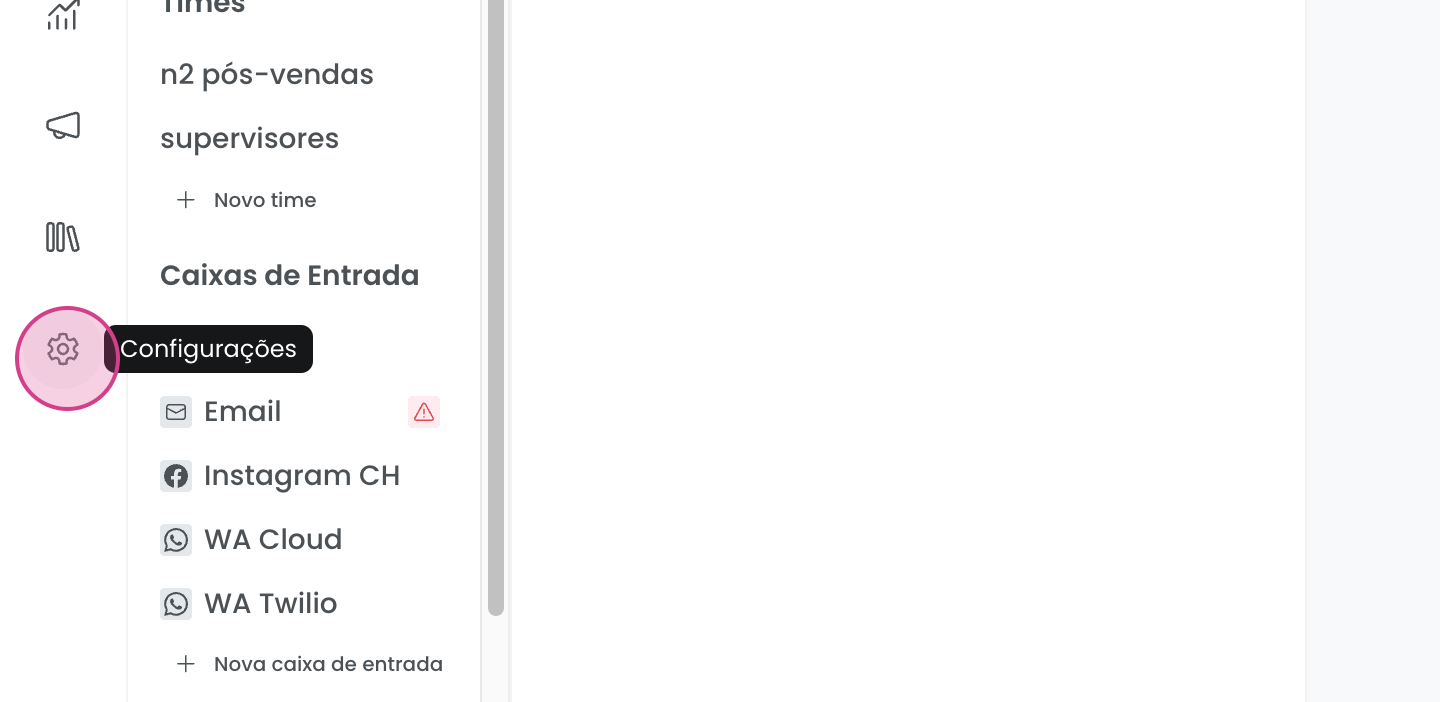
- Go to Settings
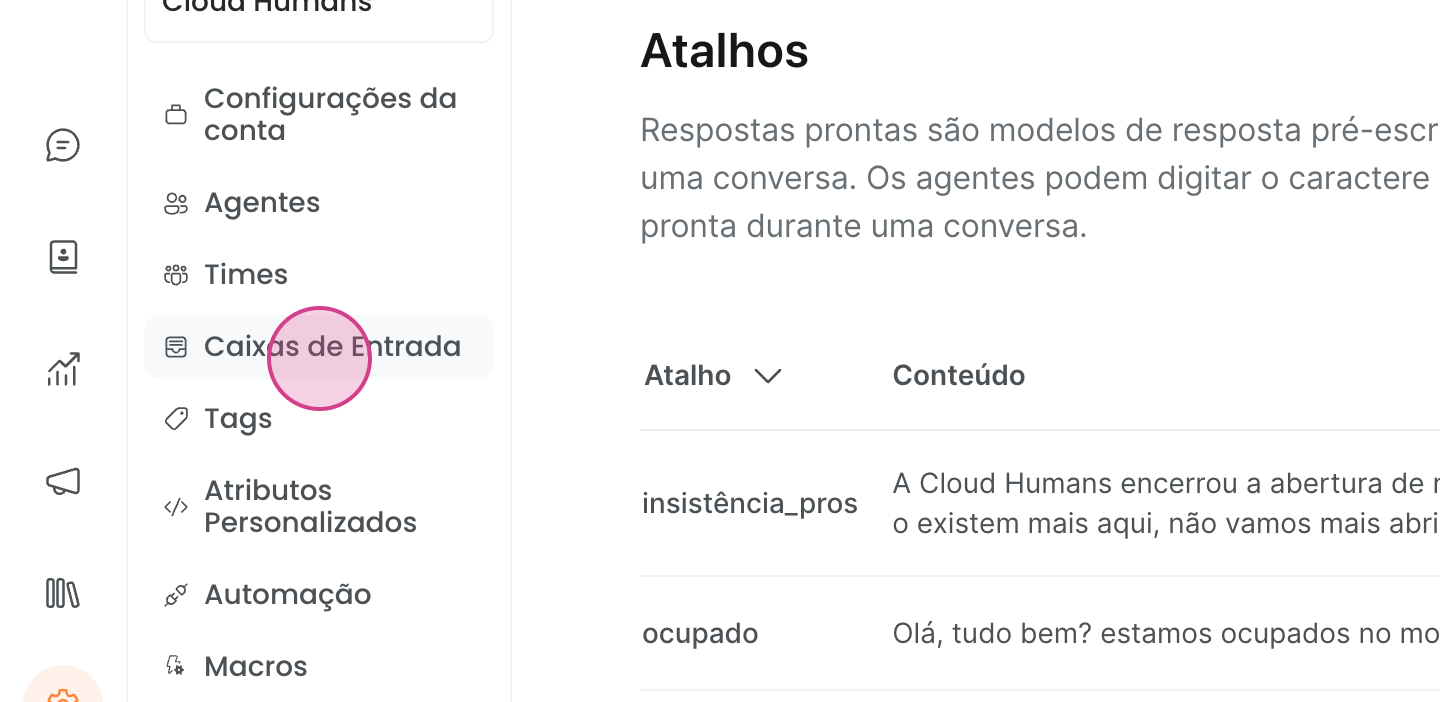
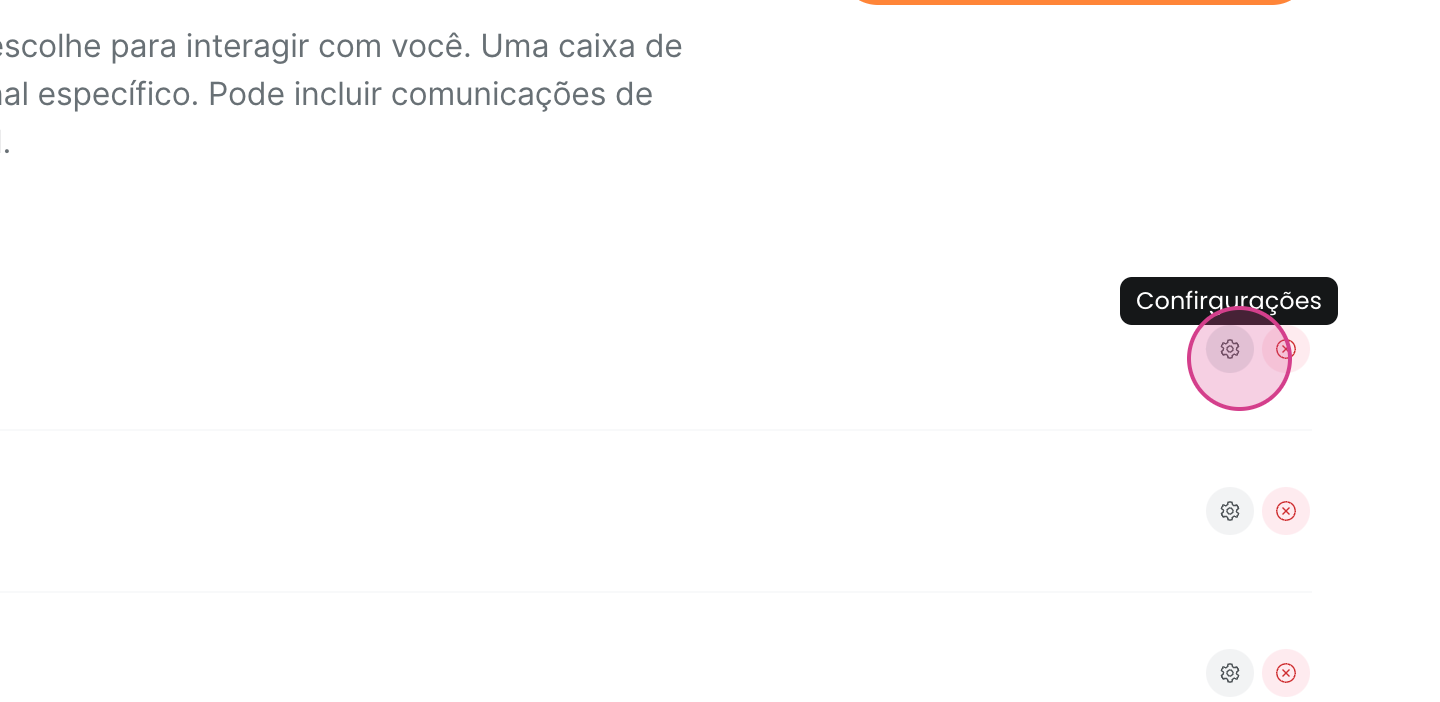
- Navigate to Inbox and select the desired inbox
Step 2 — Enable CSAT
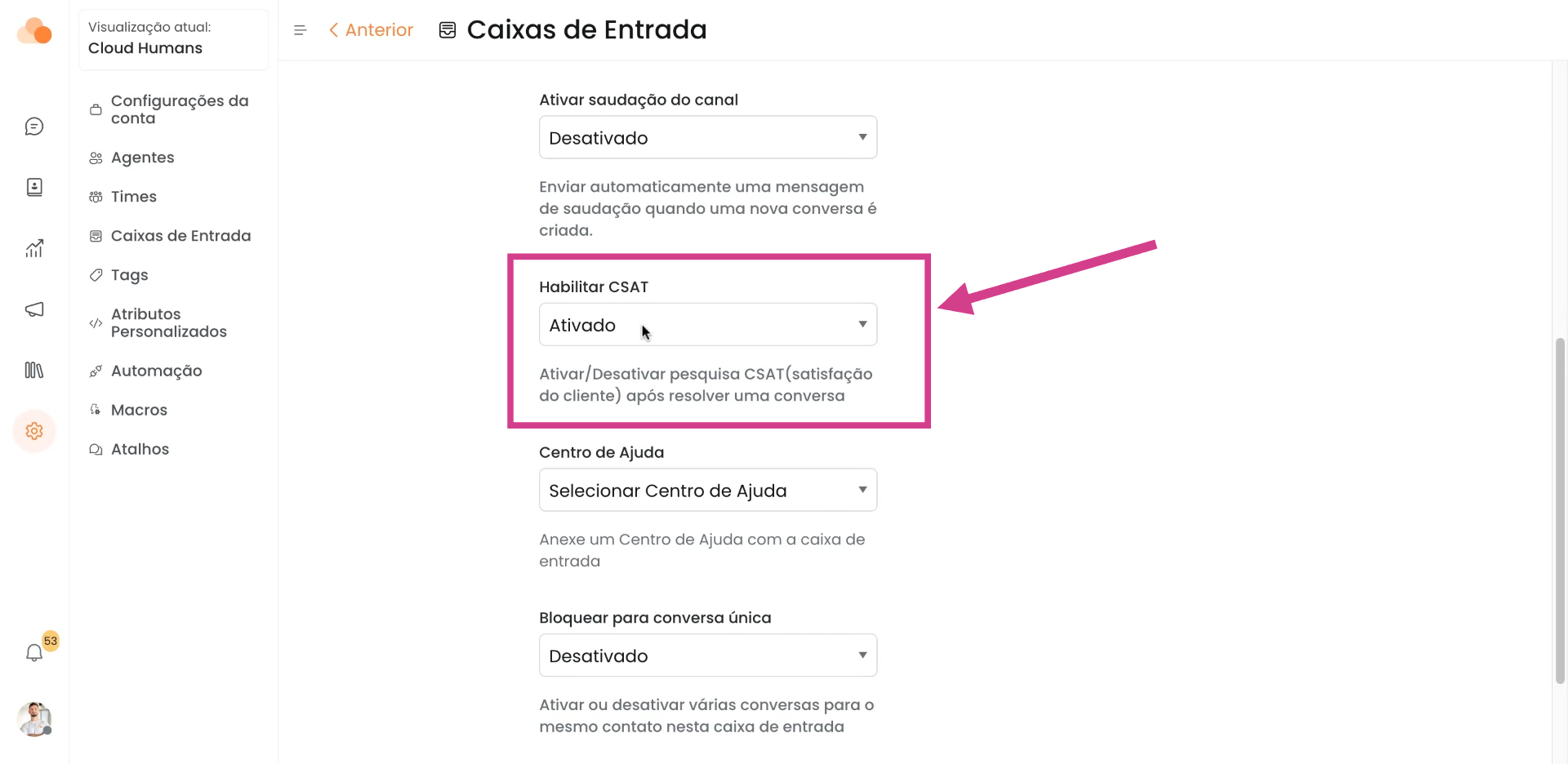
Scroll to the bottom of the settings and activate the Enable CSAT option on the channel.
Send CSAT conditionally (via automation)
For conditional sending to work as expected, disable the "Enable CSAT" option on the inbox (in Settings → Inbox). If it remains enabled, the inbox will send the survey to 100% of resolved tickets, regardless of automation conditions — thus, conditional control will have no effect.
Even if both methods are active simultaneously, no duplicate sending occurs: in the same conversation, the customer receives at most one survey.
Besides sending via inbox (which covers 100% of resolved tickets), you can set up an automation rule to send CSAT only in specific situations. This is useful for example to:
-
Send the survey only to a specific team (e.g., Sales team only, not Support)
-
Send only in certain channels, priorities, or tags
-
Send outside business hours, or under any other condition you need
-
Avoid re-sending in tickets that reopen and close multiple times — the survey is sent at most once per conversation
Conditional sending uses the action Send Satisfaction Survey (CSAT), available among other automation actions (such as Resolve Conversation or Add Tag).
Step 1 — Create a new automation rule
-
Go to Settings and select Automation
-
Click Add automation rule and give it a Name
Step 2 — Define trigger and conditions
-
Under Event, choose Conversation Updated
-
Under Conditions, add Status equals Resolved — this triggers the survey upon ticket resolution
-
(Optional) Add other conditions like Team, Inbox, Priority, or Tag to refine when the survey is sent.
-
Under Actions, select Send Satisfaction Survey (CSAT) — no additional setup needed
-
Click Create

The survey is not sent when: the conversation is not resolved, the contact is blocked, the conversation is part of a campaign, the channel does not allow CSAT (e.g., public comments on Instagram or posts on X/Twitter), or the conversation has already received a survey.
Customizing CSAT for WhatsApp
For those using the native WhatsApp API (not applicable to Twilio), we offer an option to send CSAT directly within the app.
As soon as the conversation is closed, the customer receives the survey natively on WhatsApp — no external link, no redirection. They can respond right there in a simple, integrated manner.

Meta currently does not support all message types on WhatsApp Web — only on standard devices (Android and iOS).
The language in which CSAT is sent matches the language set in the Cloud Chat account.

How to view results
Step 1 — Access reports
- Go to Reports
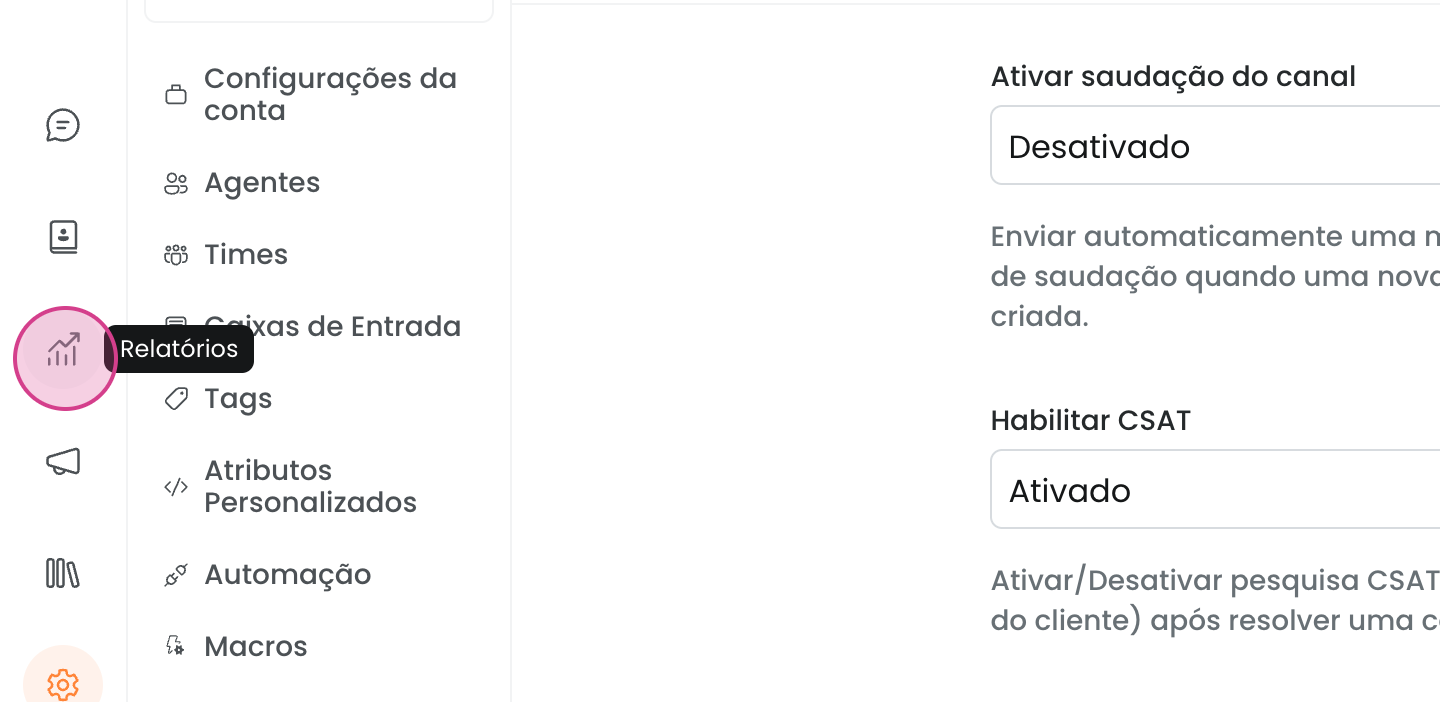
- Click on CSAT
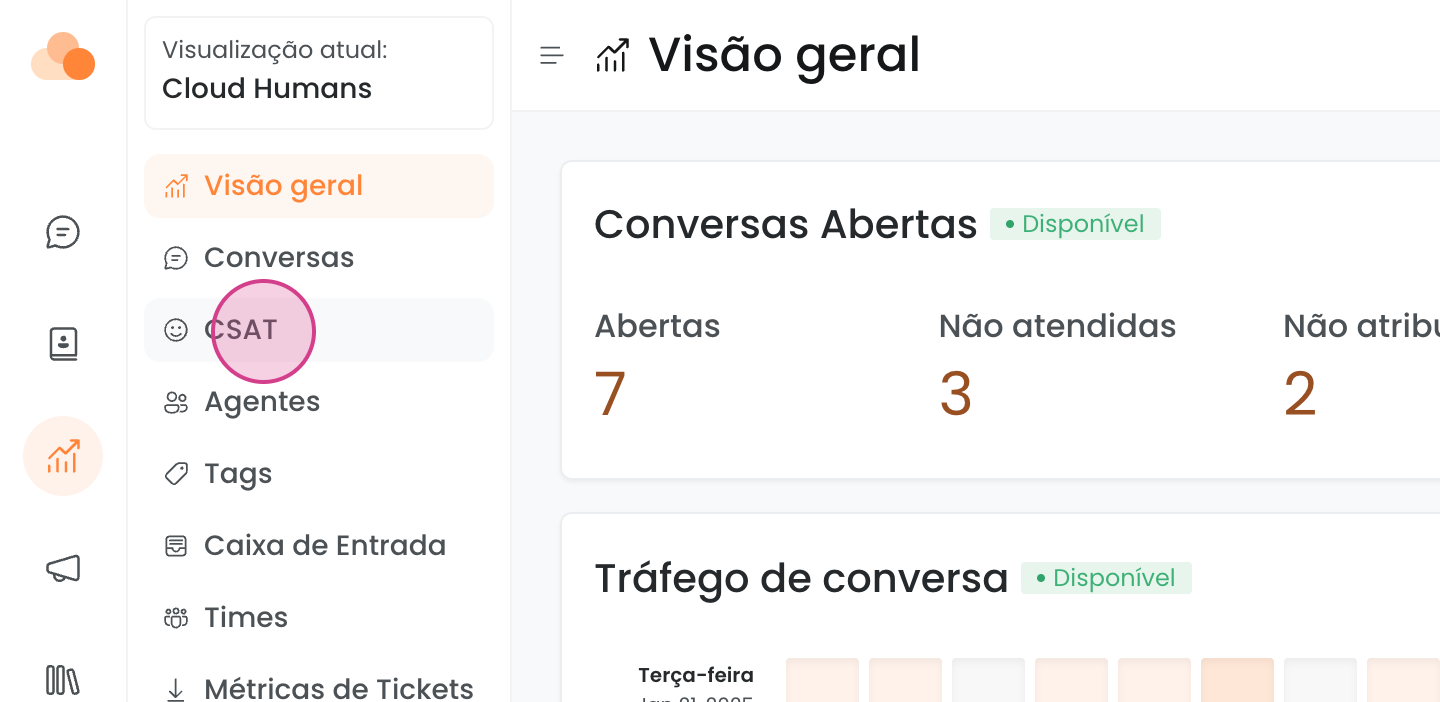
Step 2 — Filter results
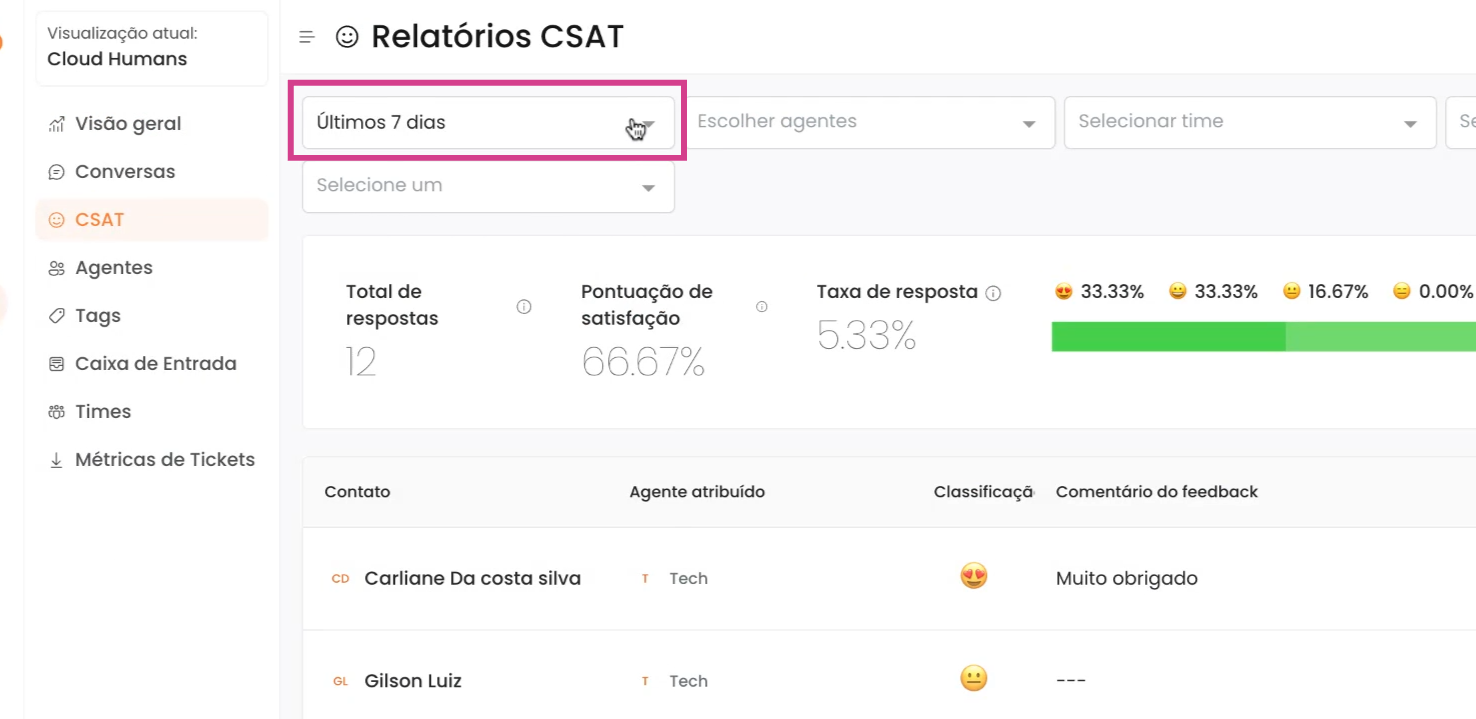
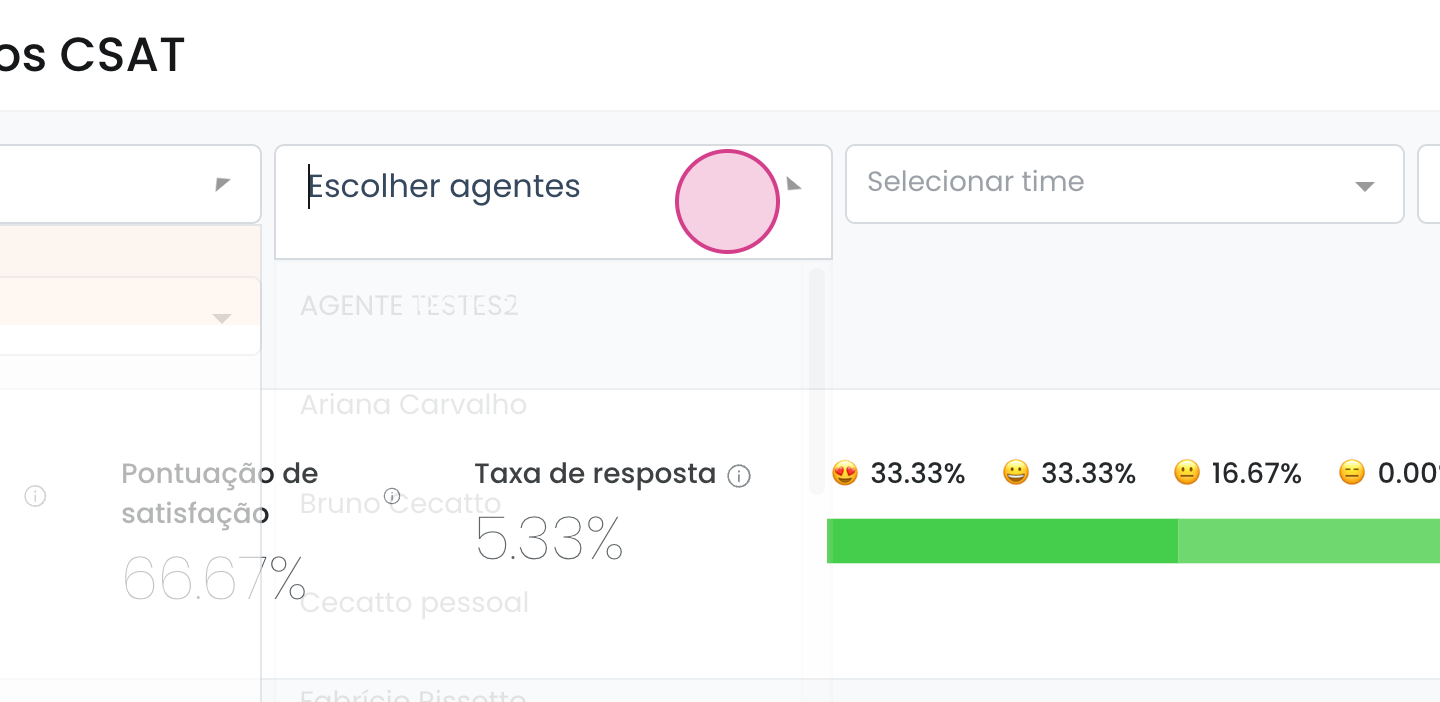
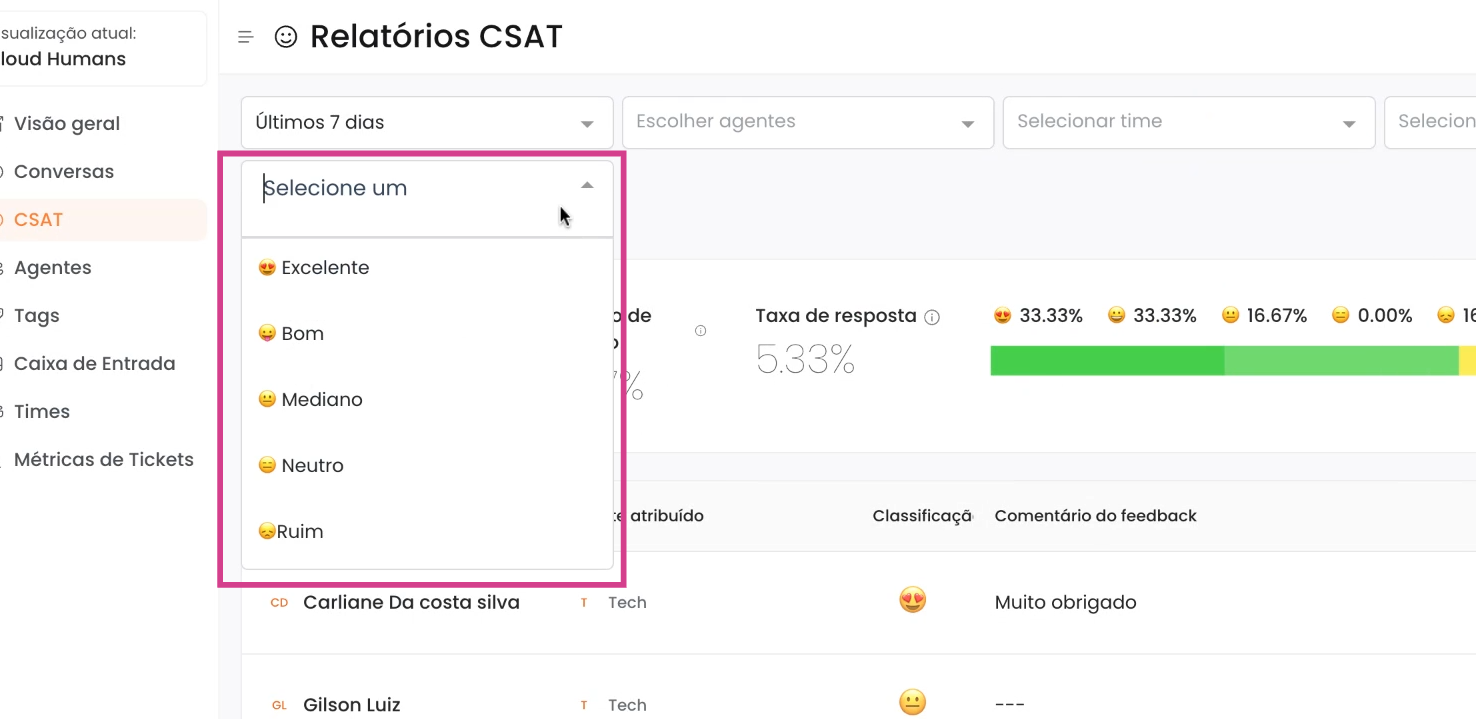
You can filter by:
-
Date
-
Agent
-
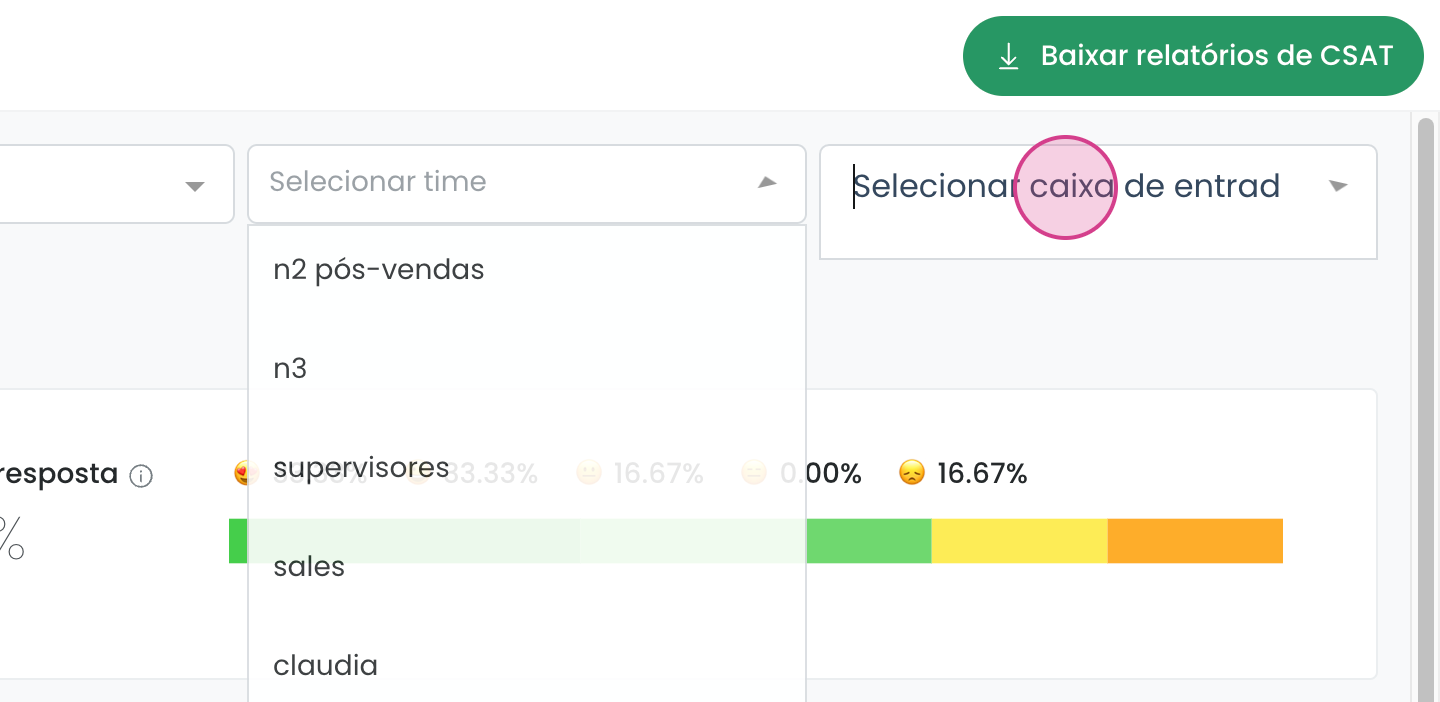
Team
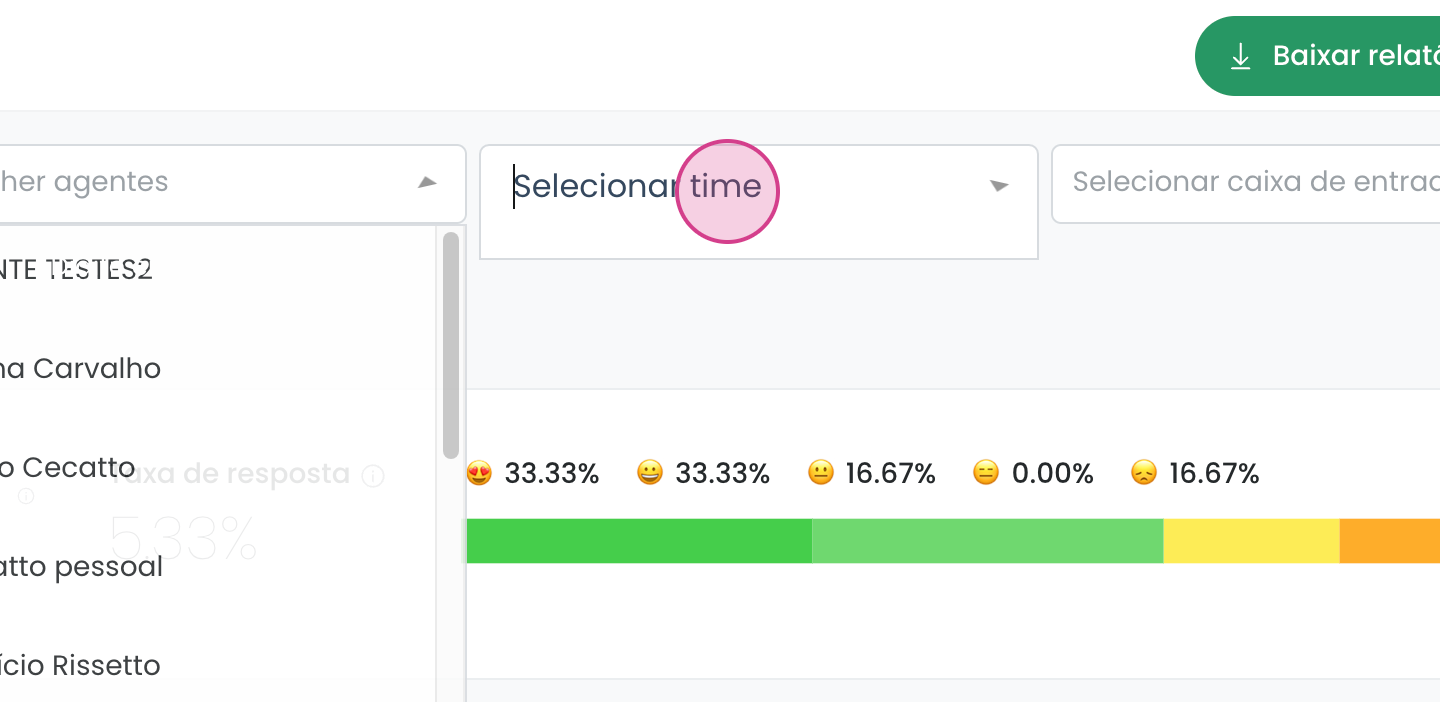
-
Inbox or Score
To open a specific ticket, click on the ticket number.
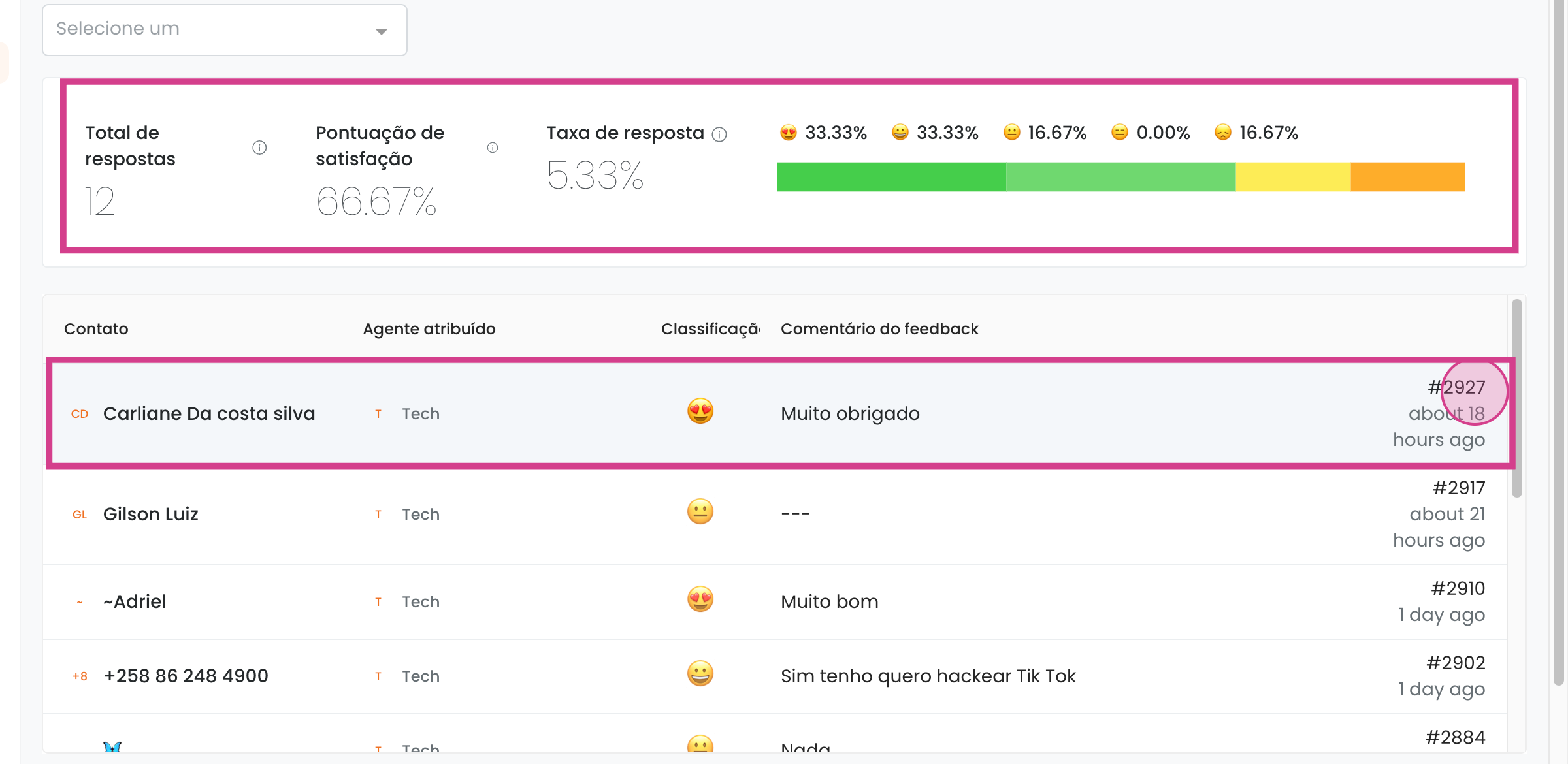
Important: CSAT is recorded based on the date the customer responds, not the ticket creation date. CSAT measures the customer's final experience — after resolution.
Additional notes
-
Automatic ticket resolution also triggers CSAT sending: Automatic ticket resolution and Account settings: language and automatic resolution
-
To set up a single conversation on WhatsApp (affects CSAT sending): How to set up the Single Conversation feature on WhatsApp
-
To extract CSAT data in reports via API: How to batch export data via API (Data Extract API)