In this article, you will understand all the functionalities available during a conversation in Cloud Chat.
Basic Contact Information
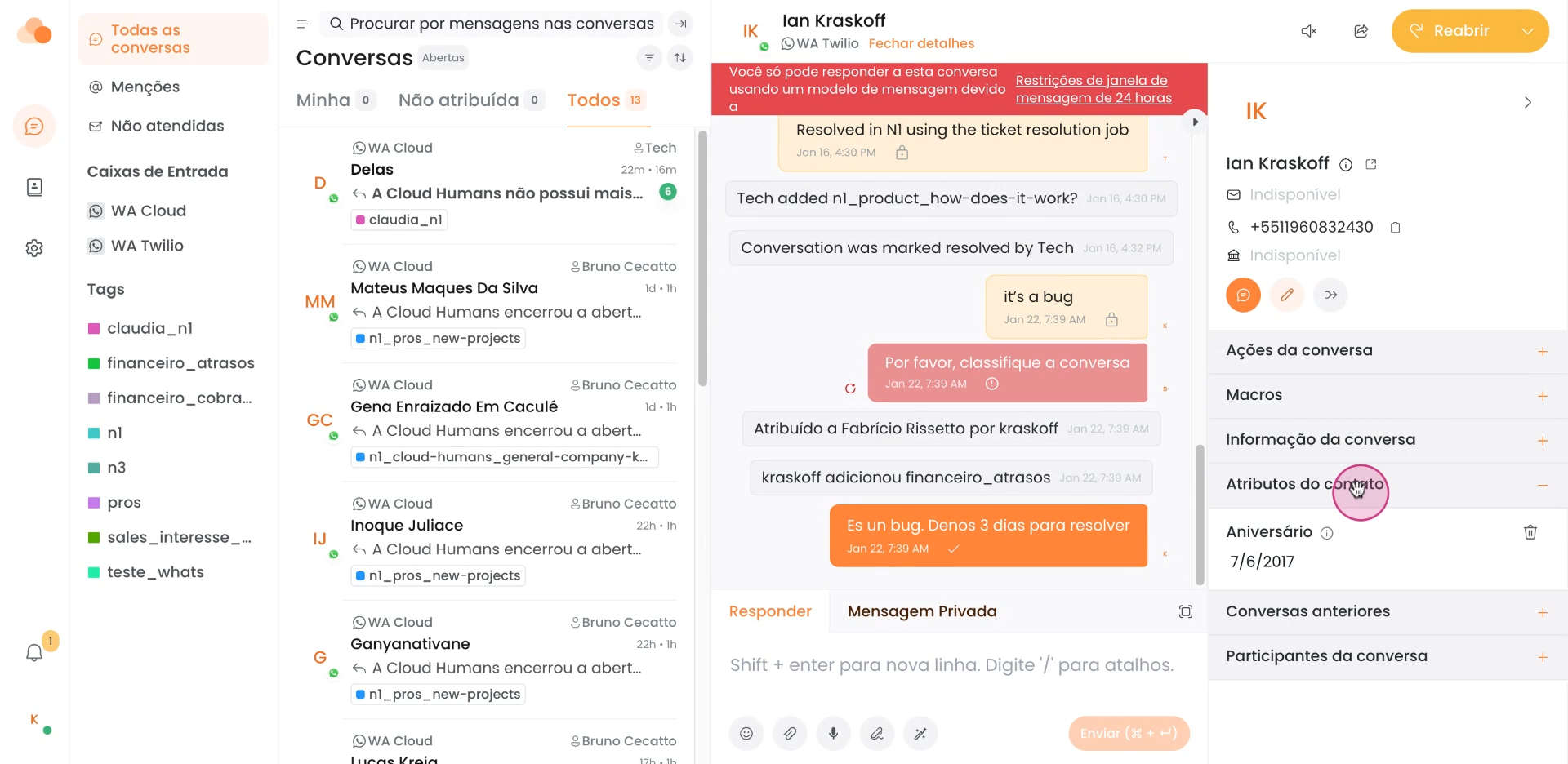
First, in the conversation screen, you can view basic contact information in the top right corner.
If the contact is registered, the name of the person you're interacting with, phone number, email, and company will appear. If the contact has not been previously created, Cloud Chat automatically creates a new contact and displays the information provided by the channel (e.g., WhatsApp shows the phone number).
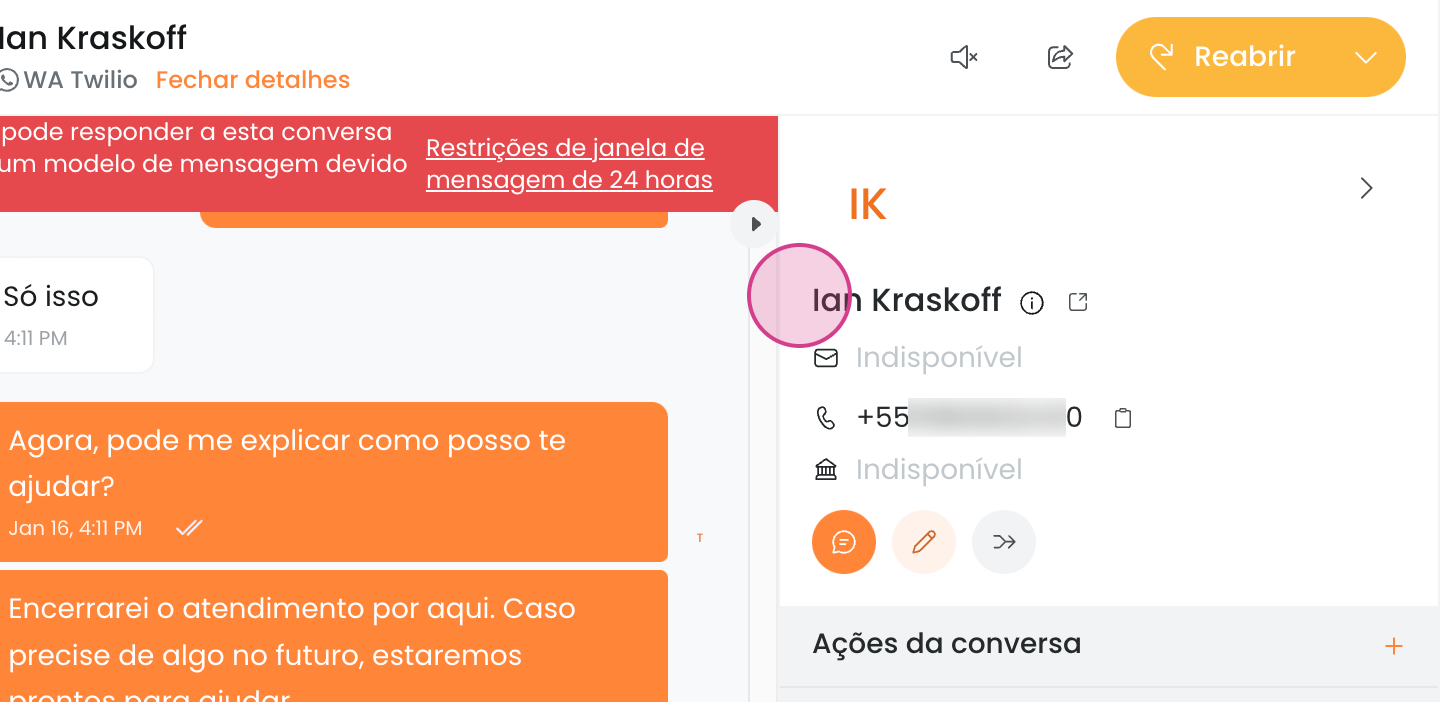
From here, you can send a proactive message to the contact. For example, if you are viewing an old conversation and want to send a proactive WhatsApp message, you can do it here.
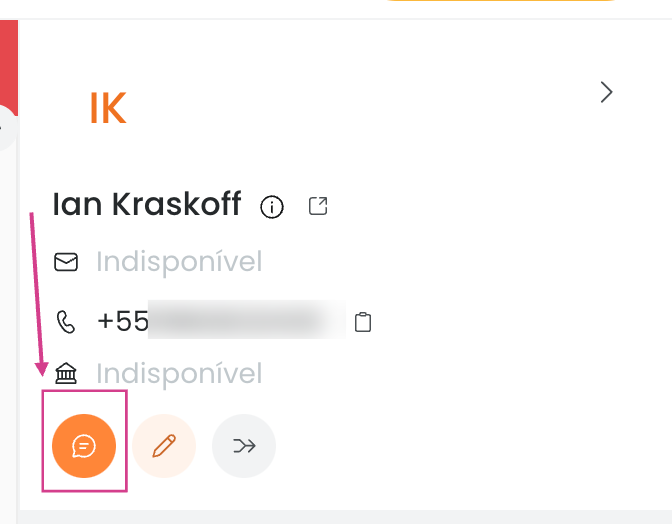
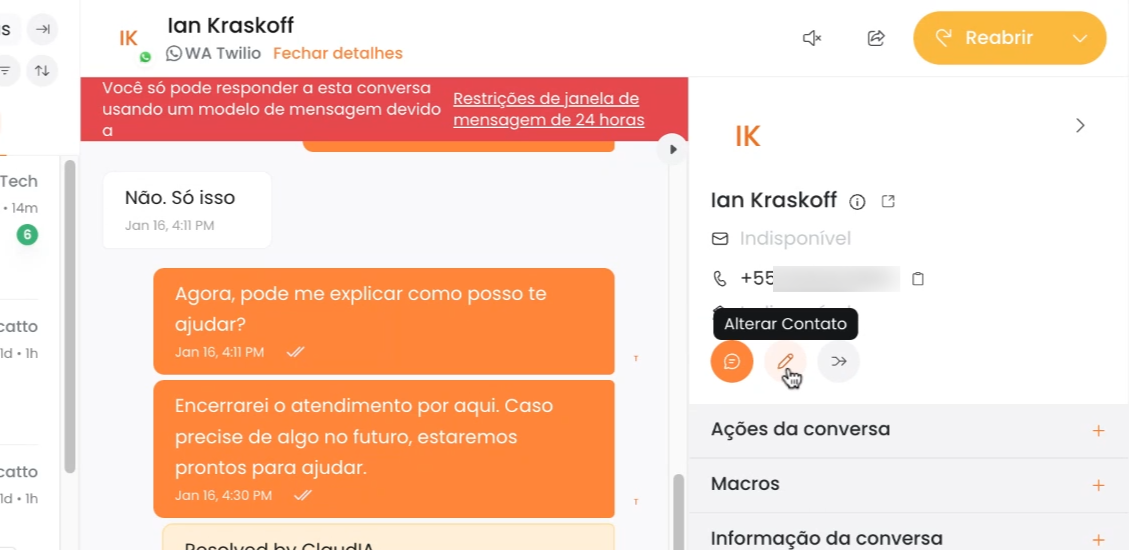
It is also possible to edit the contact to add or modify contact information.
Finally, you can merge contacts.
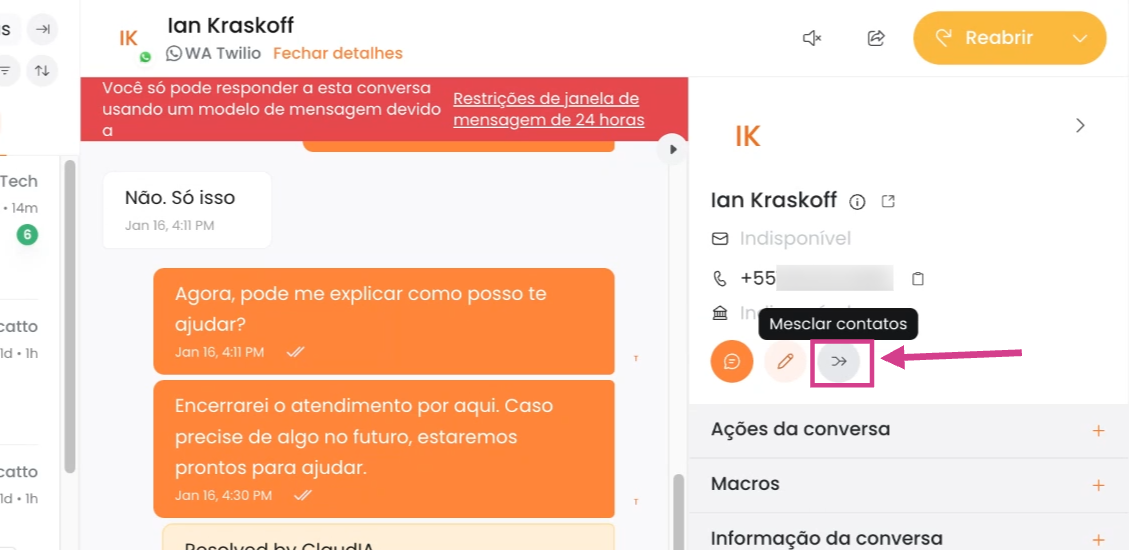
Important: When merging contacts, conversations will create sub-contacts, which will be displayed as additional addresses (emails and phone numbers). These sub-contacts can be deleted by an administrator, which will also delete the associated conversations.

Conversation Actions
During the conversation, there are several actions you can take.
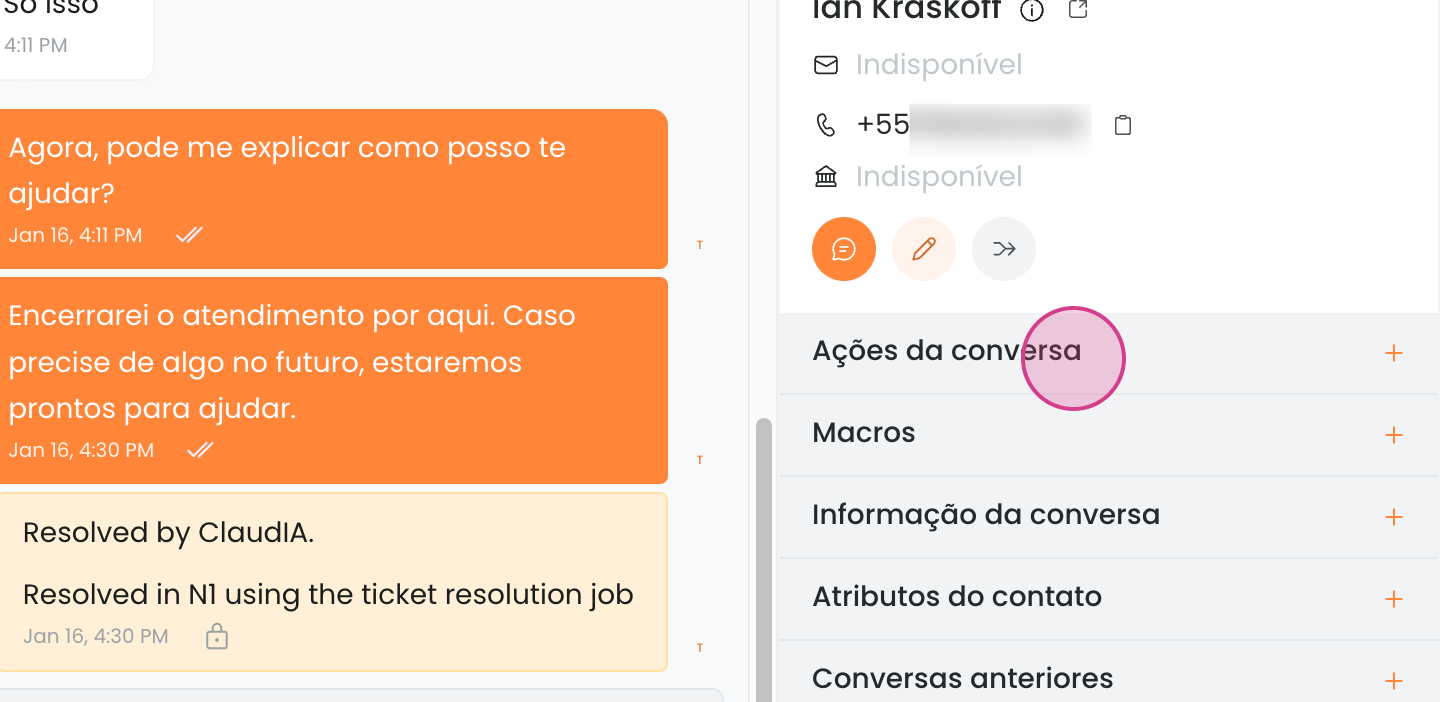
You can assign the conversation to yourself,
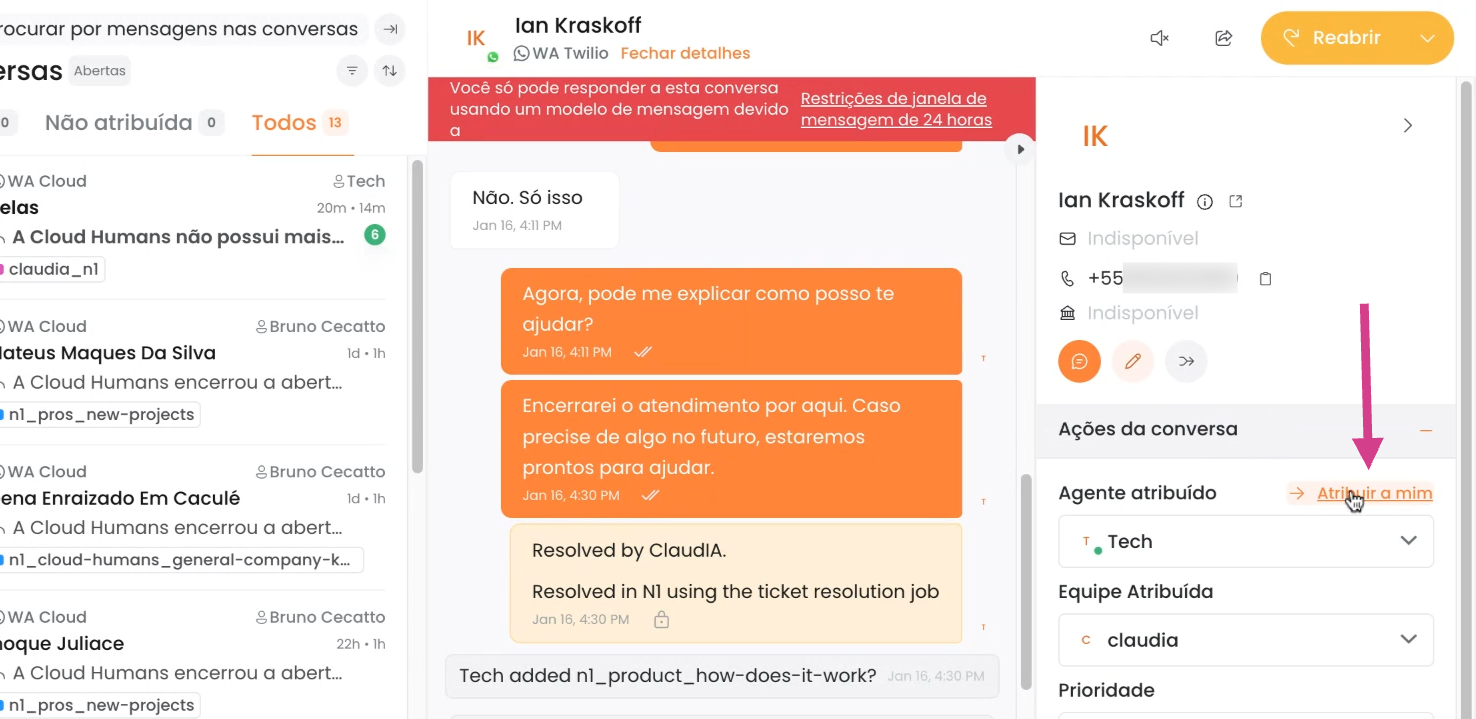
to transfer to another person,
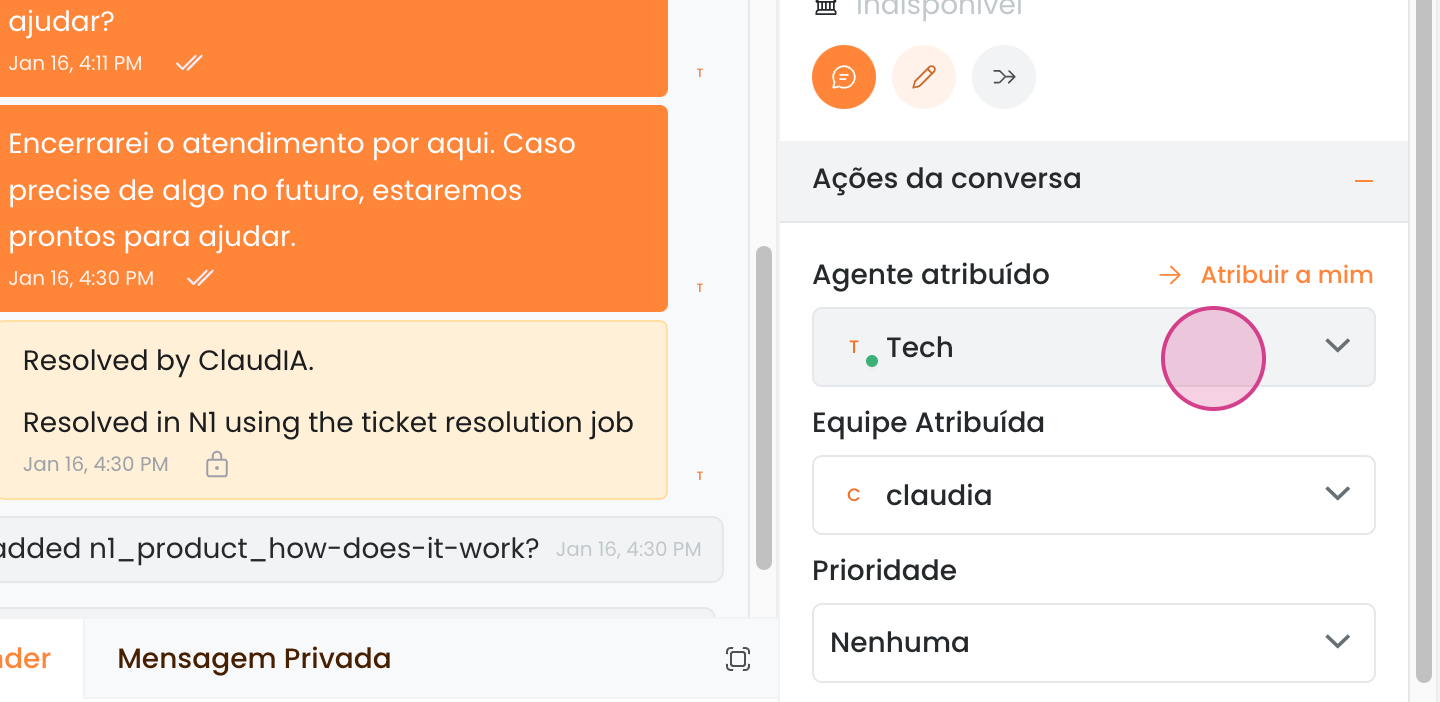
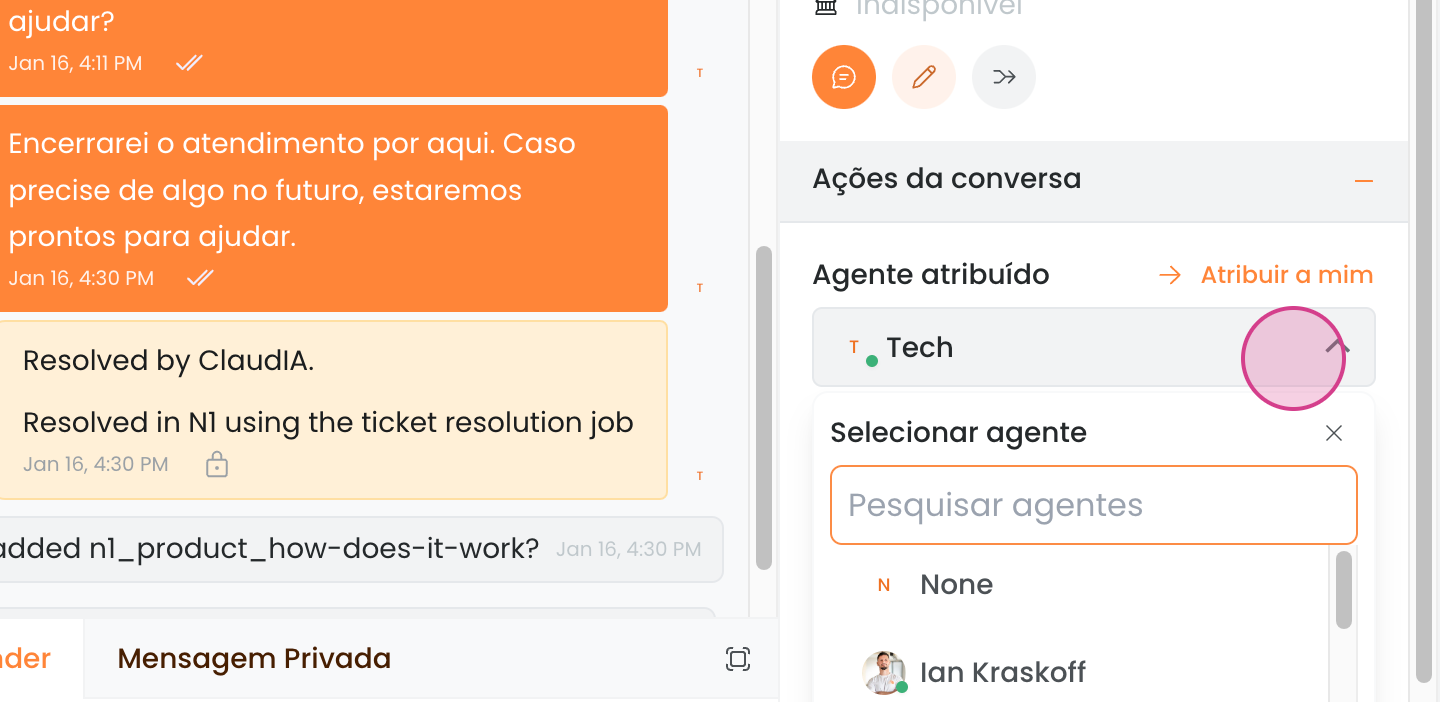
or to a team.
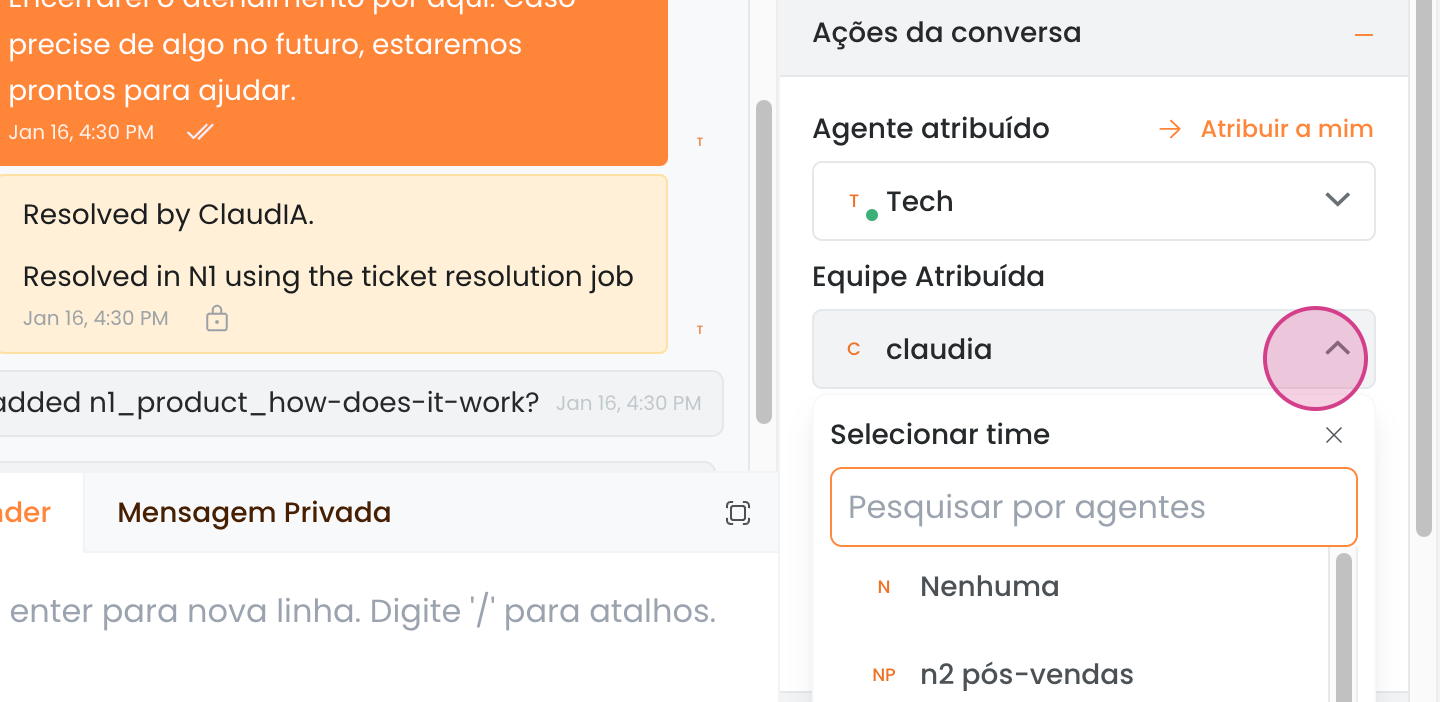
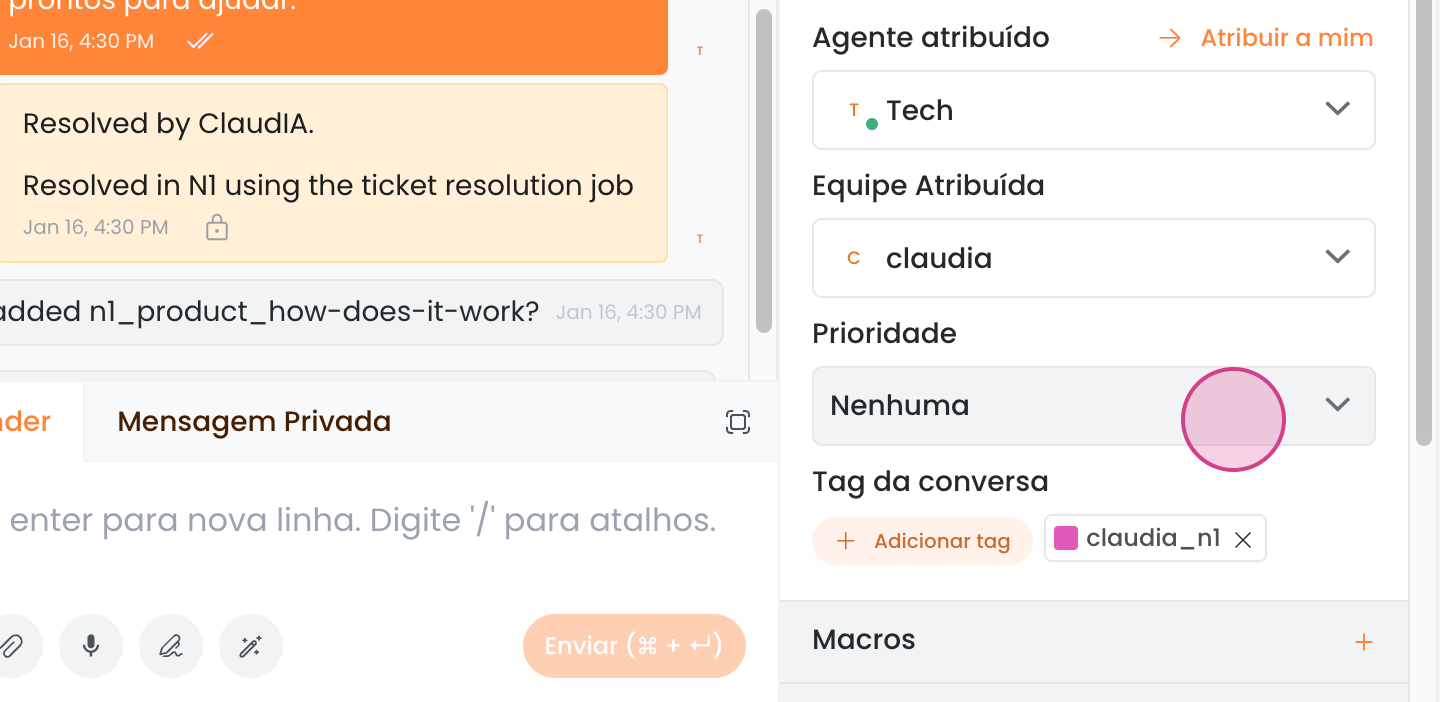
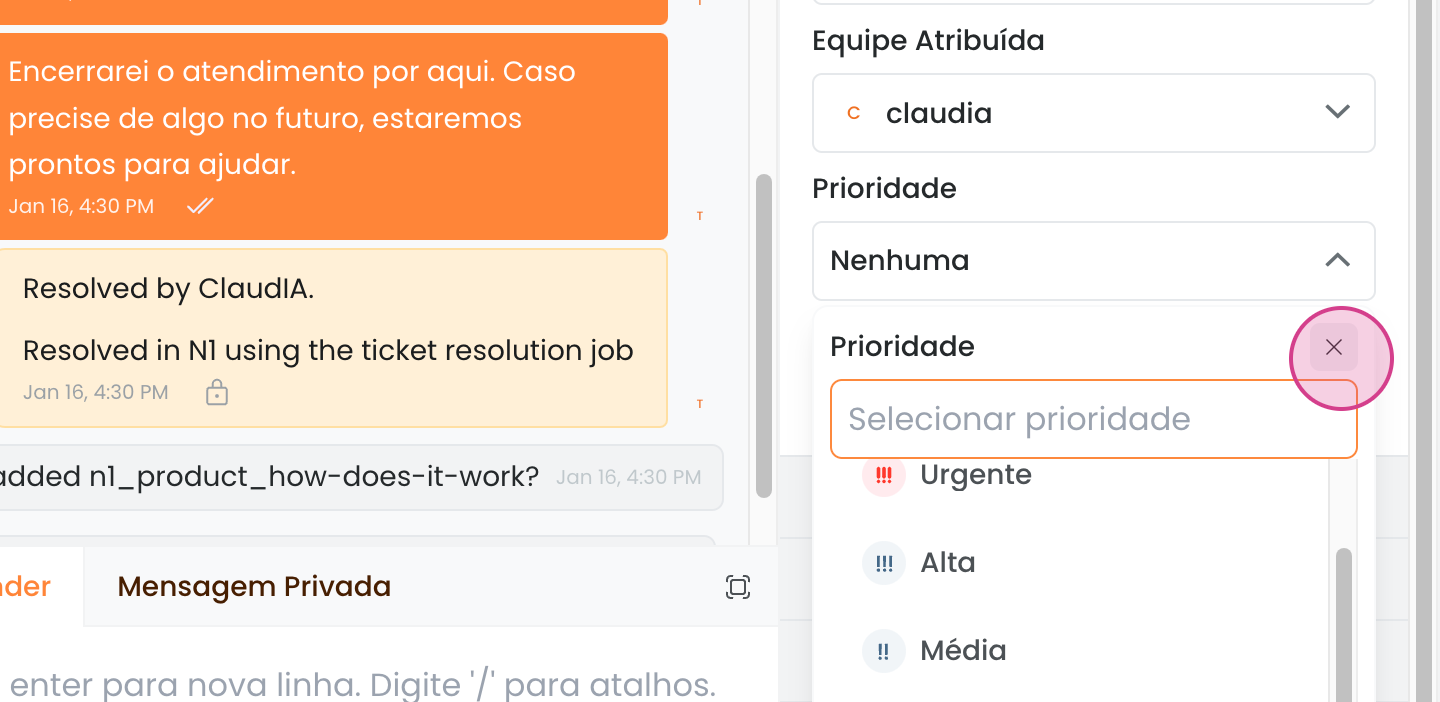
You can also change the priority of the conversation, choosing between none, urgent, high, medium, or low.
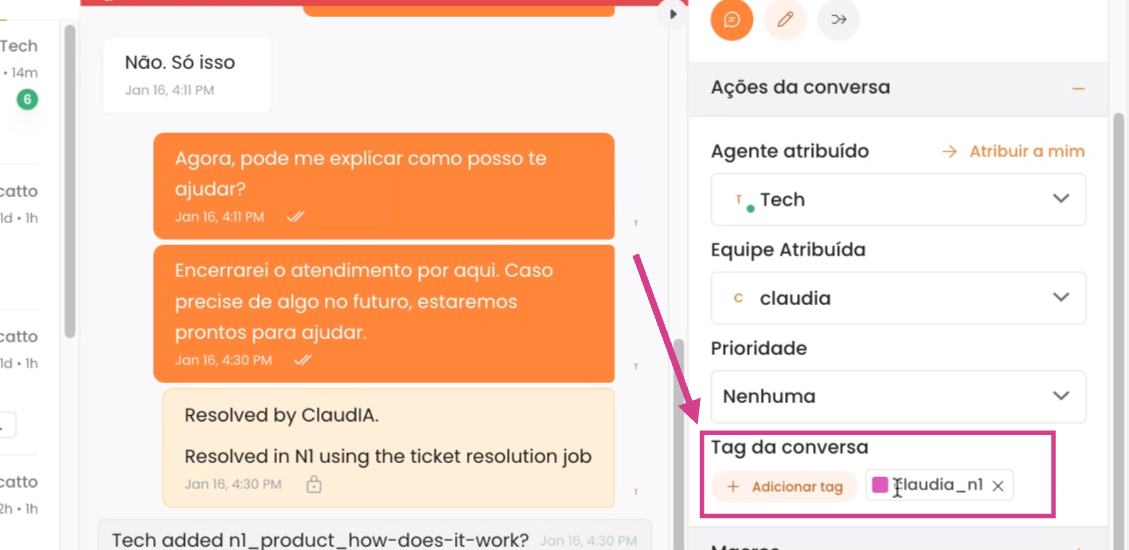
Additionally, you can add tags to the conversation. A conversation can have more than one tag.
Macros
Another feature is macros.
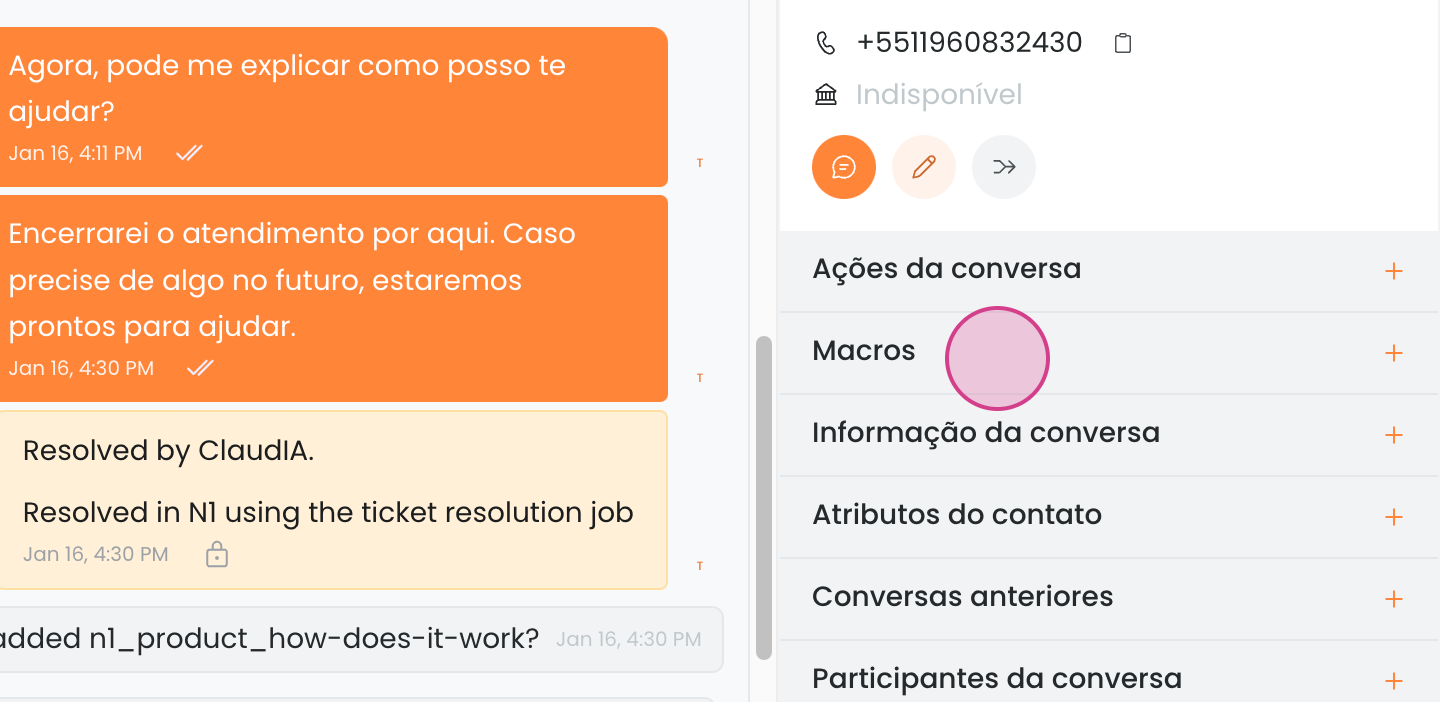
A macro is a series of predefined actions for an automation that has already been created. The difference between a macro and a normal automation is that the macro requires a person to press the execute button.
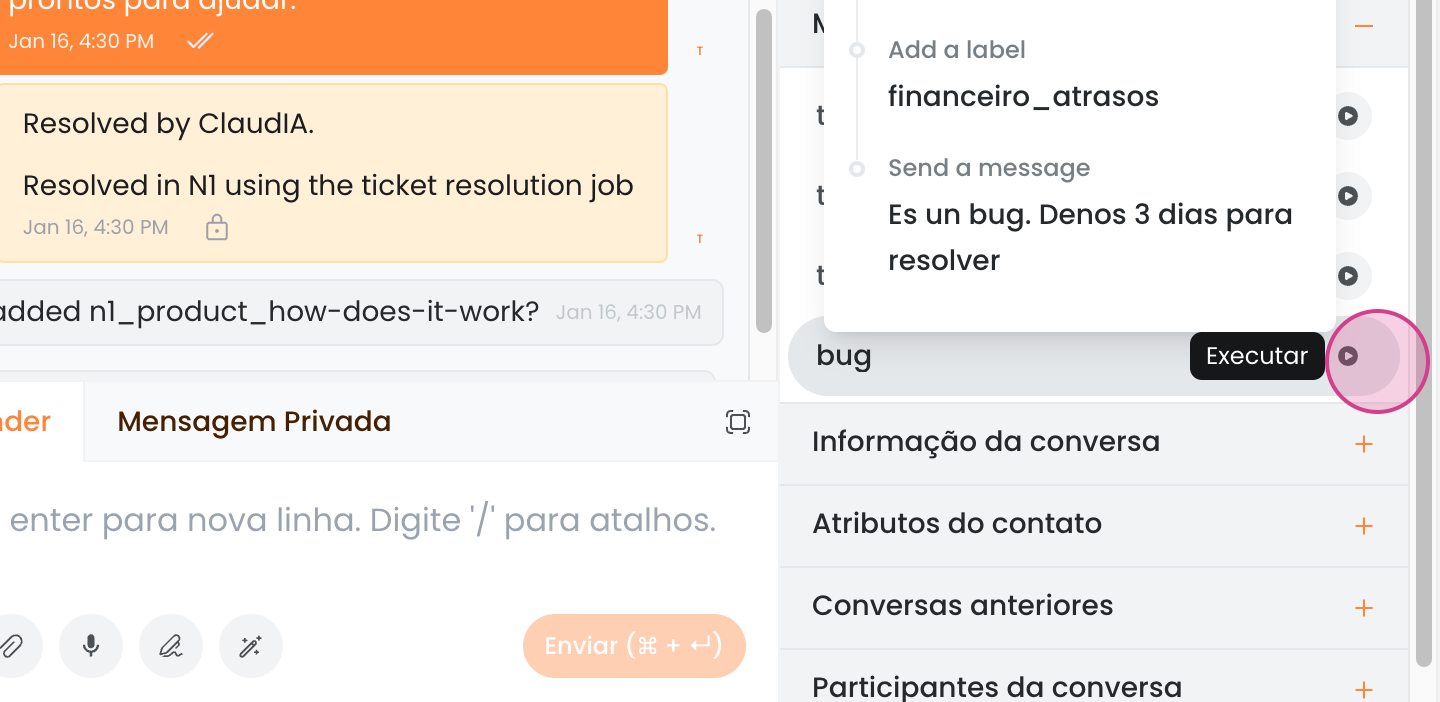
For example, when executing this macro called bug, the following actions are performed:
-
Send a private message
-
Transfer the ticket to someone
-
Add a tag to the ticket
-
Send a message to the client
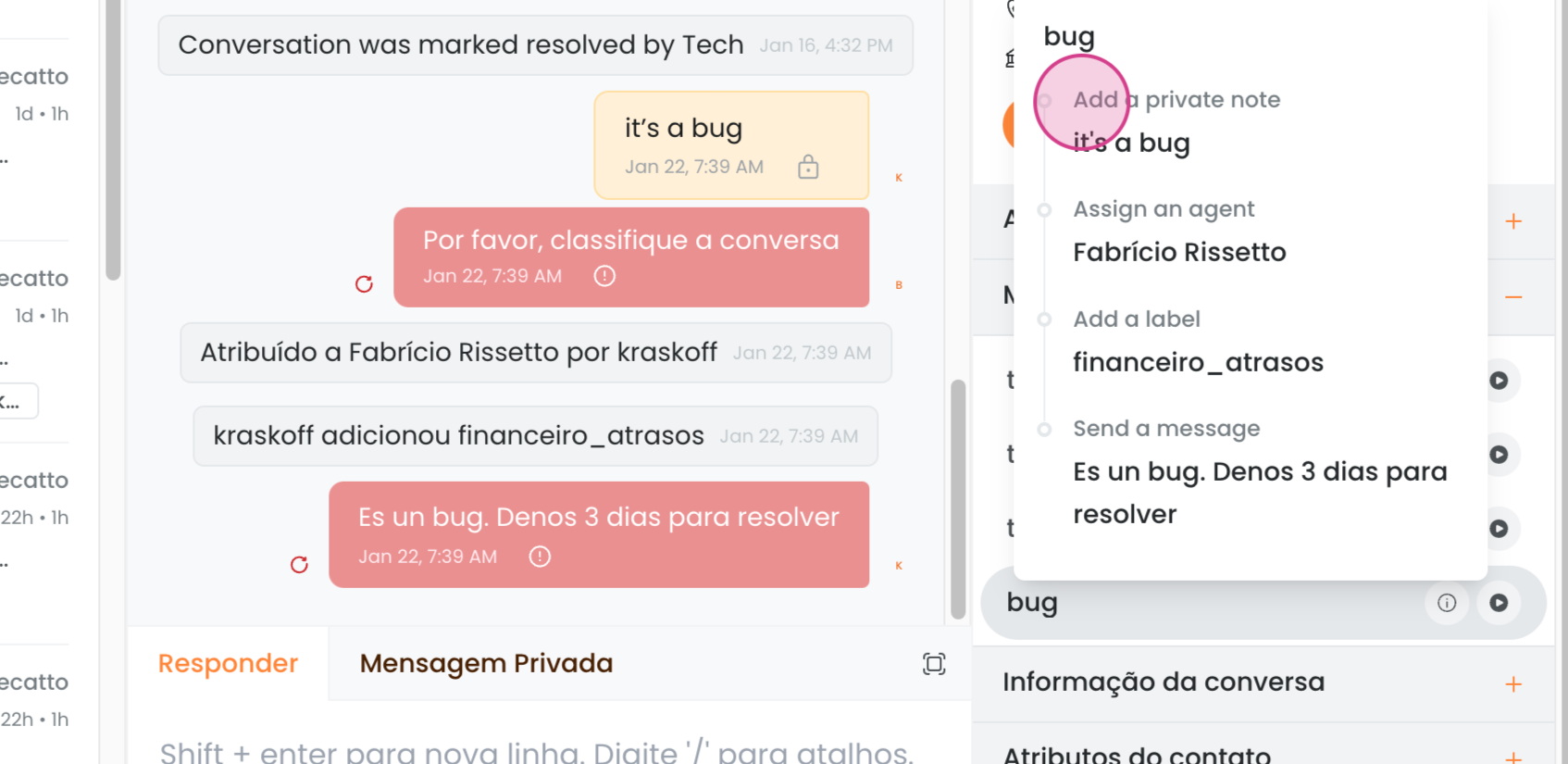
All macros are created by your space administrators.
Custom Attributes for Conversation and Contact
You can set up custom fields for the conversation. These fields are also created by the space administrator. In our example, we have the fields test, n2, and resolution deadline.
These custom fields can be:
-
Link
-
Date
-
Checkbox
-
List
-
Text
-
Number
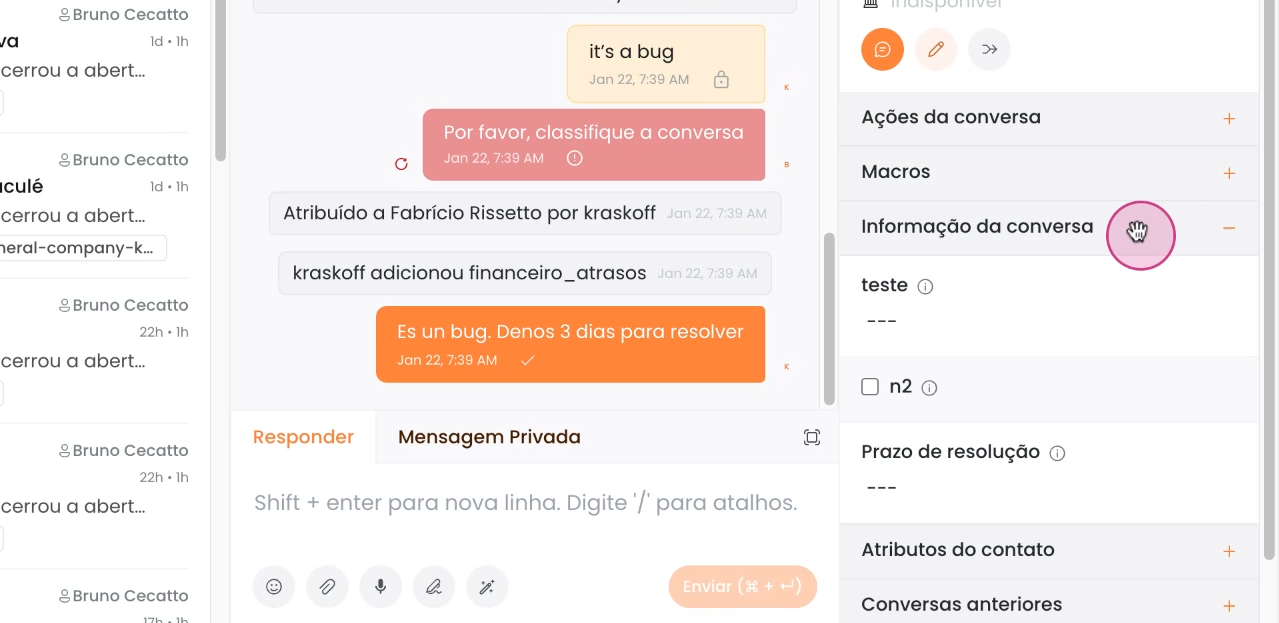
There are also custom contact attributes, which are custom fields created specifically for the contact. These attributes are also created by the administrator.
Like the custom conversation fields, these contact custom fields can be:
-
Link
-
Date
-
Checkbox
-
List
-
Text
-
Number
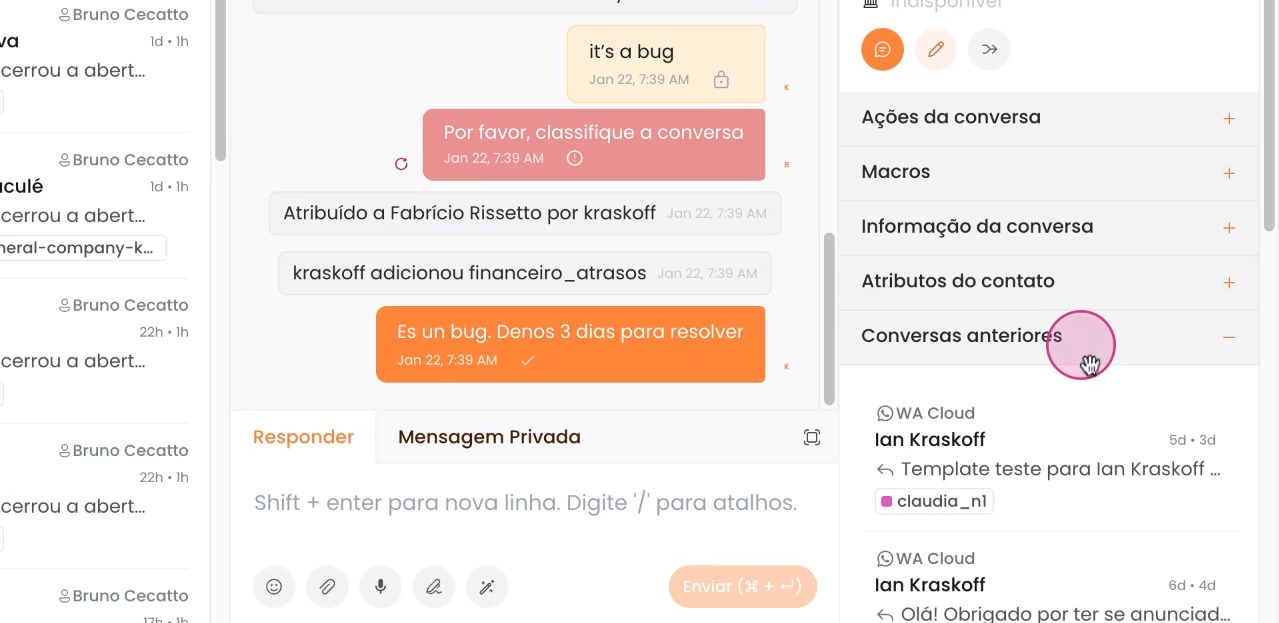
Past Conversations
You can view all previous conversations that the contact has had.
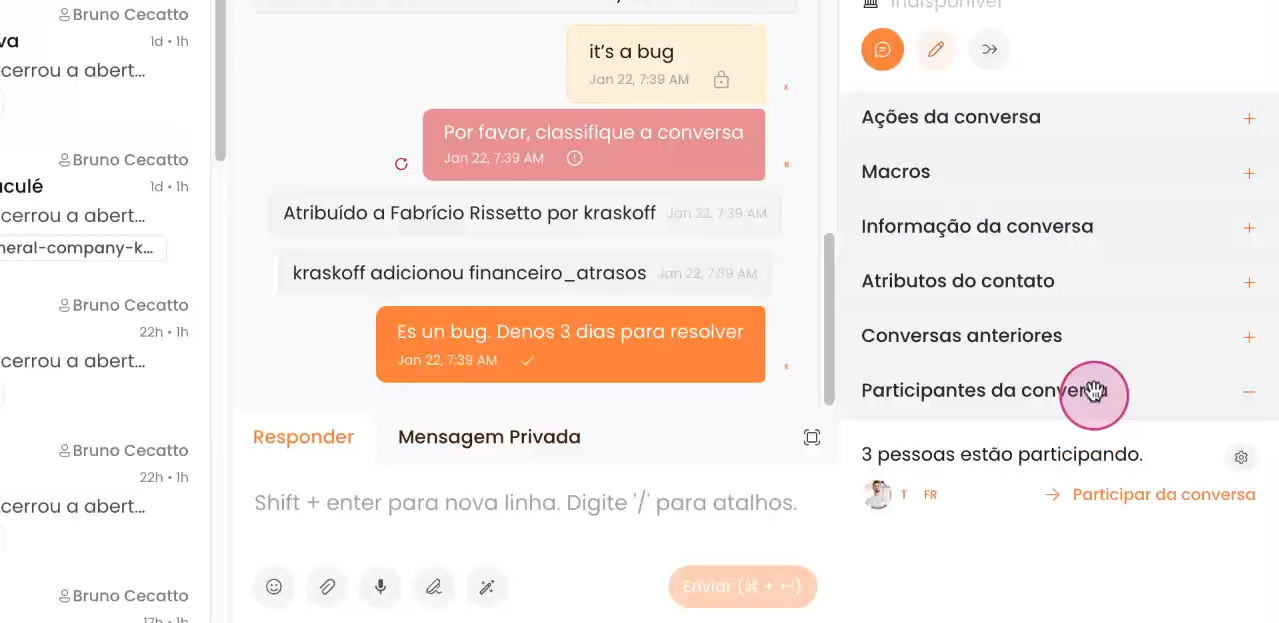
Conversation Participants
See who the participants of the conversation are, i.e., through whom in the company this ticket has passed.
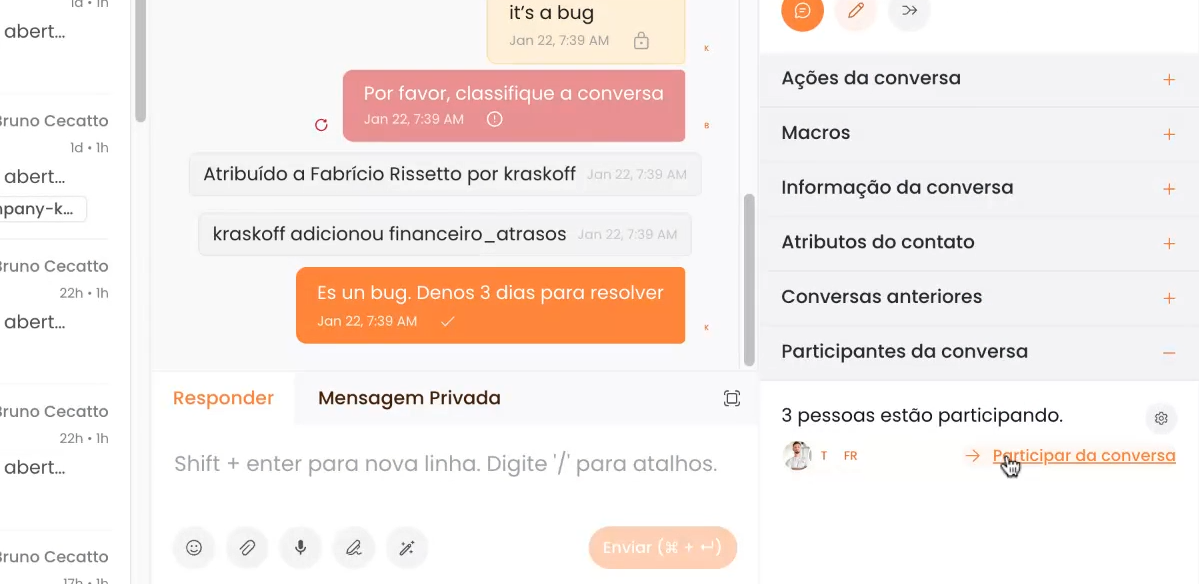
By clicking on "participate in the conversation," you can follow the conversation.
Audio Transcription
Now you can transcribe audios sent directly to N2. It’s very simple; just click on the "Transcribe Audio" function shown alongside audio files and wait a few seconds for the content to be displayed as text.

That’s it! Now you know the extra conversation functionalities.