Creating a New Team
This article provides an overview of how to create a new team and add members to it on your platform.
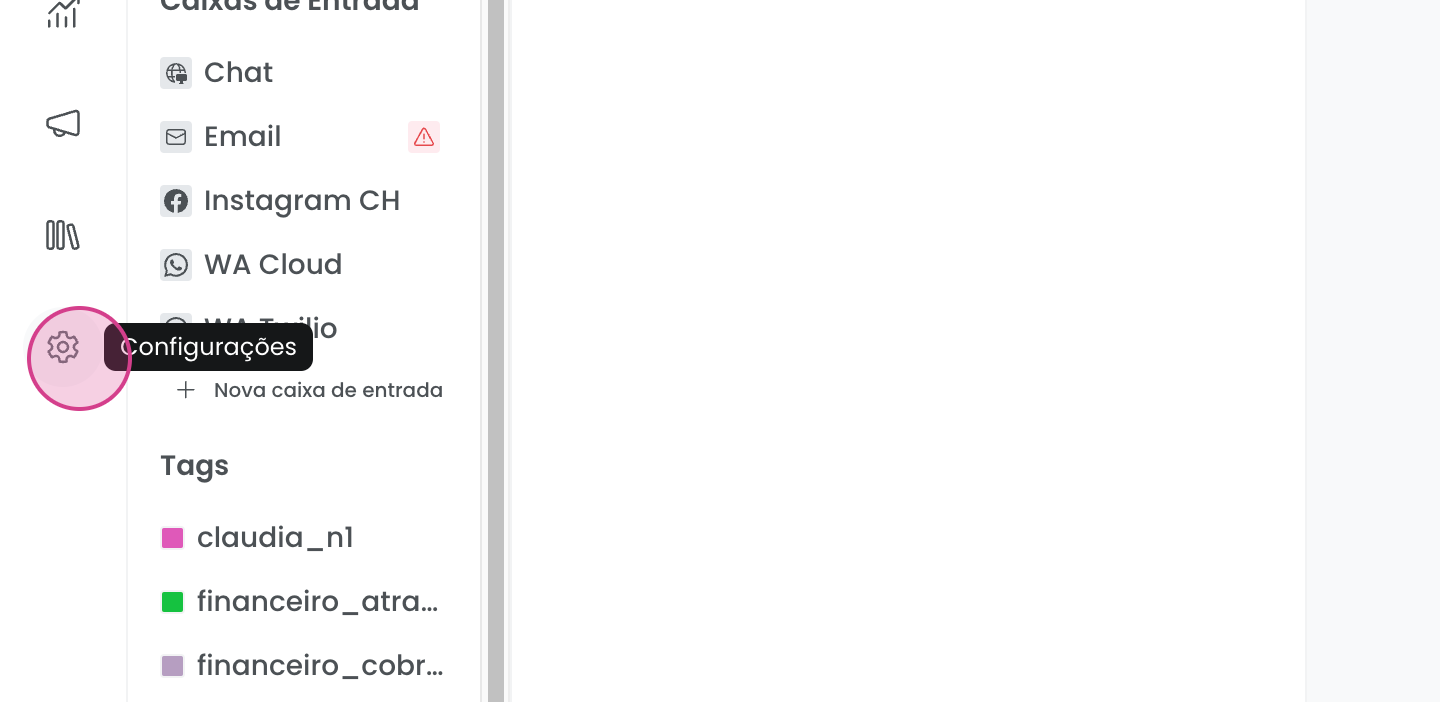
To begin, go to Settings.
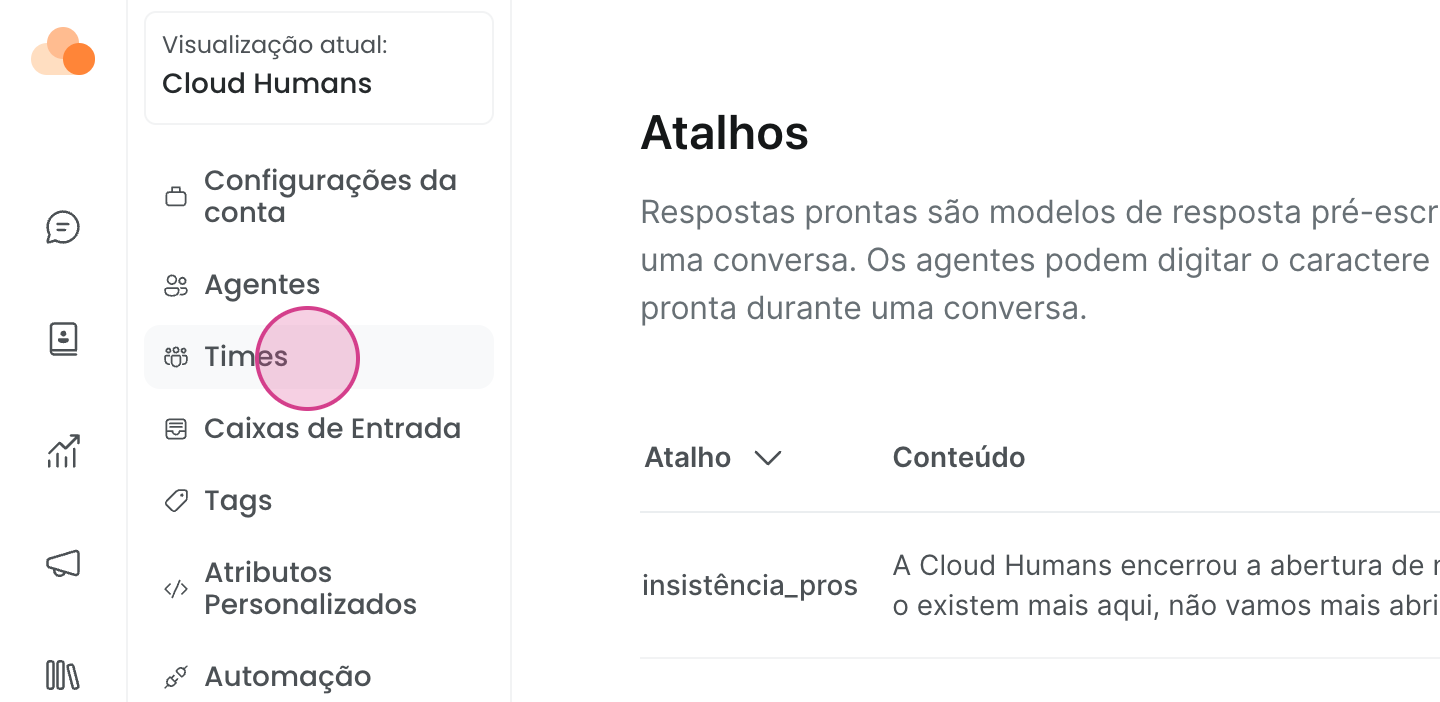
Next, select the Teams option.
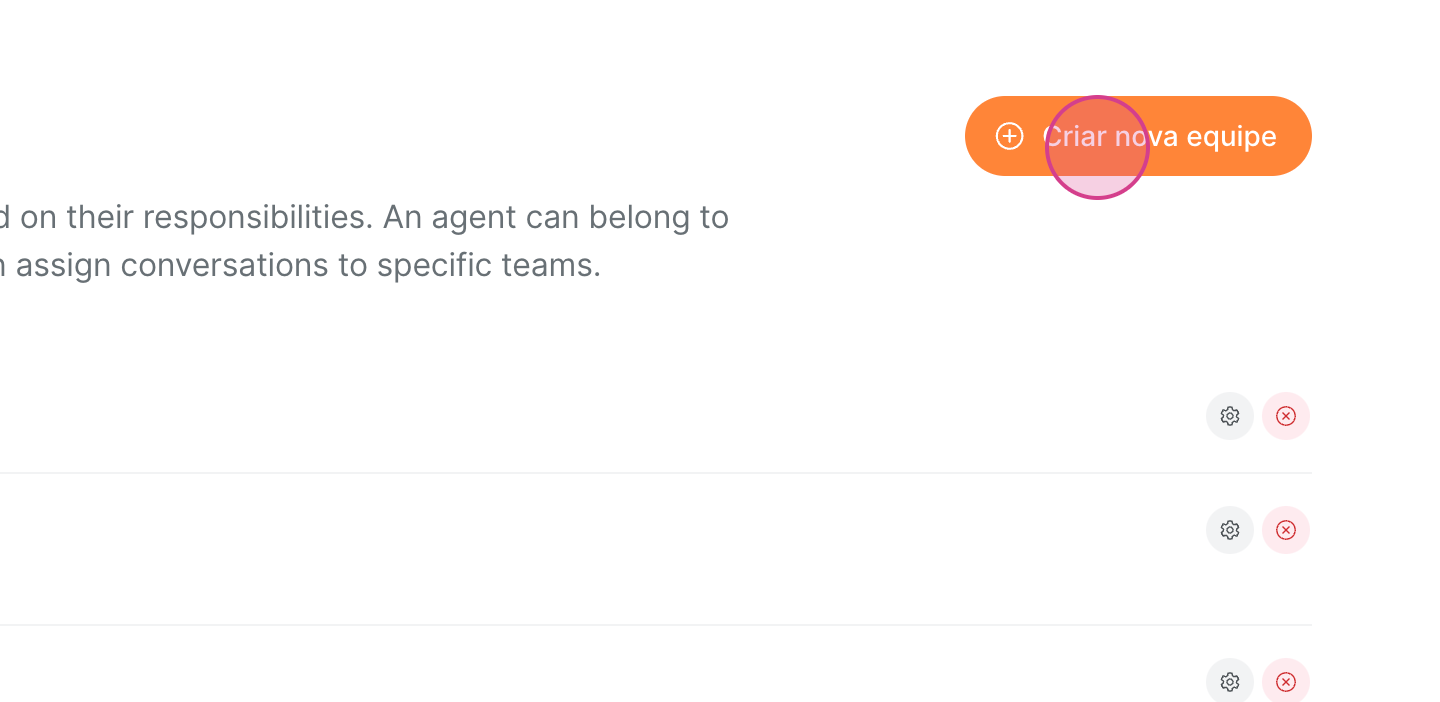
Here, you will see a list of all existing teams. To create a new one, click on Create New Team.
Now, enter a name for the team and a description.
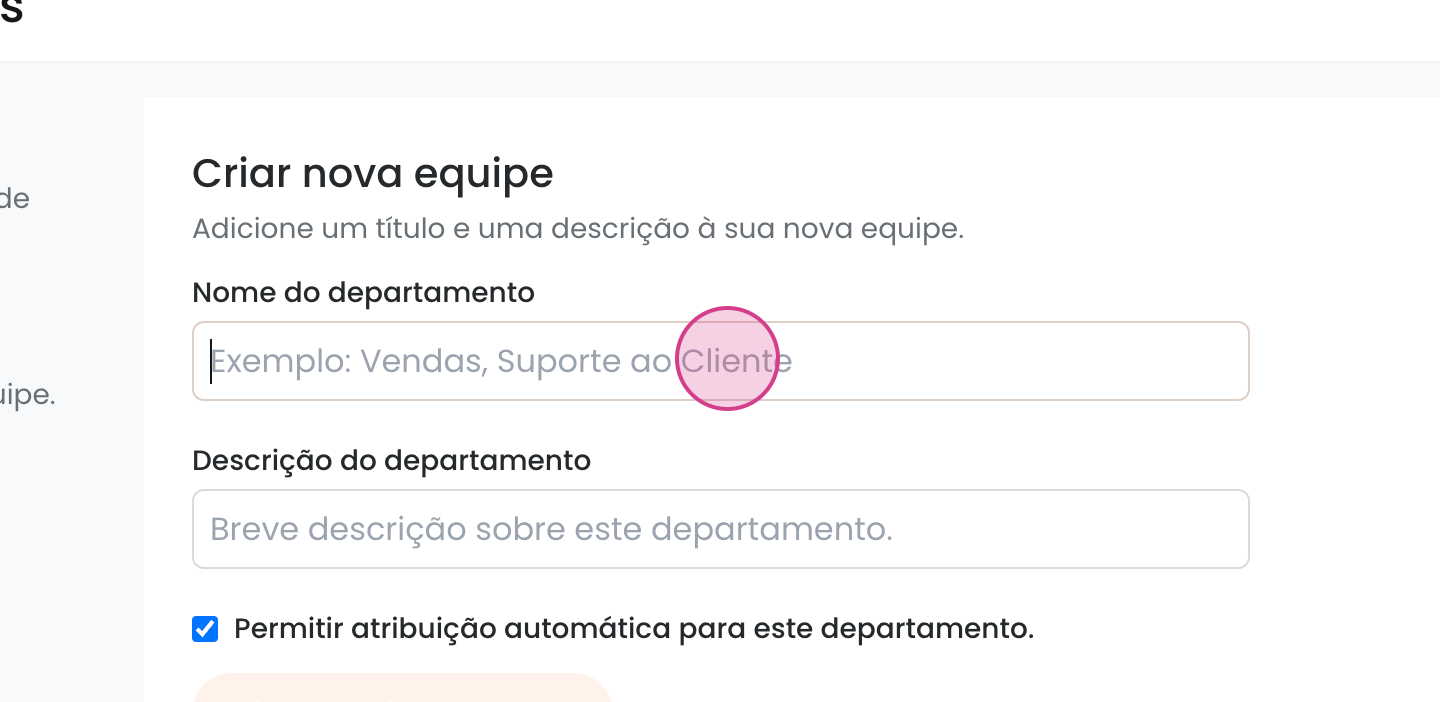
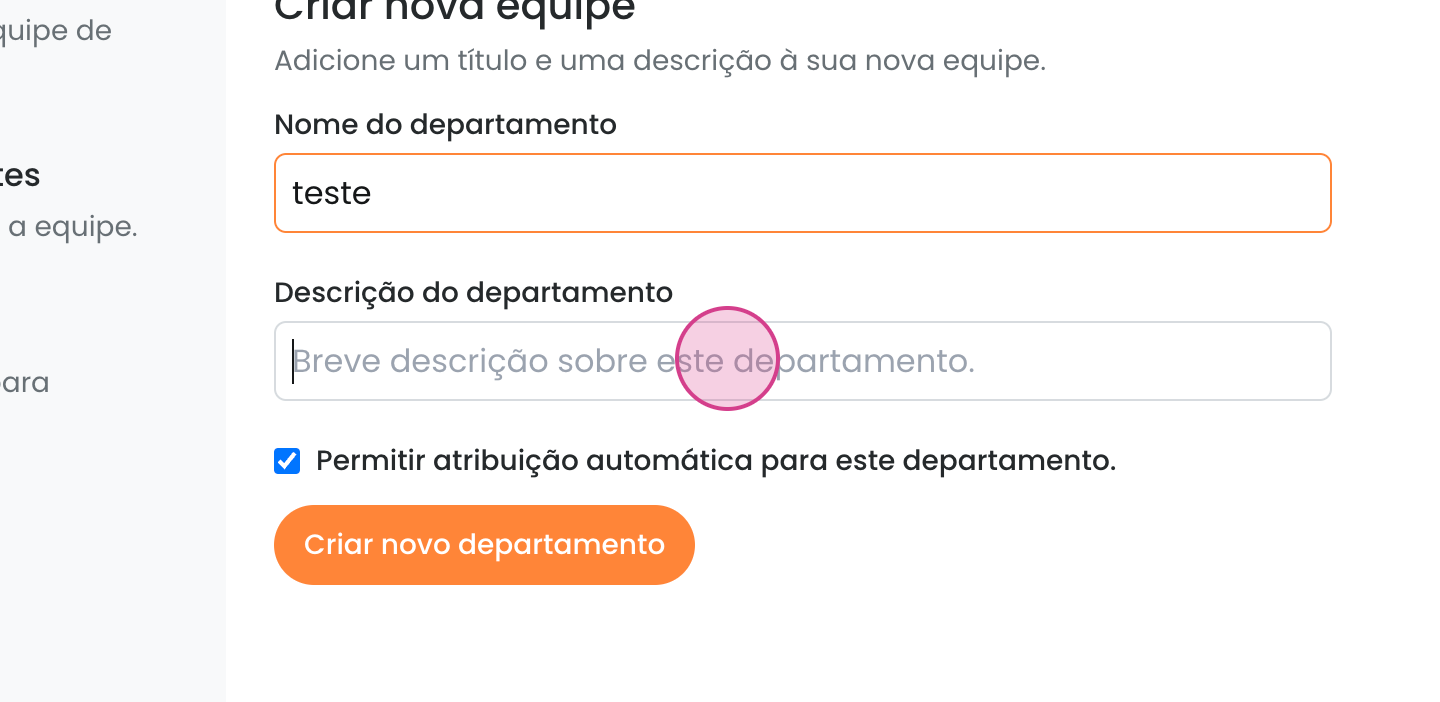
In the Allow automatic assignment option, you specify whether tickets transferred to this team should follow an automatic transfer rule among online team members, or if the ticket will remain without an owner. To enable this feature, keep the checkbox checked.
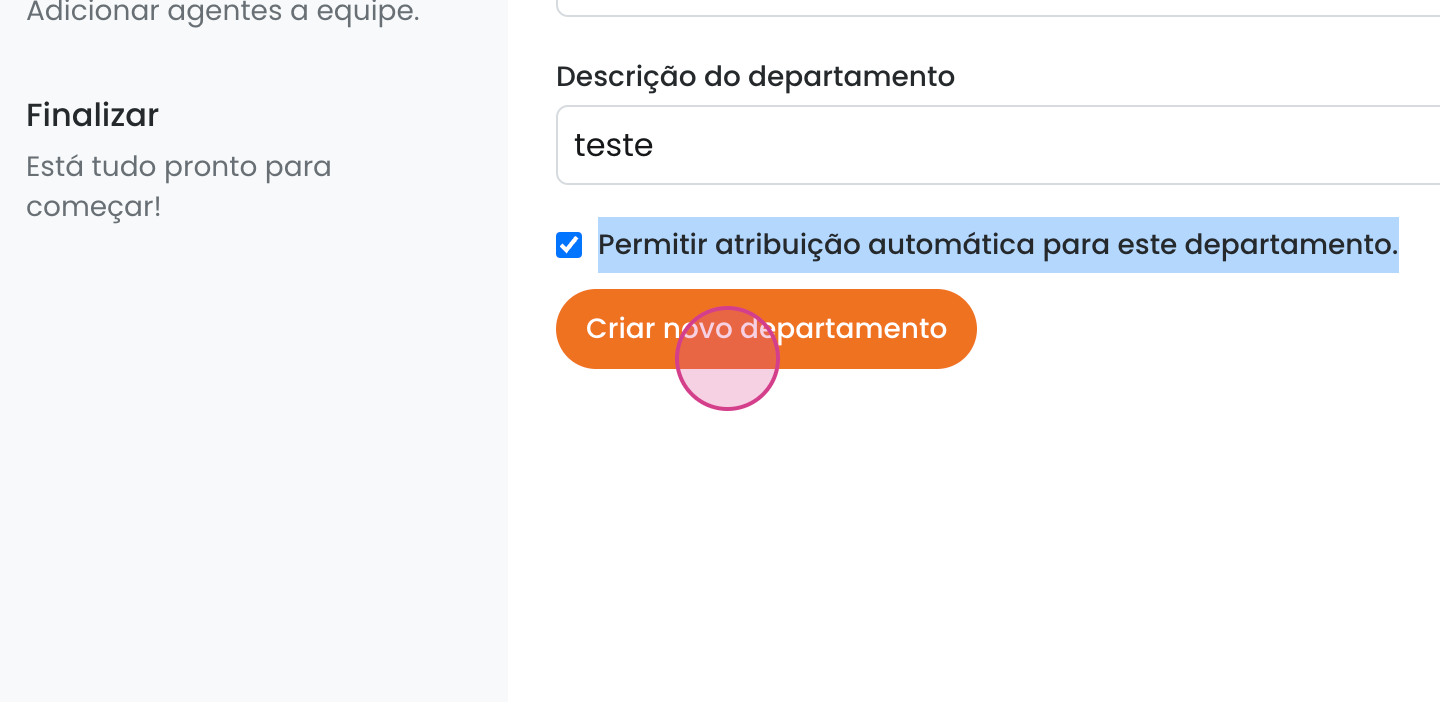
After making this decision, click Create New Department.
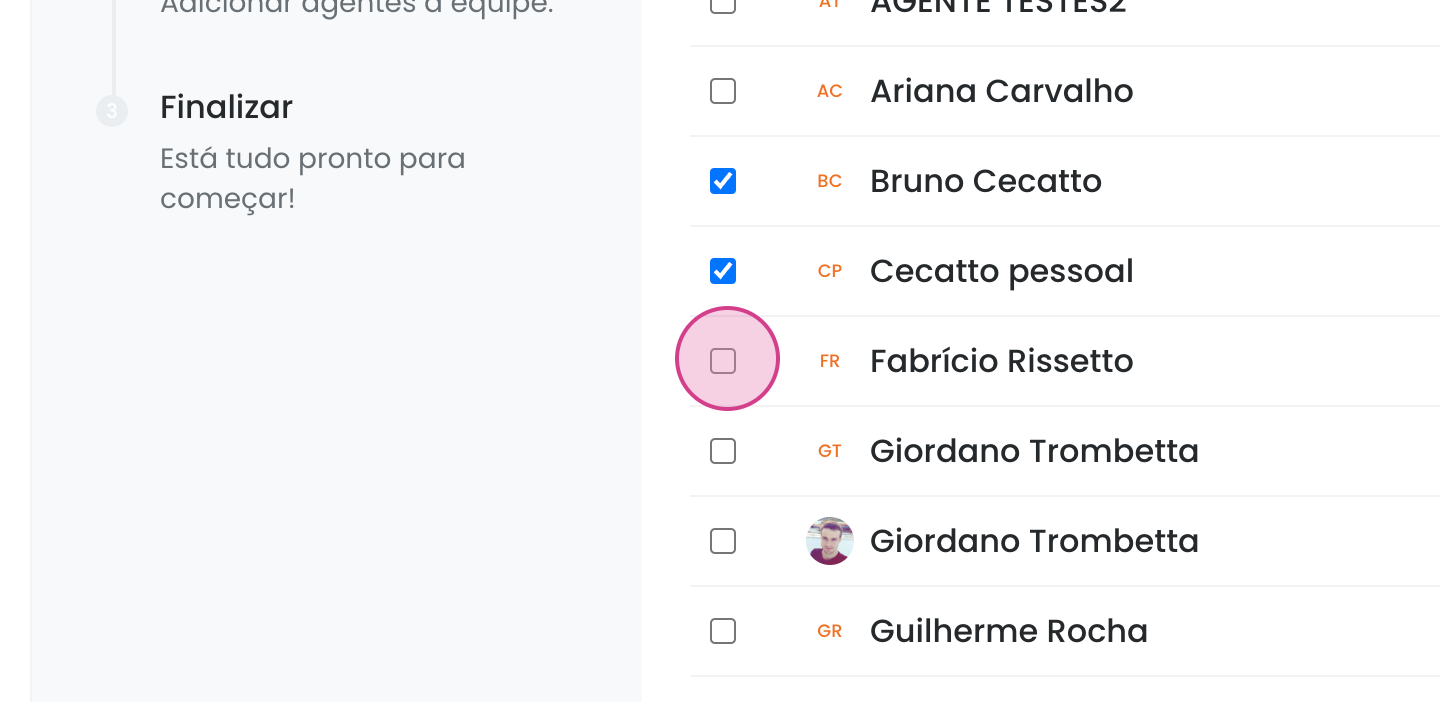
Here, you will select all the agents you want to include in the team.
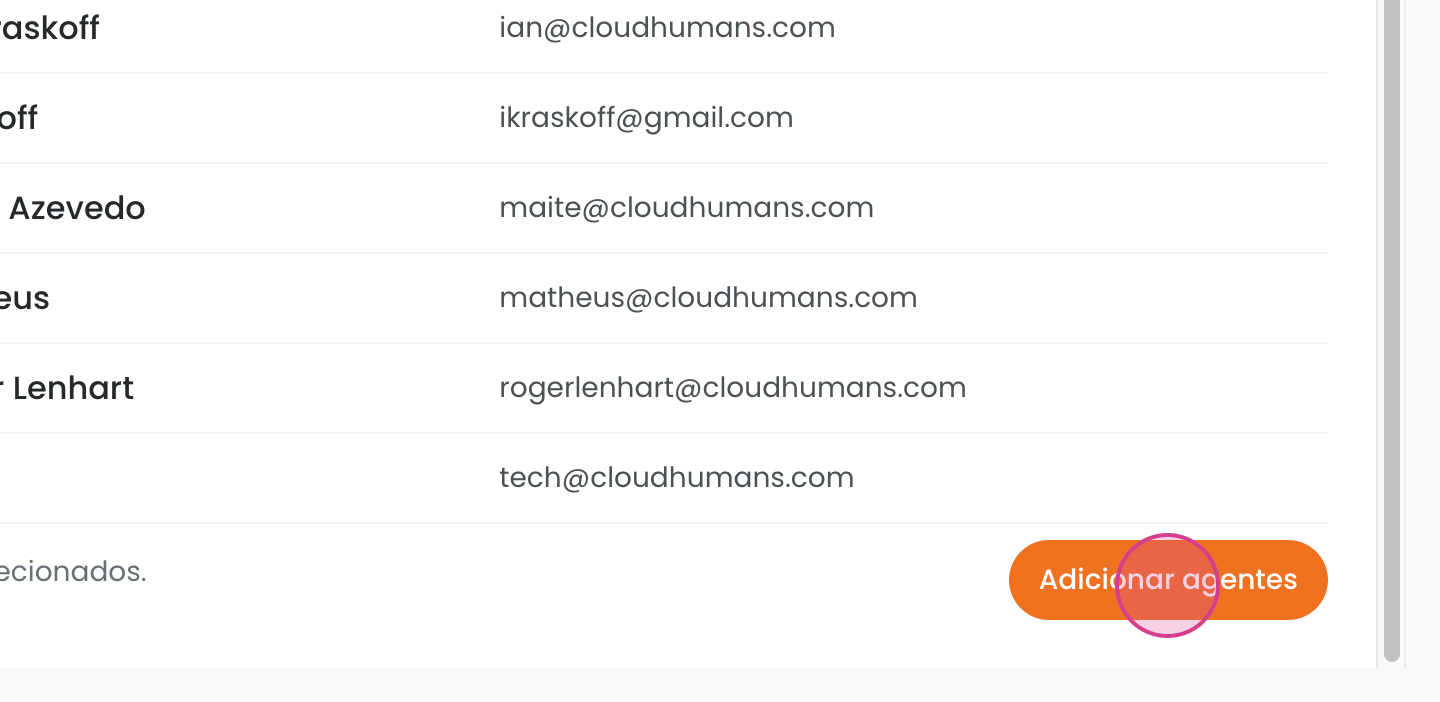
Finally, click Add Agents.
All set, your team has been created! To finish, click Finish.

⚠️ Important: for your agent to correctly see the Inbox, they must also be assigned to it. Follow the steps below to set up this configuration:
Access the inbox
Go to Settings > Inbox, select the desired inbox (e.g., Chat), and click Edit.

On the selected inbox screen, go to the Collaborators > Agents tab. Type the name of the agent you want to include—they will appear below. Click on the corresponding name.

After adding the agent, their name will appear listed among the collaborators. Click Update to save changes.

Editing, Setting Custom Working Hours, and Deleting Teams
To edit the team or add different working hours from the usual schedule, click Edit.
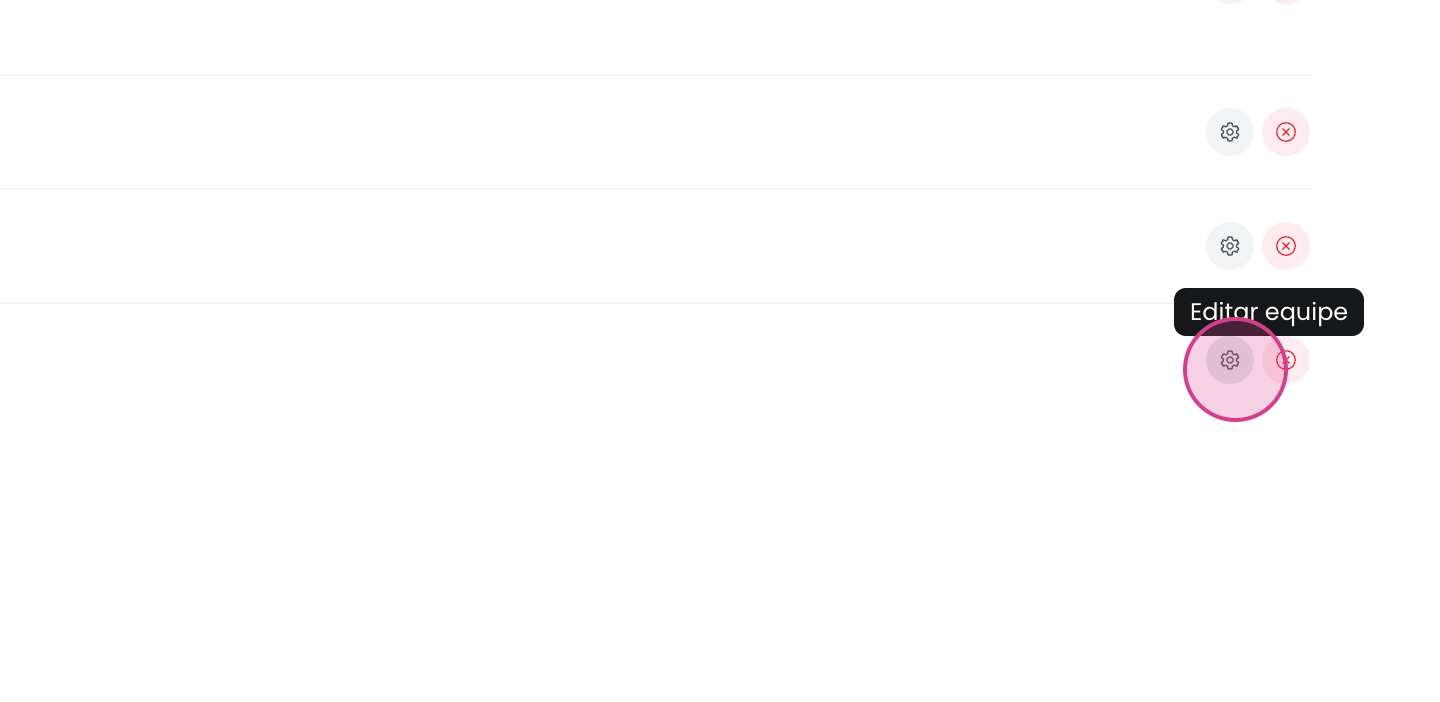
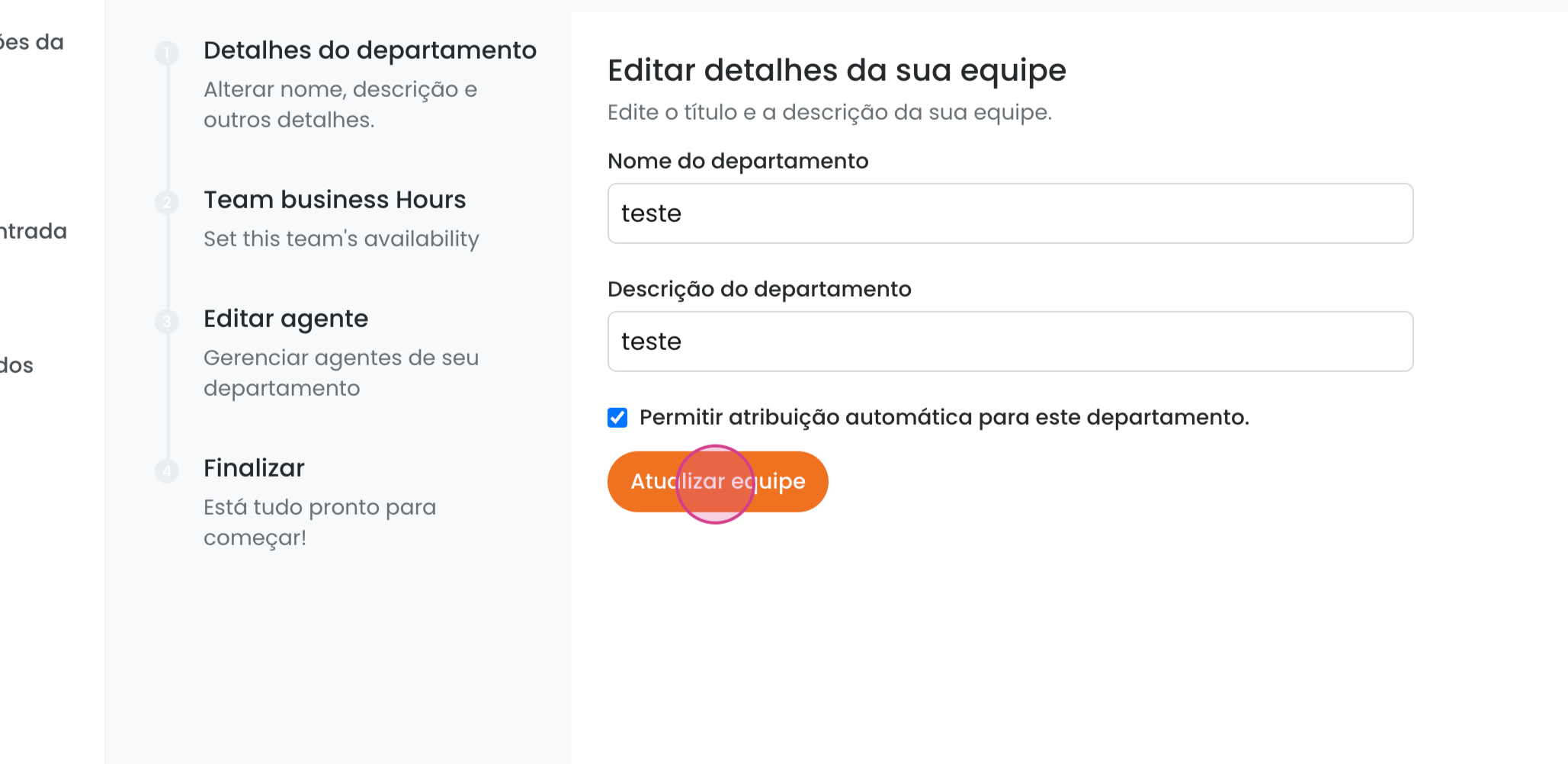
Here, you can edit the team name and description.
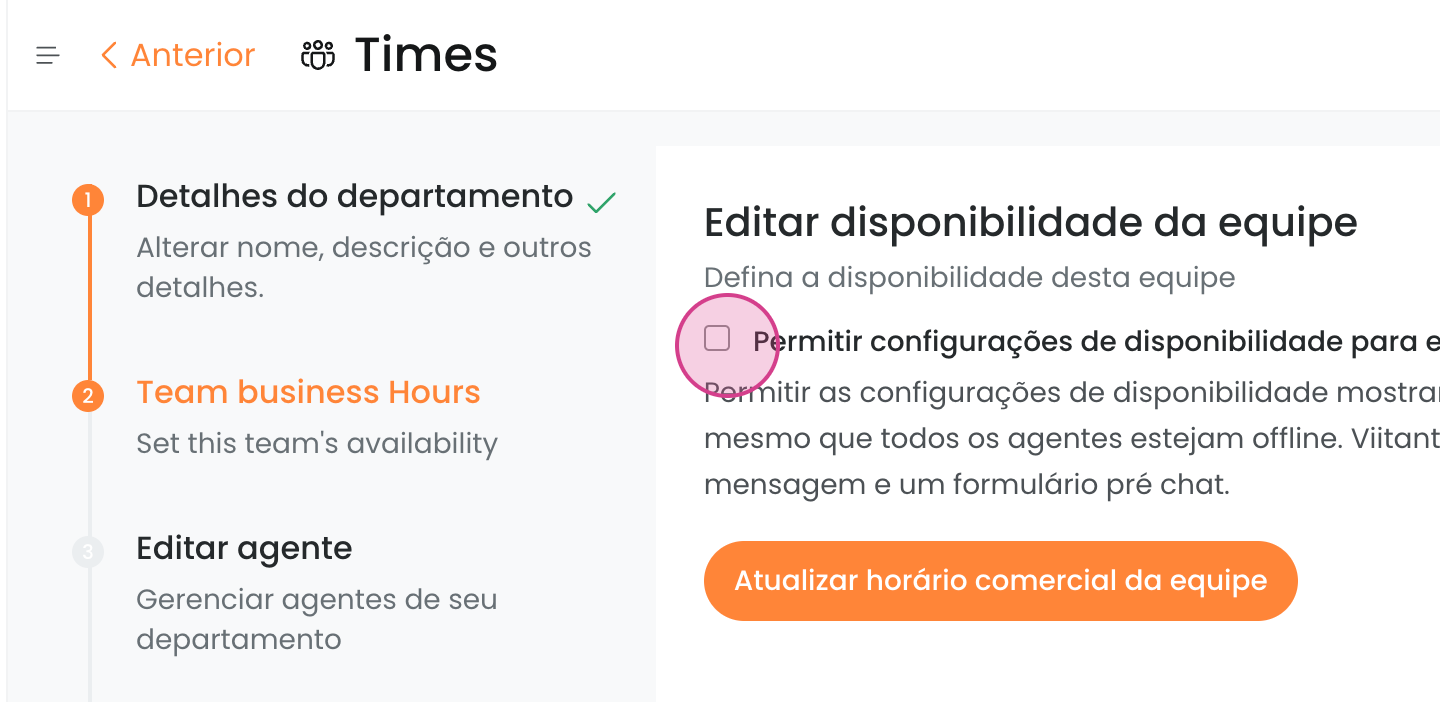
In this screen, you can set the team hours if they differ from the regular hours. This is relevant, for example, if your finance team only works from Monday to Friday instead of Monday to Sunday like the rest of the team. In this case, you would click Allow team availability settings to define their working hours.
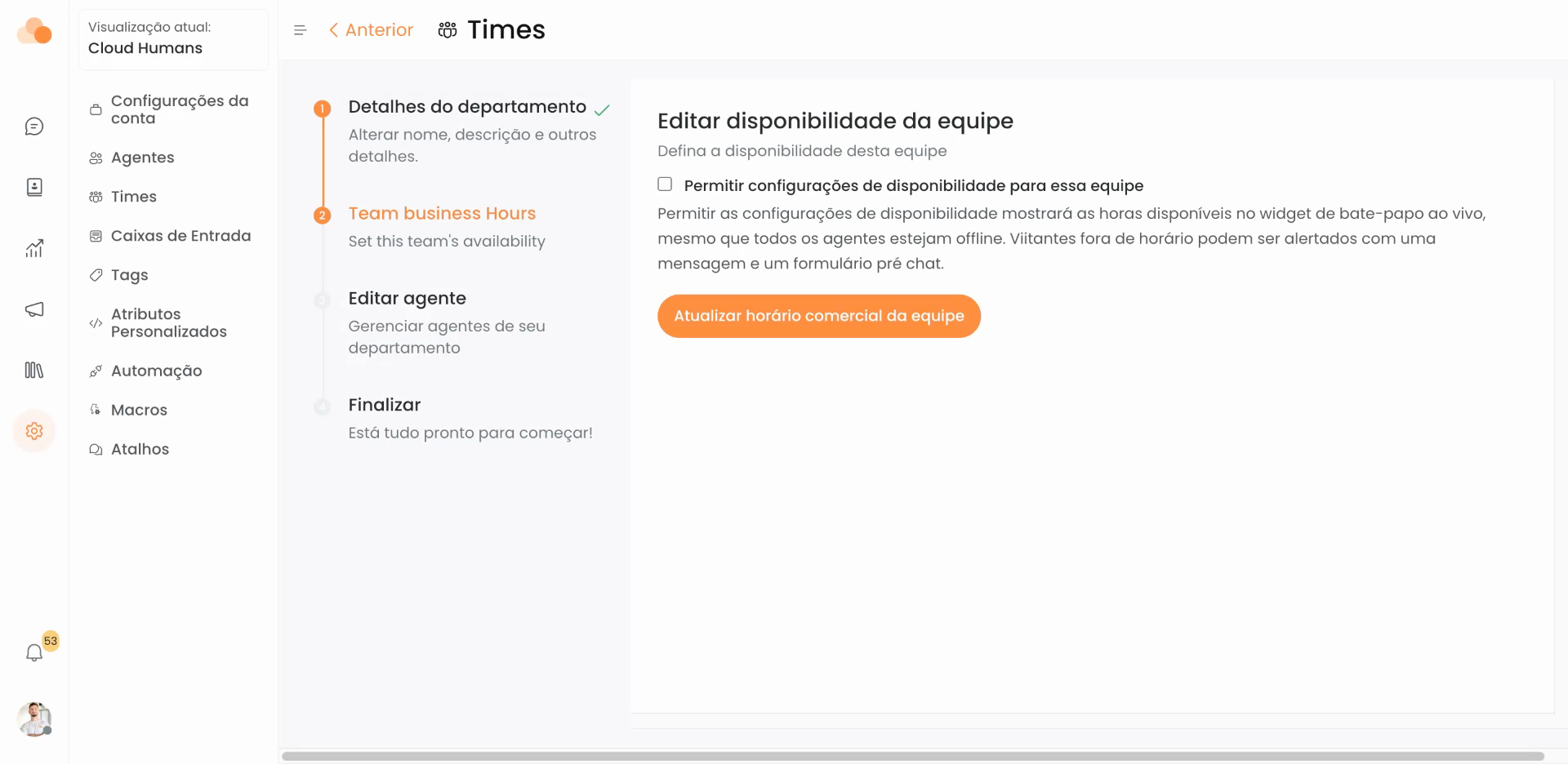
When finished, click Update Team Business Hours.
Here, you can also edit, add, or remove team members. When done, click Update Department.
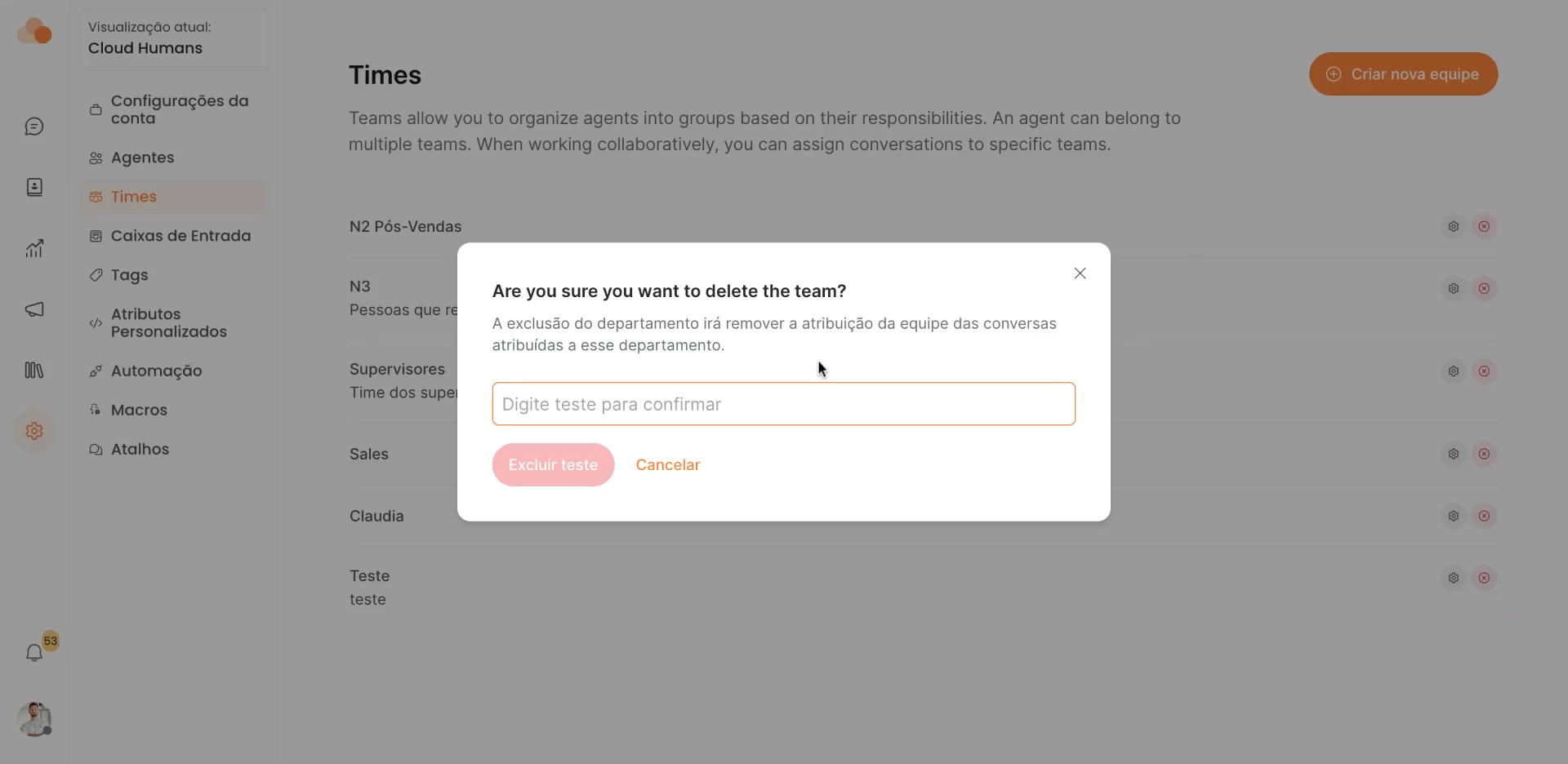
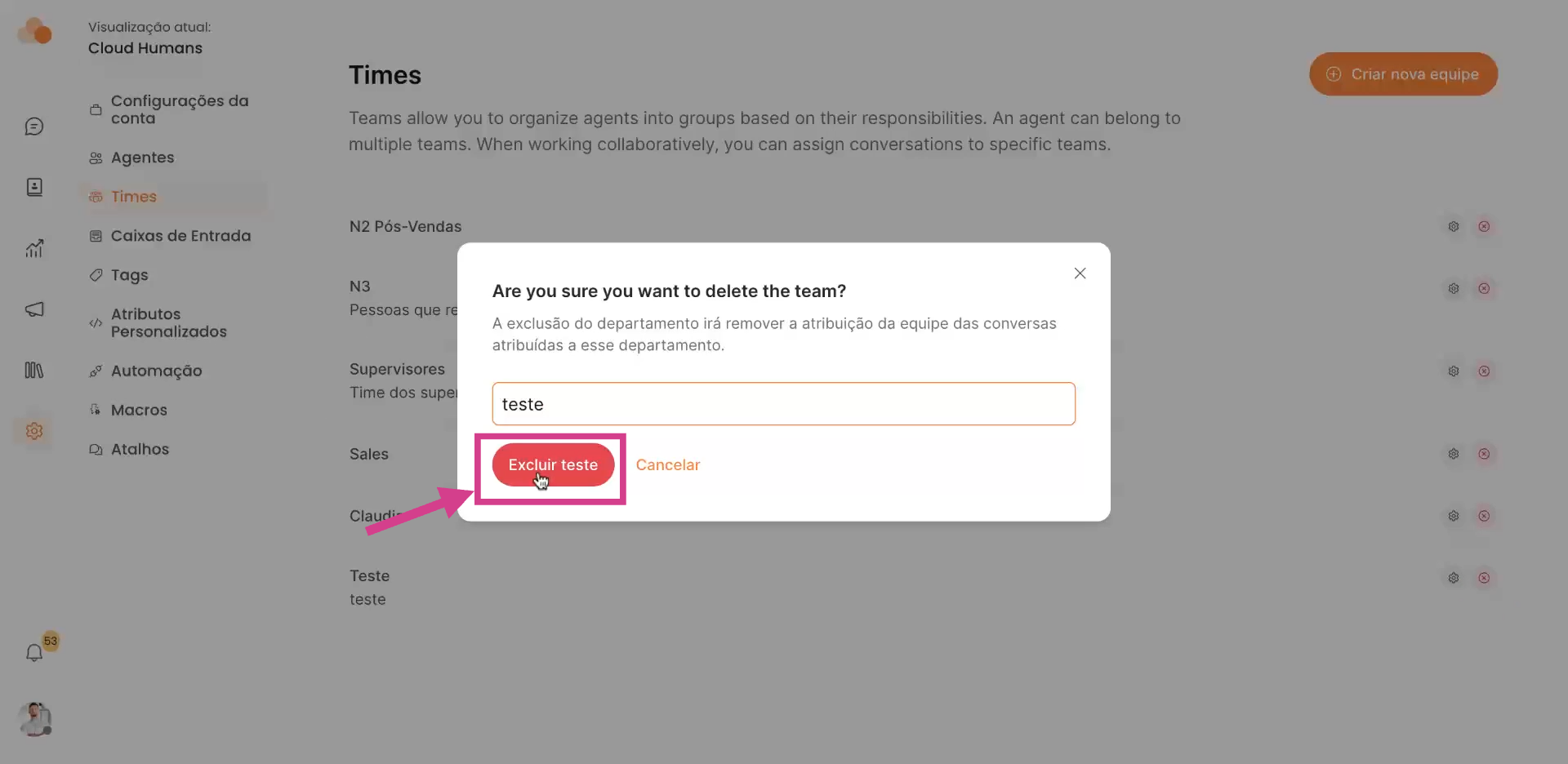
To delete a team, click Delete.
You will be prompted to enter the name of the team you want to delete. After doing so, click Delete Test.
And that's it! Now you know how to create, edit, and delete teams on your platform.