If you'd prefer to watch the tutorial, go here:
🟢 Open
An "Open" ticket means it is being attended to, usually with the last message from the customer, or the agent has not changed the status after responding. This is the default status for any received ticket until it is manually updated.
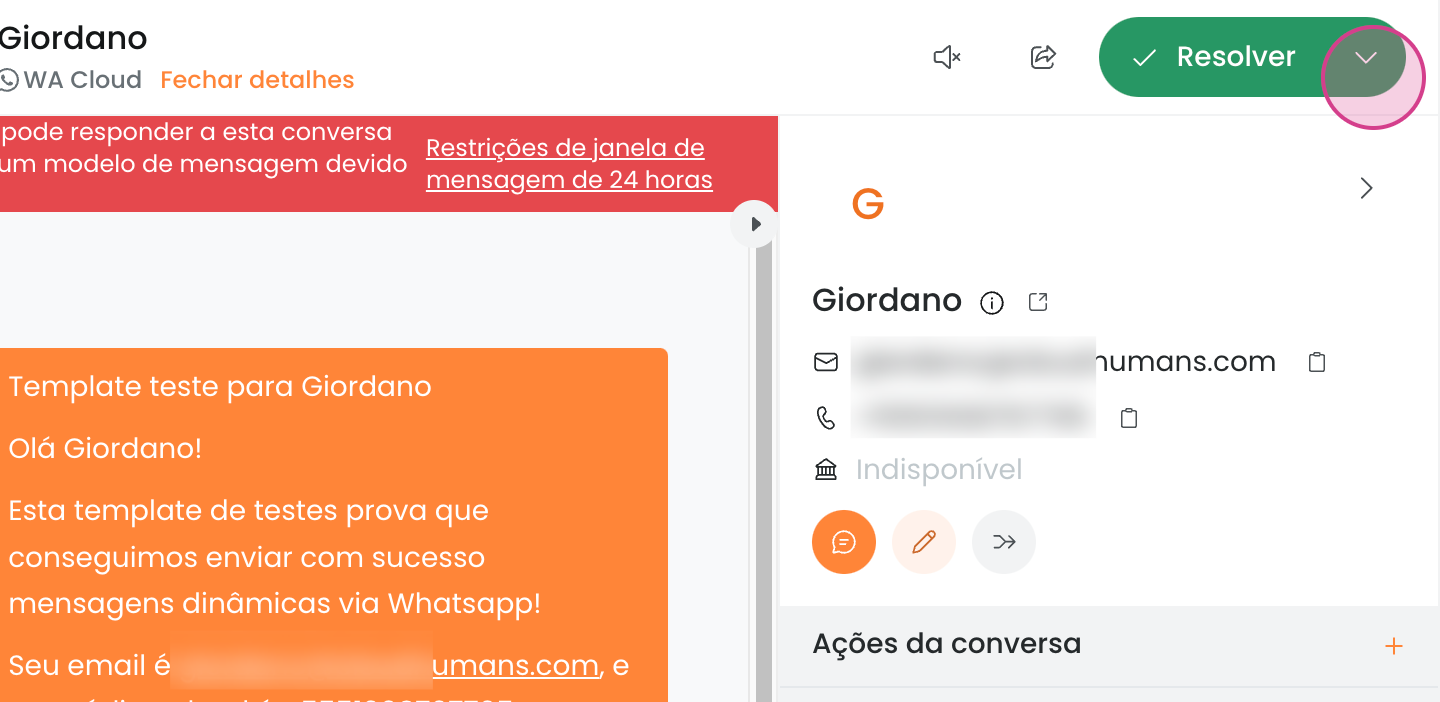
✅ Resolved
Marking a ticket as Resolved (or Closed) indicates that the assistance has been completed.
If the CSAT (Customer Satisfaction Score) feature is enabled, a satisfaction survey is automatically sent at this point. To learn how to set up CSAT notifications, see our FAQ: How to configure CSAT sending.
Note that the Cloud Chat administrator may have set up an automatic closure rule.
This rule specifies that, after a configurable number of full days (e.g., 1, 2, 3 days or more) without a response from the customer, the ticket will automatically be closed — meaning it will be marked as resolved — provided the last message was from the agent. To learn how to set up this rule, see our FAQ: How to configure automatic closure by days.
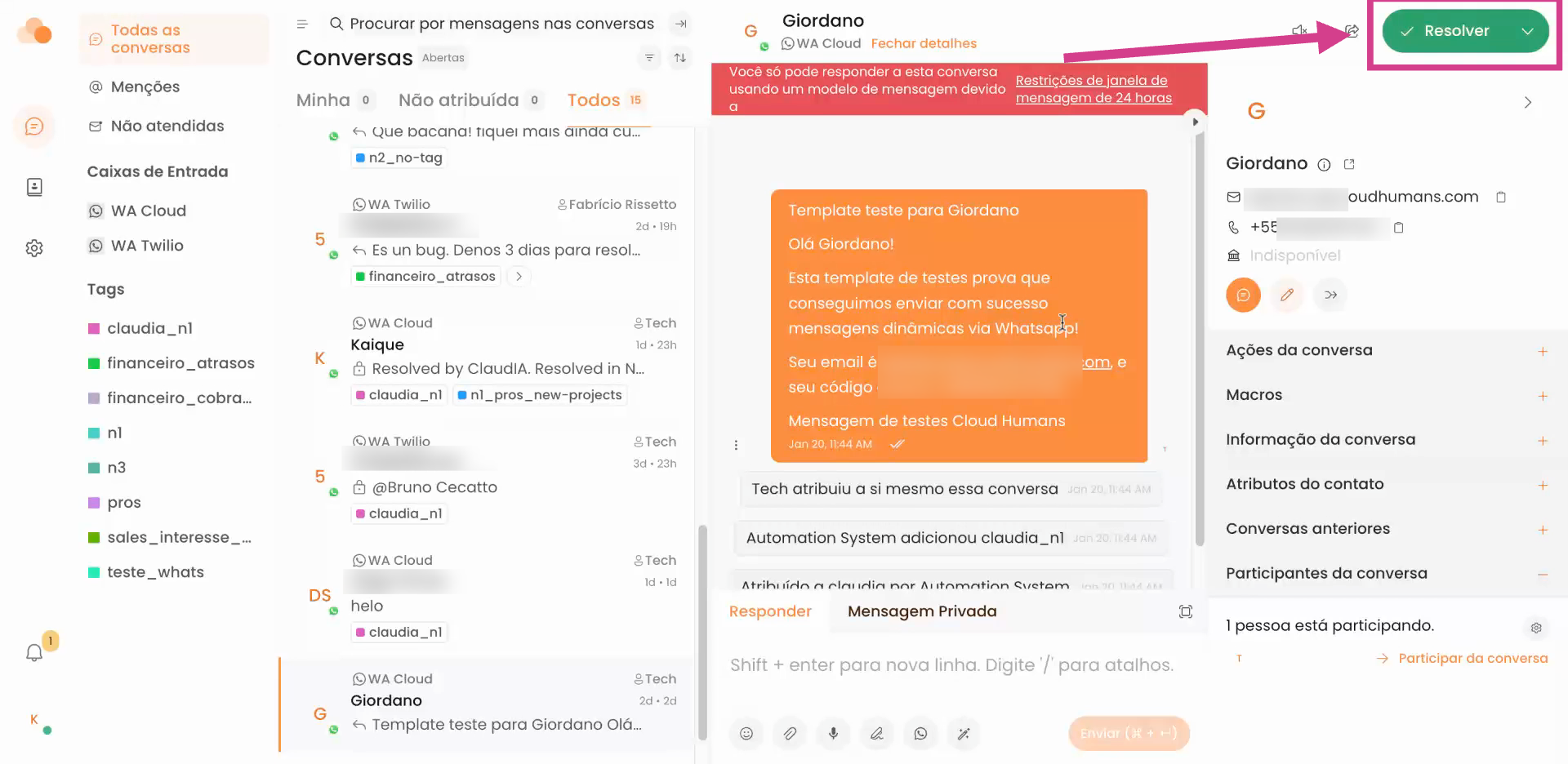
📌 Pending
The Pending status is used when the assistance depends on some internal action, such as a technical analysis or a response from another team.
In this situation, the ticket is “paused”, awaiting an internal action, and will not be reopened automatically if the customer sends a new message.
Important: if the customer responds while the ticket is pending, it will not change to "Open" automatically — the agent will need to reopen it manually.
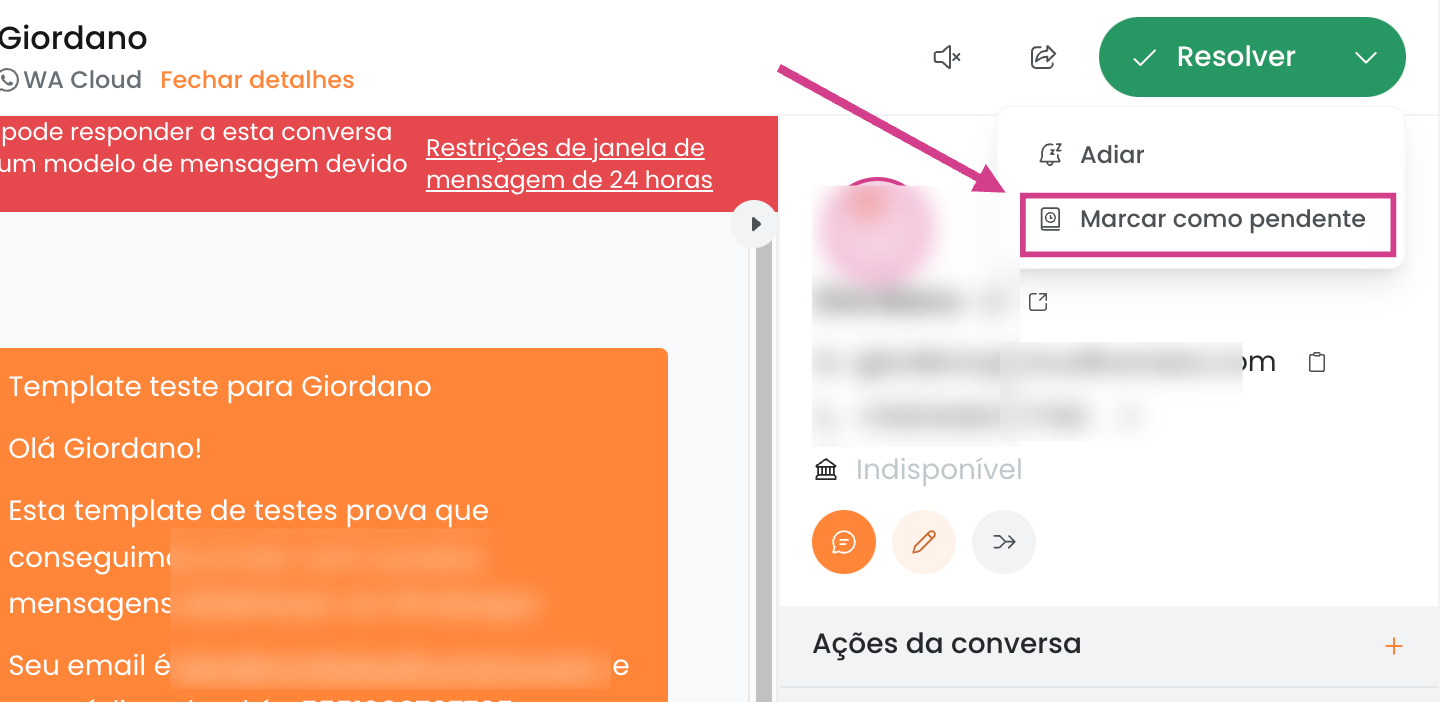
🔔 Delayed
The Delayed status is similar to pending but has an important difference: it is temporary and has a date or condition for automatic re-opening.
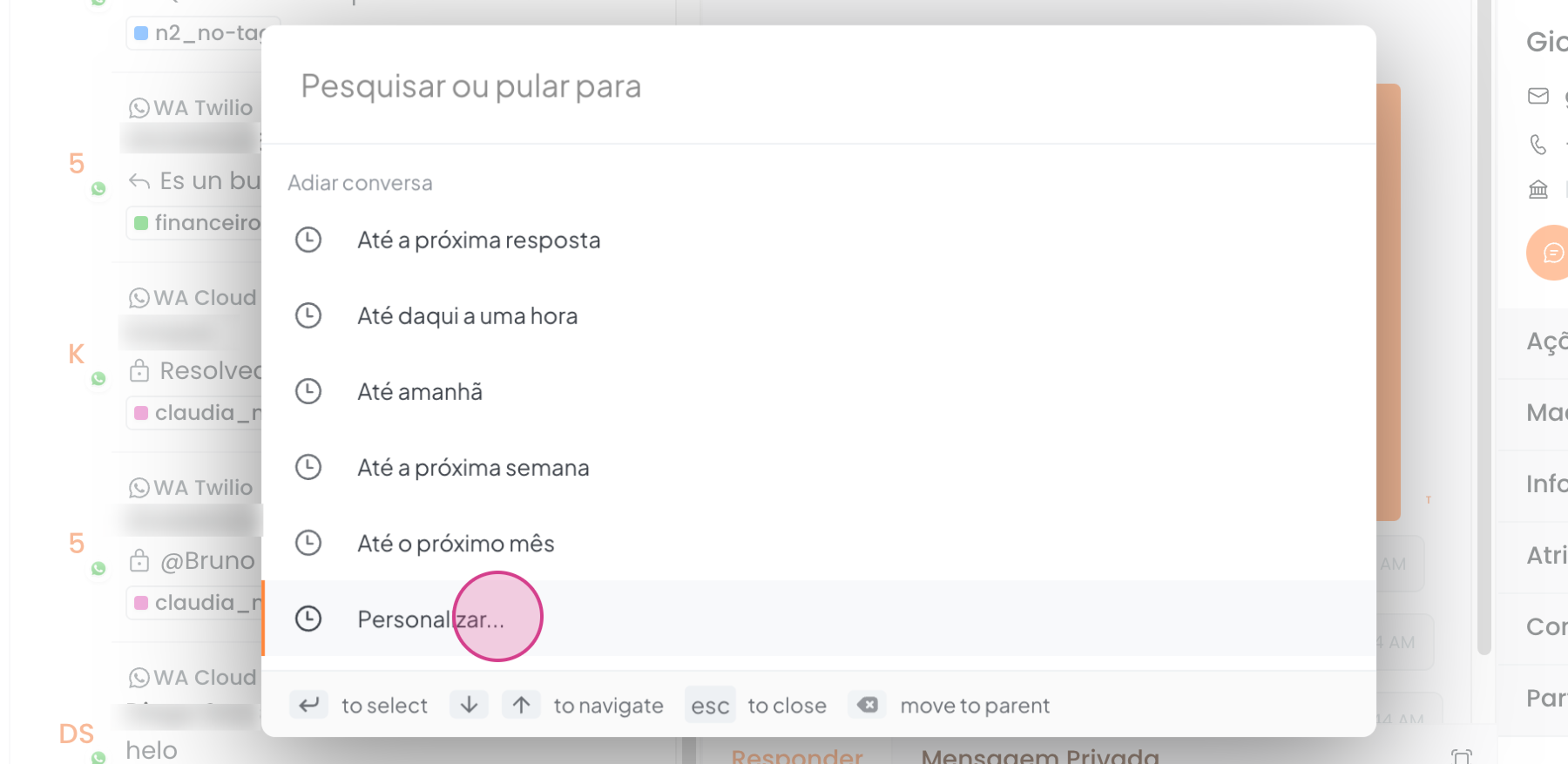
When clicking on "Delay," a tab opens for you to set how long the ticket will be delayed.
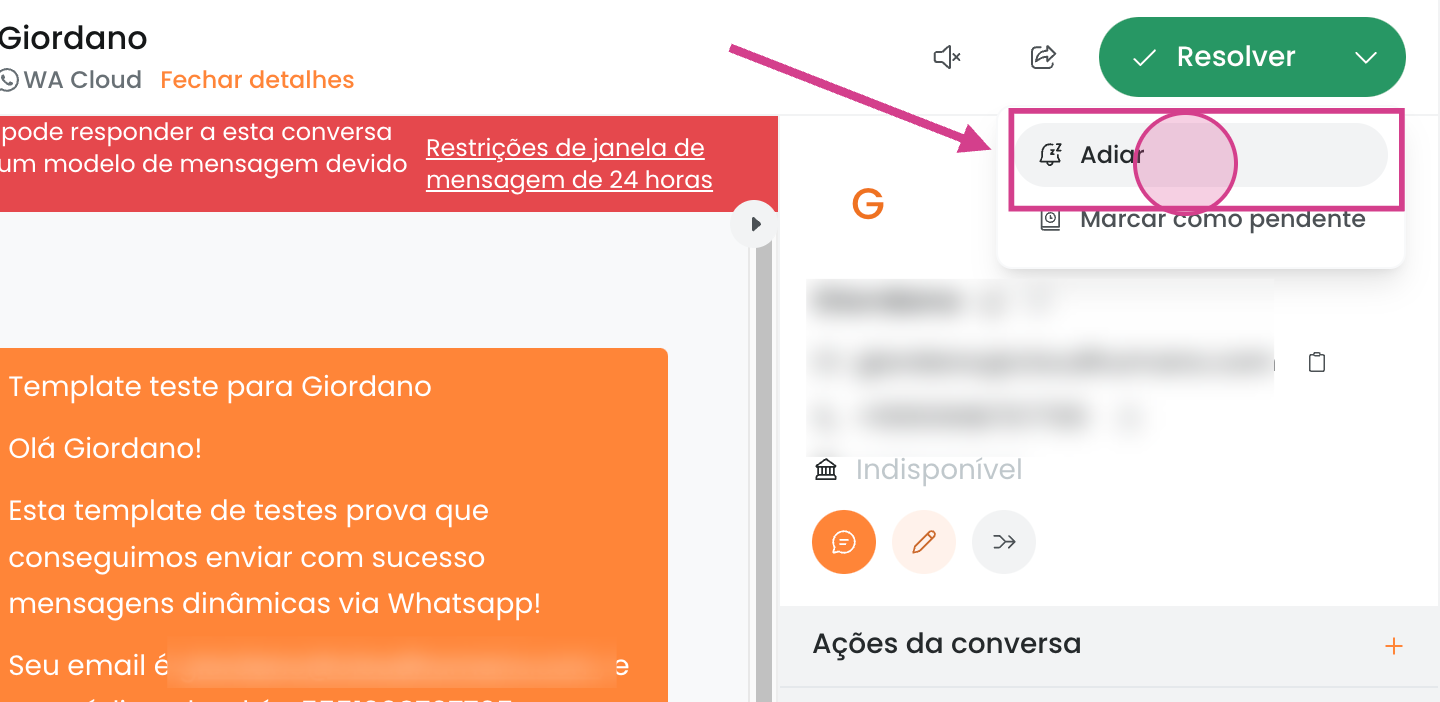
Options include, for example:
-
Until the next response
-
Until one hour from now
-
Until tomorrow
-
Until next week
-
Until next month
-
Customize... (Custom period: date and time manually set)
🕐 Practical operation:
-
If you choose “Until the next response”, the ticket will be reopened as soon as the customer responds.
-
If you choose a time-based option, the ticket will also be reopened if the customer responds before the configured deadline. If the customer does not respond, the ticket will reopen automatically at the set time.
This feature is especially useful for future follow-ups, check-ins, or pending issues with a deadline — allowing the ticket to return to the queue automatically, without depending on the customer.